
Applies to:
- Administrators creating or customizing reports.
- Variphy users utilizing Webex Calling reports.
- Organizations managing multi-site call analytics.
Common Causes or Issues
- Need to better organize report data across multiple locations.
- Difficulty analyzing call activity by both site and department.
- Reports lacking structured grouping for easier insights.
Interactive Walkthrough
Steps
How to Add Department as a Secondary Grouping
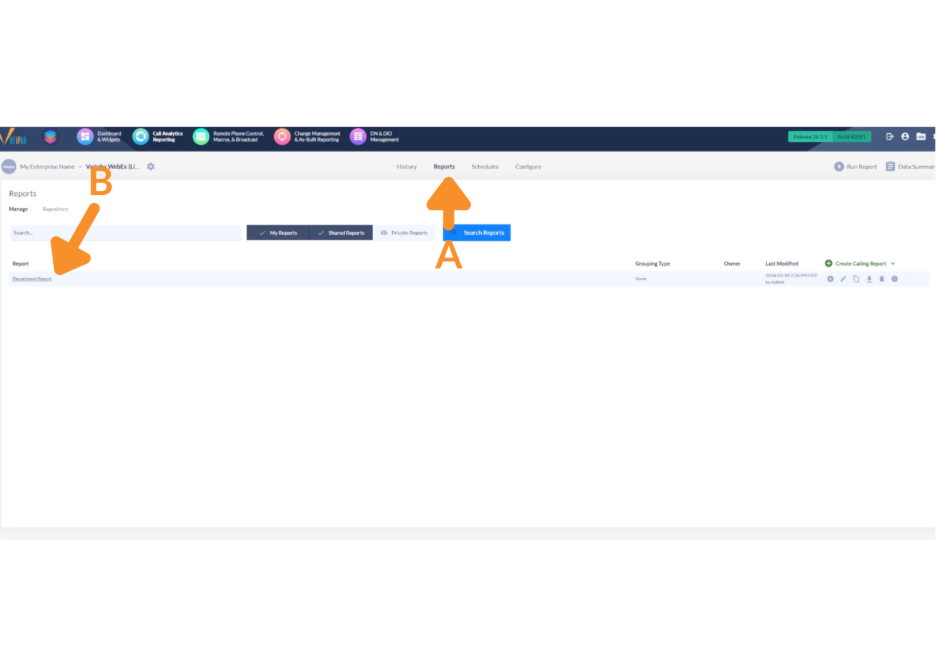
1. Open and Select a Report.
A. Under the Webex Platform in Variphy, click on the Reports tab.
B. Select the report you want to edit.
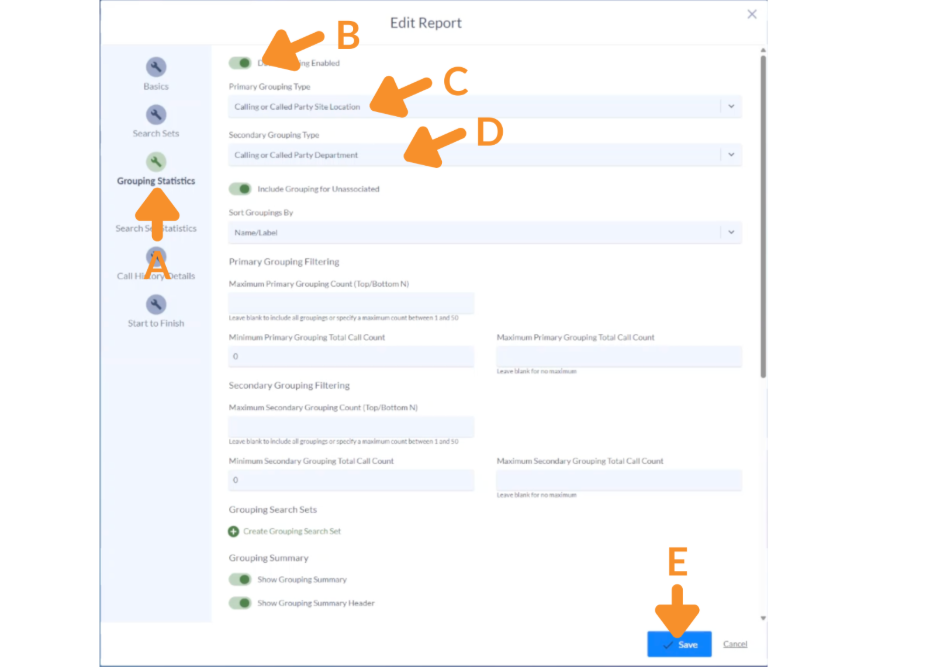
2. Configure Group Settings.
A. Click on Grouping Statistics.
B. Toggle Data Grouping Enabled to ON.
C. In the Primary Grouping Type, choose Calling or Called Party Site Location.
D. In the Secondary Grouping Type, choose Calling or Called Party Department.
E. Click Save.
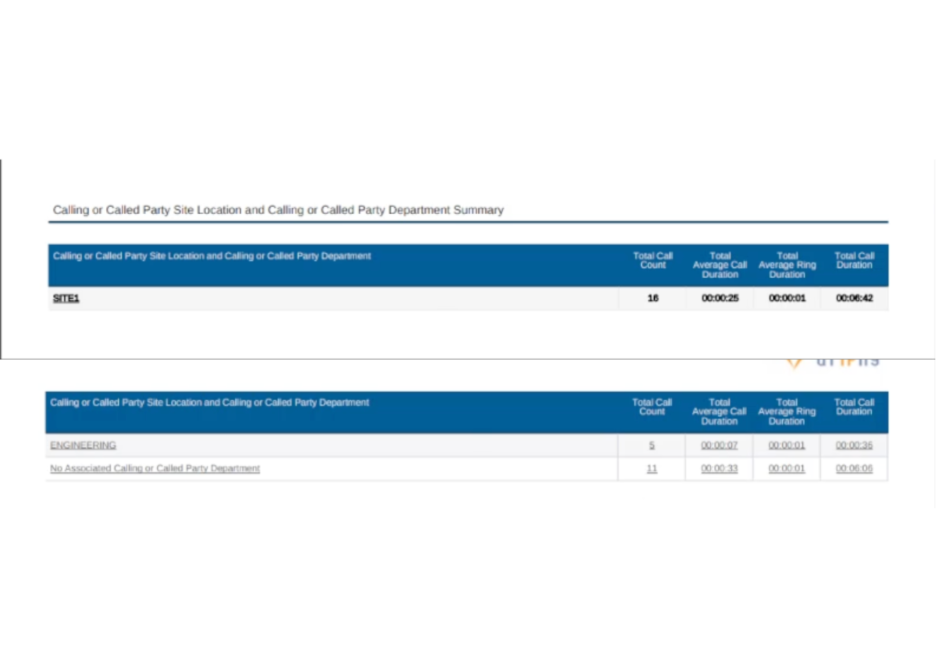
The report will now display data grouped by:
- Site Location (Primary).
- Department (Secondary).
Still Need Help?
Email our support team at support@variphy.com or click the button below to access our ticket portal.
Please provide details about your question or issue, including any applicable screenshots, reports, or Variphy application log files.
