Applies to:
- Variphy administrators.
- IT teams managing Unified Communications (UC) environments.
- Compliance and security personnel monitoring administrative activity.
Common Causes or Issues
- Need proactive notification of configuration changes in CUCM or other UC platforms.
- Manual audit log review consuming administrative time.
- Compliance requirements requiring monitoring of administrative actions.
- Lack of visibility into critical system changes (e.g., Calling Search Space updates).
Interactive Walkthrough
How to Configure an Audit Log Event Alert
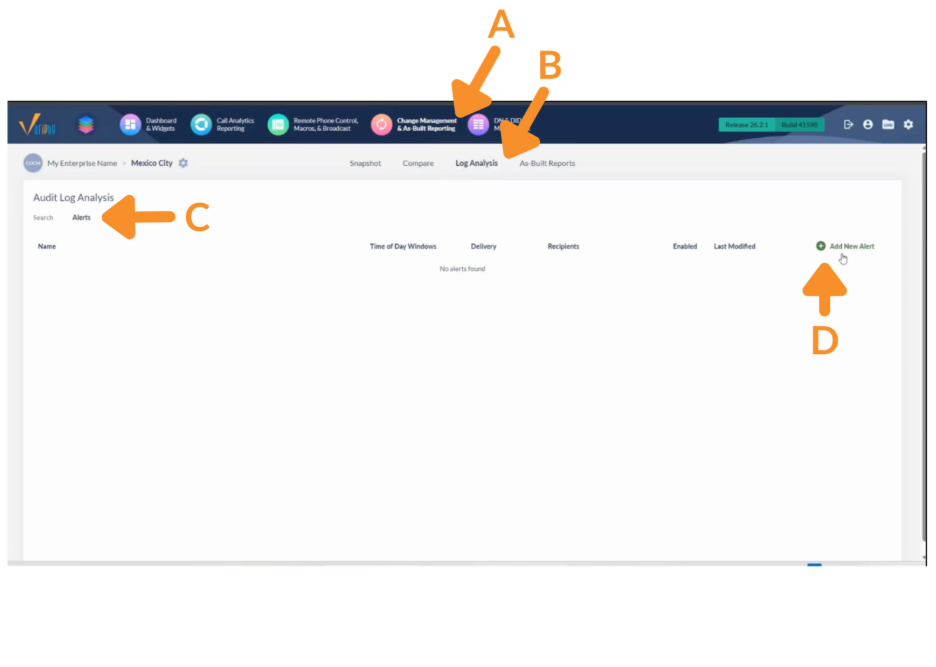
1. Create a New Alert.
Navigate to (A) Change Management → (B) Log Analysis → (C) Alerting.
D. Click Add New Alert. This opens the alert configuration screen.
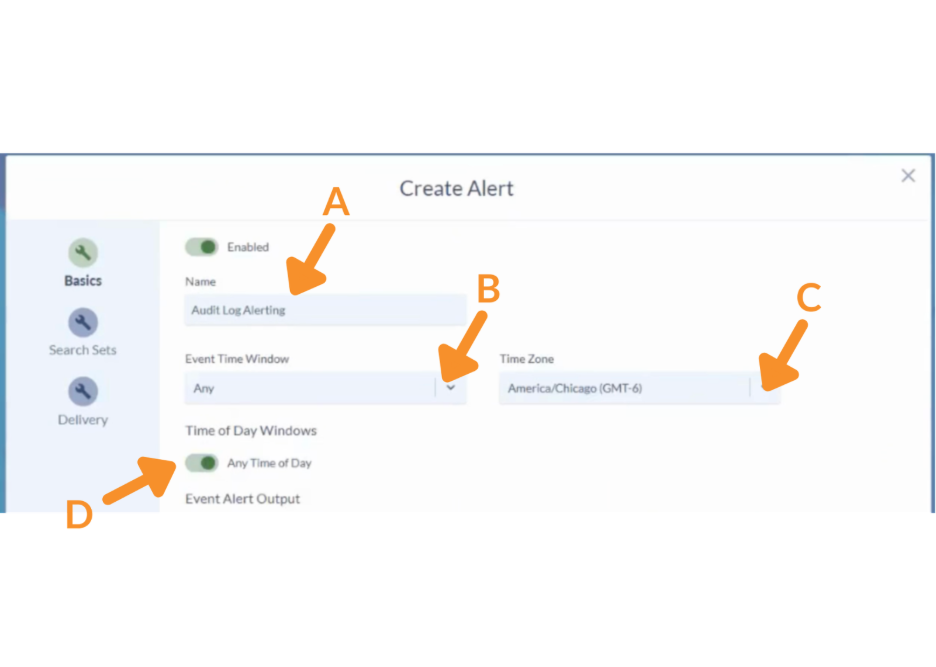
2. Configure Basic Alert Settings.
A. Enter a descriptive alert name.
B. Define the Event Time Window.
C. Select the appropriate Time Zone.
D. Choose monitoring schedule. Enable Any Time of Day for continuous monitoring or disable it to define specific time-of-day thresholds. This determines when the system evaluates audit activity.
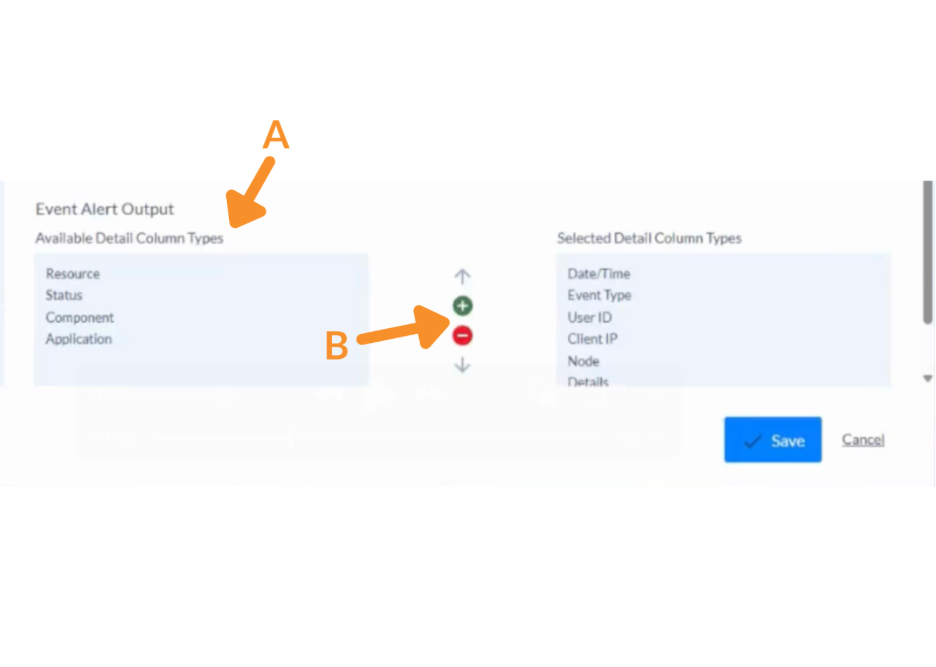
3. Select Alert Output Columns.
A. Select the audit detail columns to include in the alert email.
B. Click the + button to add selected columns or the – button to remove the selection.
These selected fields determine what information appears in the notification email.
Commonly selected fields include:
- Date/Time.
- Event Type.
- User ID.
- Client IP.
- Node.
- Details.
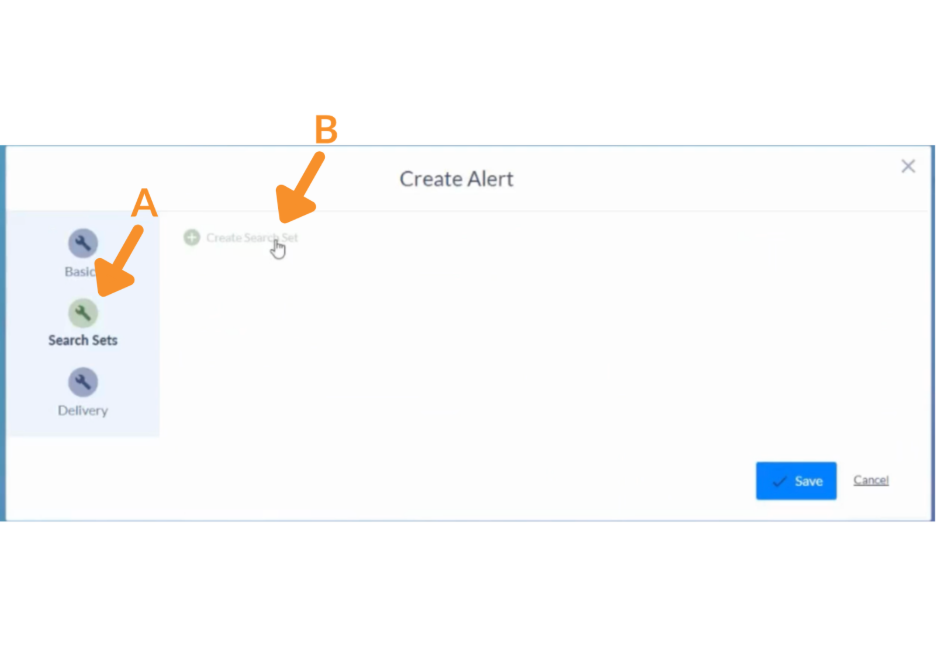
4. Create a Search Set.
A. Click Search Sets.
B. Select Create Search Set.
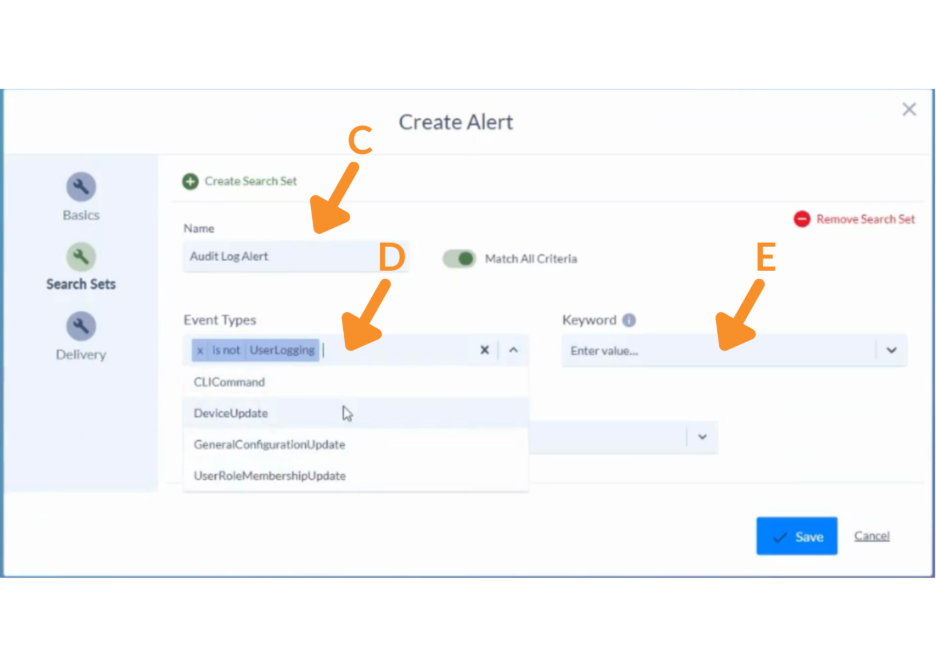
C. Enter a descriptive search set name.
D. Choose the relevant Event Type(s) to monitor.
E. Optionally enter a keyword to filter activity by user, device, or specific configuration object.
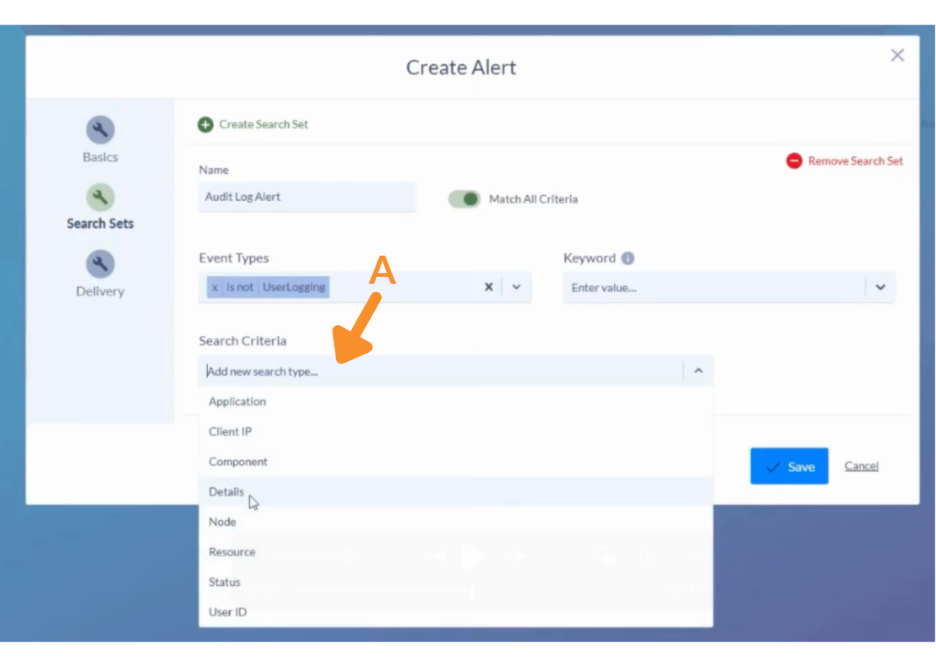
5. Define Search Criteria.
A. Under Search Criteria, select a field (e.g., Details, User ID, Object Name).
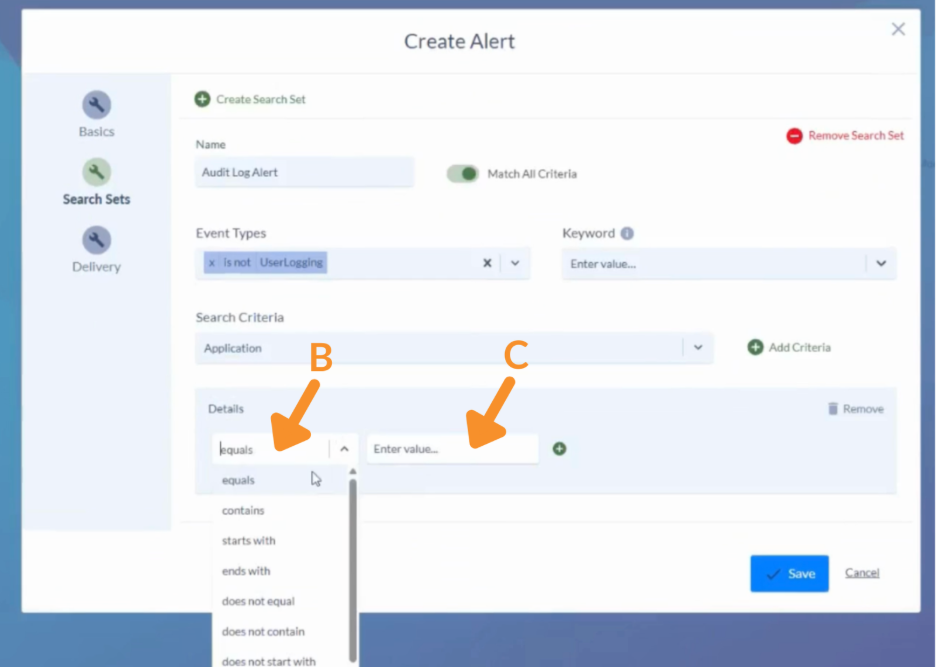
B. Choose a comparison operator (e.g., equals, contains, starts with).
C. Enter the value to monitor.
- Example Configuration.
- Field: Details.
- Operator: Contains.
- Value: CSS.
This triggers alerts for Calling Search Space additions, updates, or deletions.
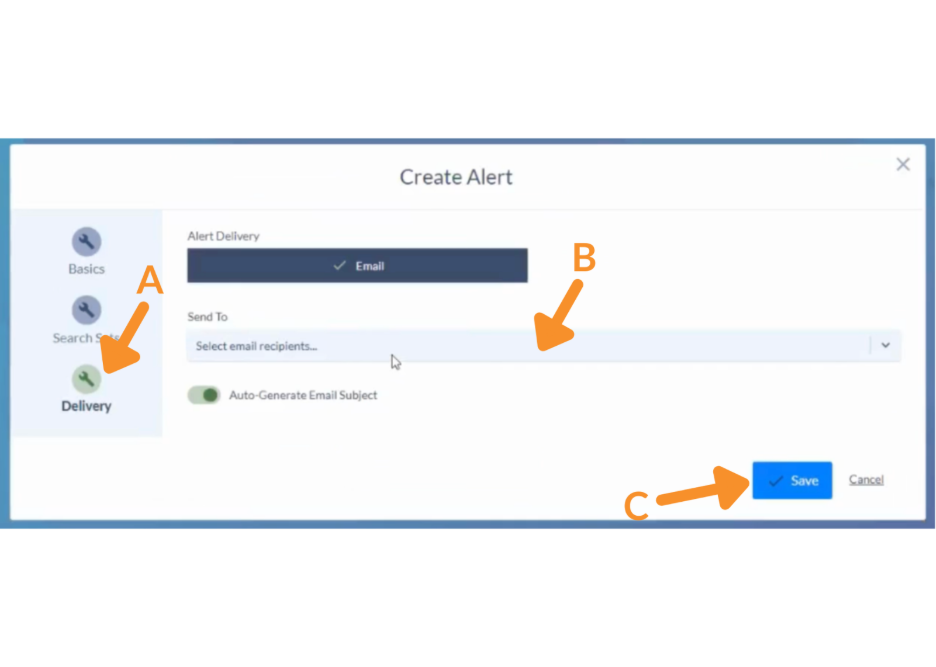
6. Configure Alert Delivery.
A. Click Delivery.
B. Add one or more email recipients.
C. Click Save to finalize configuration.
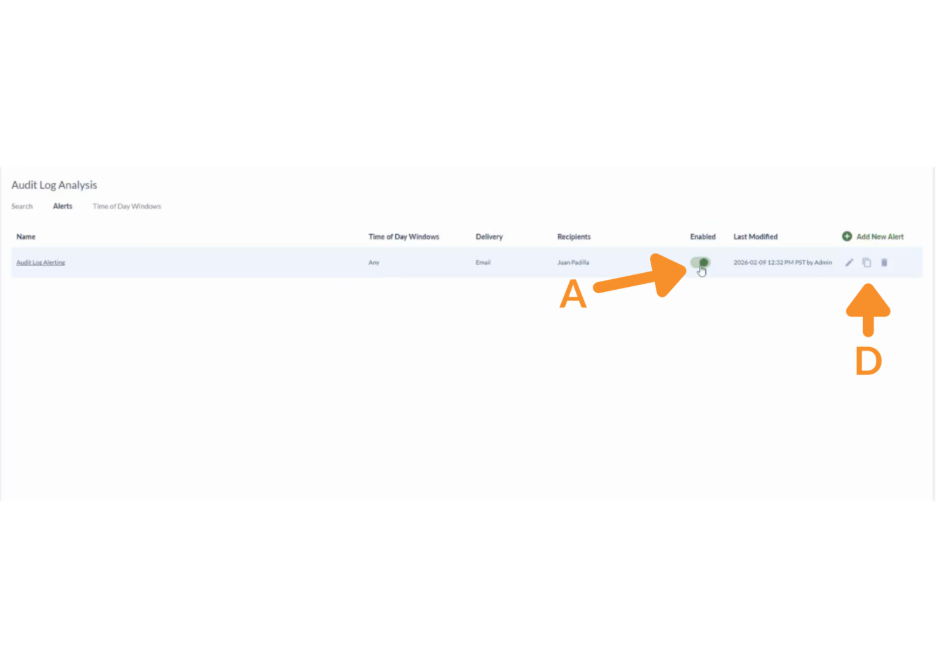
7. Enable the Alert.
A. Toggle Enabled to activate it.
B. You may return at any time to:
- Edit the alert.
- Copy the alert.
- Delete the alert.
Alert Email Notification Details
When triggered, the email notification includes:
- Date and Time of the event.
- Event Type.
- User ID responsible for the change.
- Client IP address.
- Node (if applicable).
- Detailed description of the configuration change.
This provides immediate visibility without manually reviewing audit logs.
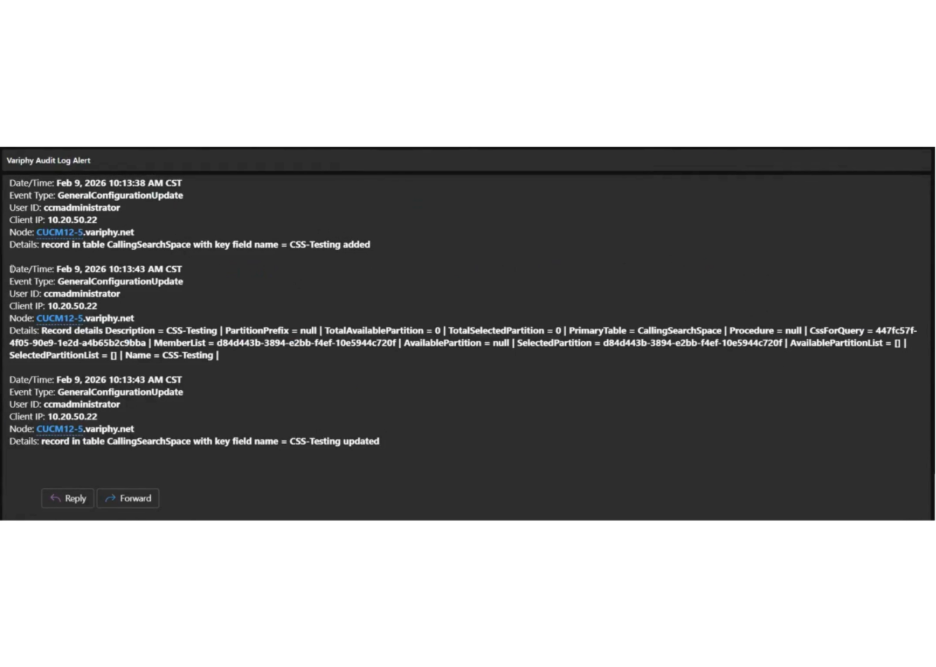
Once enabled, the alert continuously evaluates audit log activity against the defined search criteria. When matching activity occurs, designated recipients receive immediate notification, enabling proactive response and improved compliance oversight.
Still Need Help?
Email our support team at support@variphy.com or click the button below to access our ticket portal.
Please provide details about your question or issue, including any applicable screenshots, reports, or Variphy application log files.
