
Applies to:
- Organizations using Zoom Phone integration.
- IT teams responsible for Zoom Phone reporting.
- Report builders creating Zoom Phone analytics.
Common Causes or Issues
- Report on calls by phone role or category (e.g., Support, HR, Finance) instead of individual users.
- Search for calls tied to a specific Zoom Phone display name (Phone Number Name).
- Summarize inbound and outbound call activity by phone name.
Video Walkthrough
How to Report on Zoom Phone Display Names
1. Open Search Criteria.
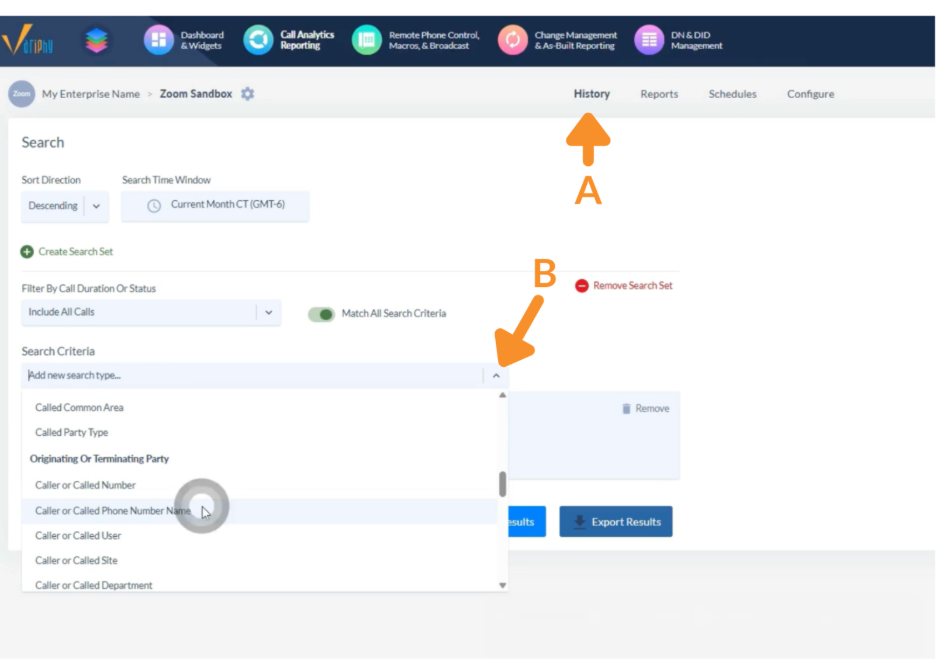
A. Navigate to the History tab.
B. Under Search Criteria, choose at least one of the following, then click the green + Add Criteria.
- Caller Phone Number Name (Outbound calls only).
- Called Phone Number Name (Inbound calls only).
- Caller or Called Phone Number Name (Inbound + Outbound combined).
2. Add the Phone Name as a Search Criterion.
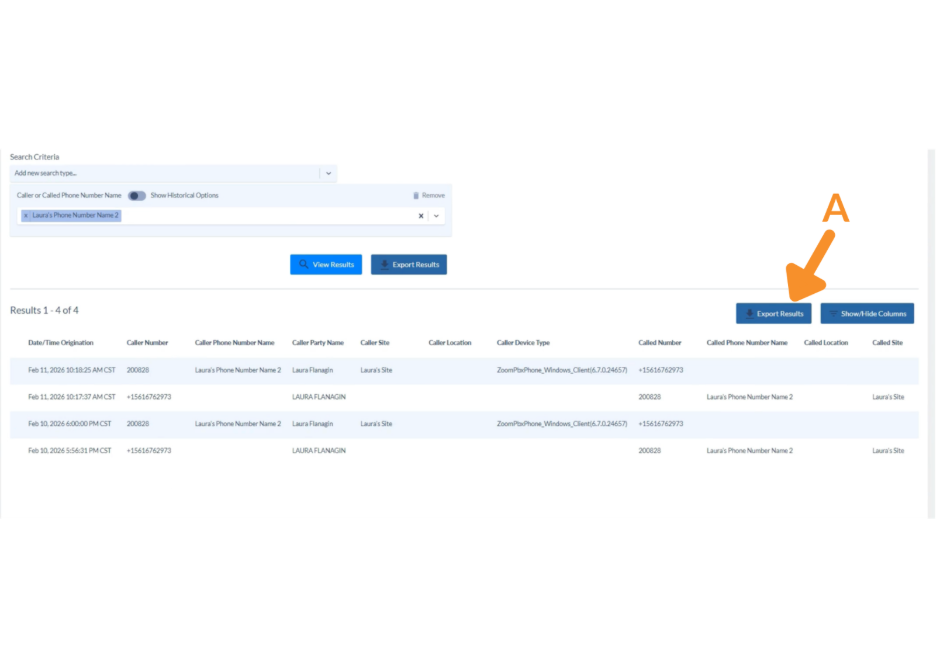
A. From the dropdown menu, choose the desired phone display name (example: “Laura” or a role-based name like “Customer Support”) and click View Results.
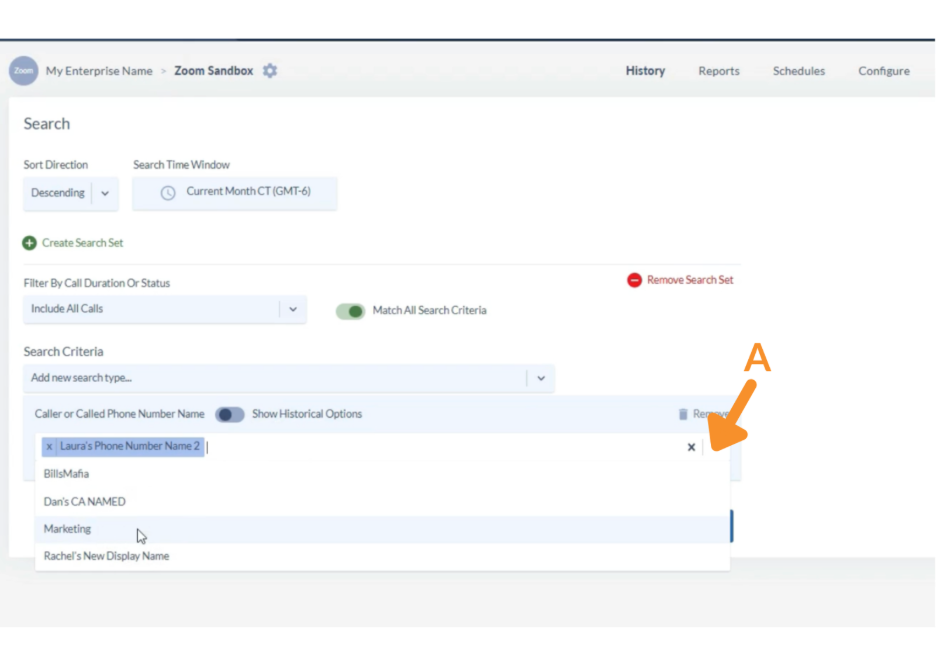
The results will display:
- Caller Phone Number Name: Indicates the selected phone name was the caller (typically outbound).
- Called Phone Number Name: Indicates the selected phone name was the recipient (typically inbound).

3. Show/Hide Desired Columns
A. Click Show/Hide Columns.
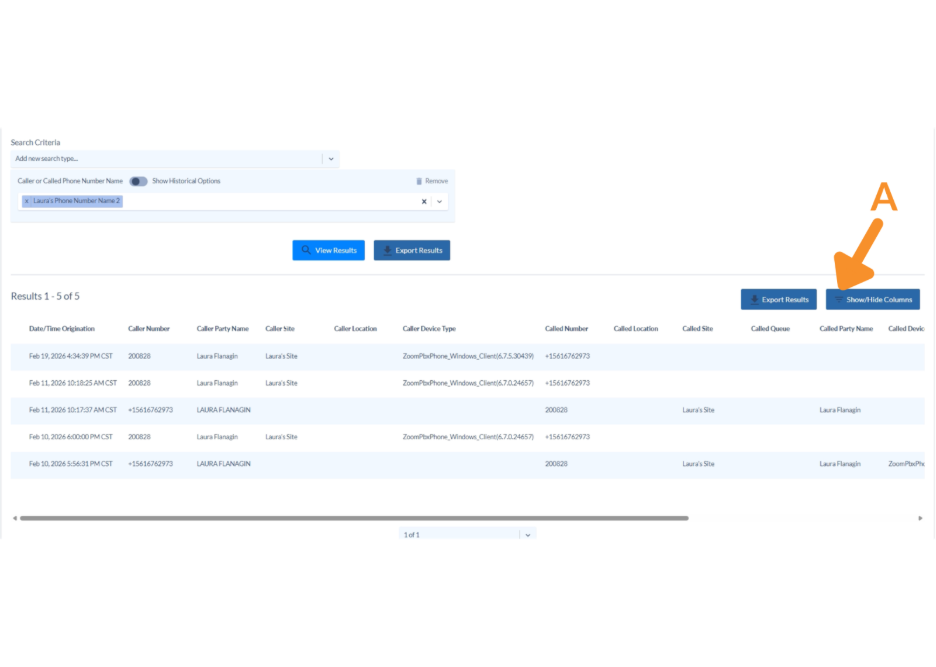
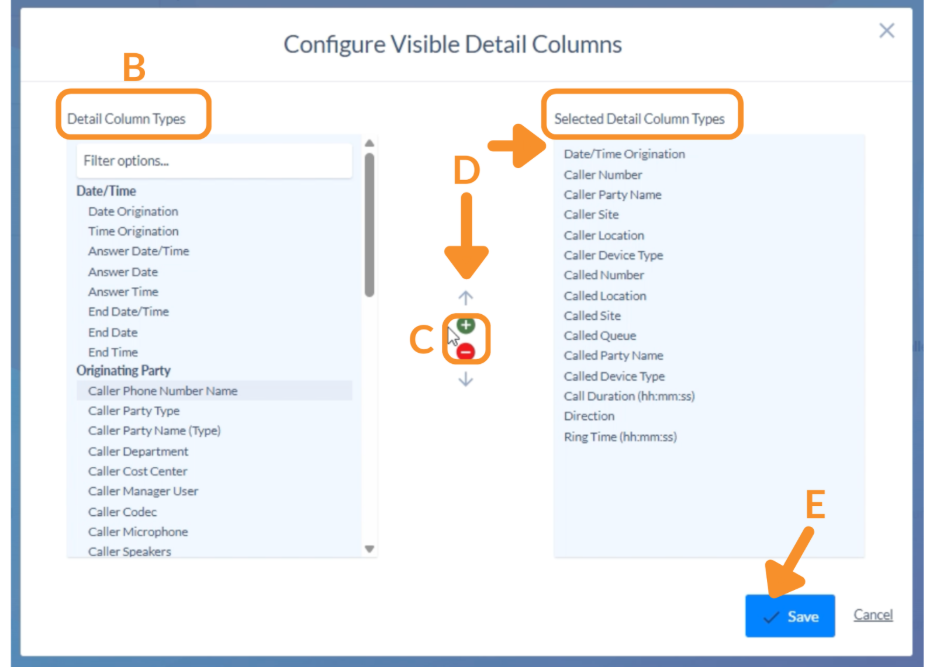
B. Choose a Detail Column Type from the left menu.
C. Click the green + button to add it to the Selected Detail Column Type list. To remove a column, select it from the Selected Detail Column Type list and click the red – button.
D. To change the column order in the results:
- Select the desired field in the Selected Detail Column Type list.
- Use the Up and Down arrows to move it to your preferred position.
E. Click Save.
4. Export the Result Set.
A. From the results view, click Export Results.
5. Customize the Report.
A. Click Grouping Statistics.
B. Toggle Data Grouping Enabled to On.
C. Choose a Primary Grouping Type Criteria:
- Caller Phone Number Name: Summarizes outbound calls by caller phone name.
- Called Phone Number Name: Summarizes inbound calls by called phone name.
- Caller or Called Phone Number Name: Summarizes all calls tied to the phone name.
6. Select Call Statistics.
A. Choose the desired metric on the left and click the green + button to add it to your report. To remove the metric, choose it from the list on the right and click on the red – button.
B. Click Run.

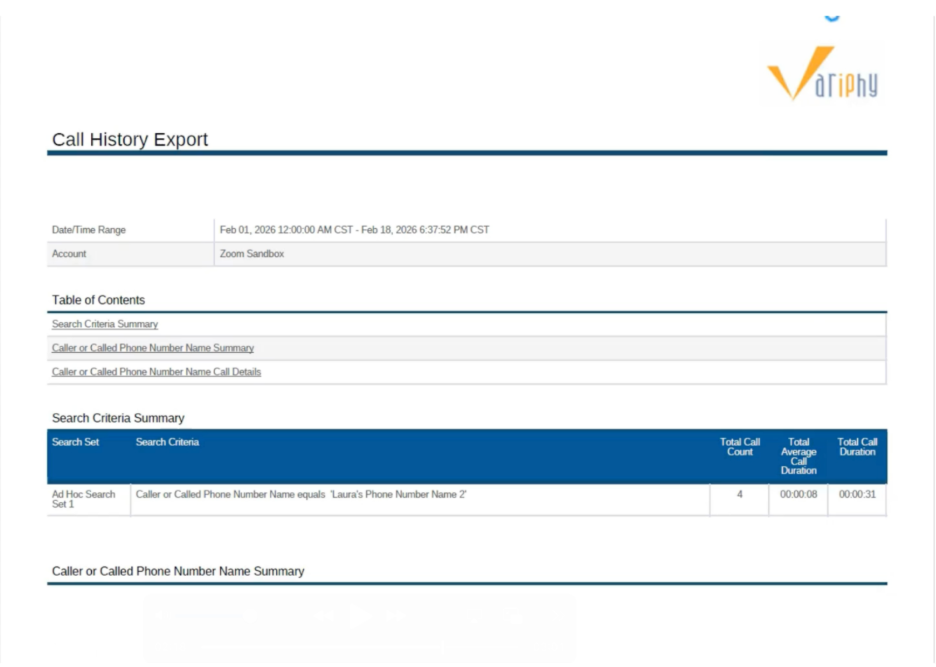
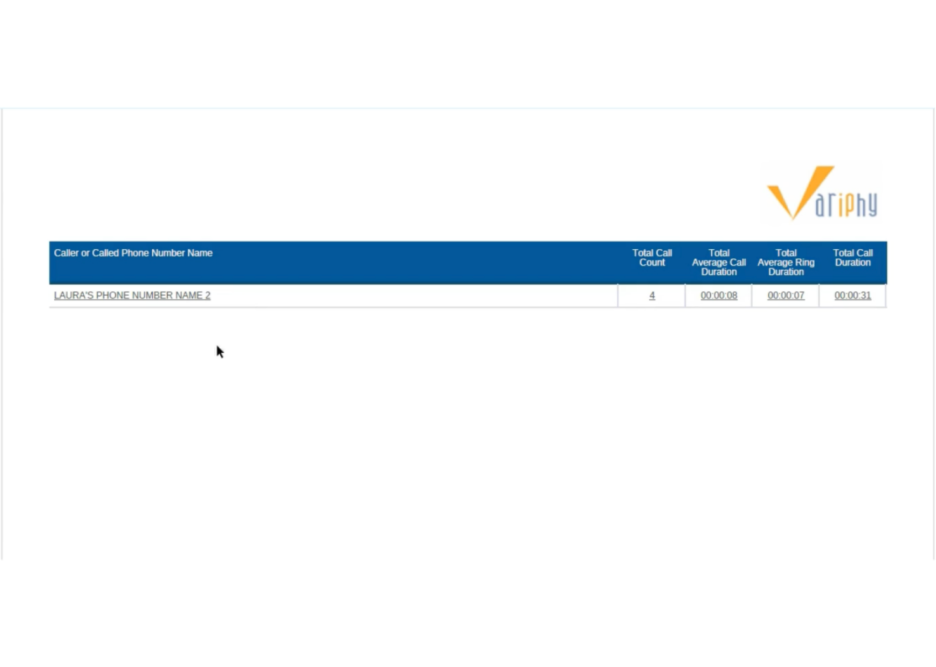
The report will display calls grouped by the selected phone name, along with the selected metrics.
Still Need Help?
Email our support team at support@variphy.com or click the button below to access our ticket portal.
Please provide details about your question or issue, including any applicable screenshots, reports, or Variphy application log files.
