Applies to:
- Variphy administrators.
- UC environment administrators.
- IT teams monitoring user and system activity.
Common Causes or Issues
- Need real-time visibility into user activity.
- Monitoring administrator changes.
- Investigating unexpected configuration updates.
- Reducing the need for repeated manual audit searches.
Interactive Walkthrough
How to Create and Configure the Audit Log Dashboard Widget
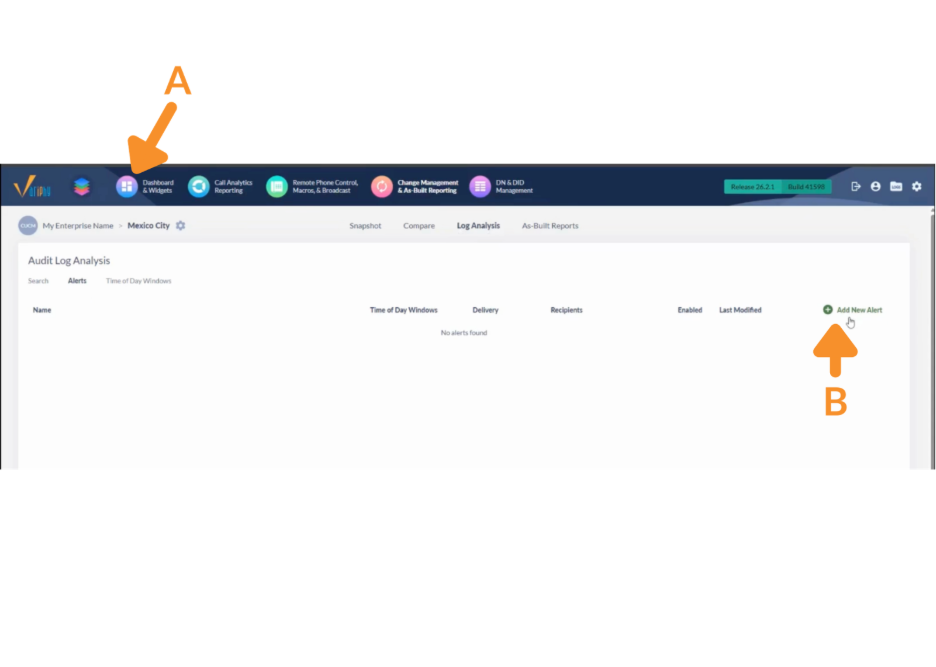
1. Add a New Widget.
A. Navigate to Dashboard & Widgets.
B. Click New Widget.
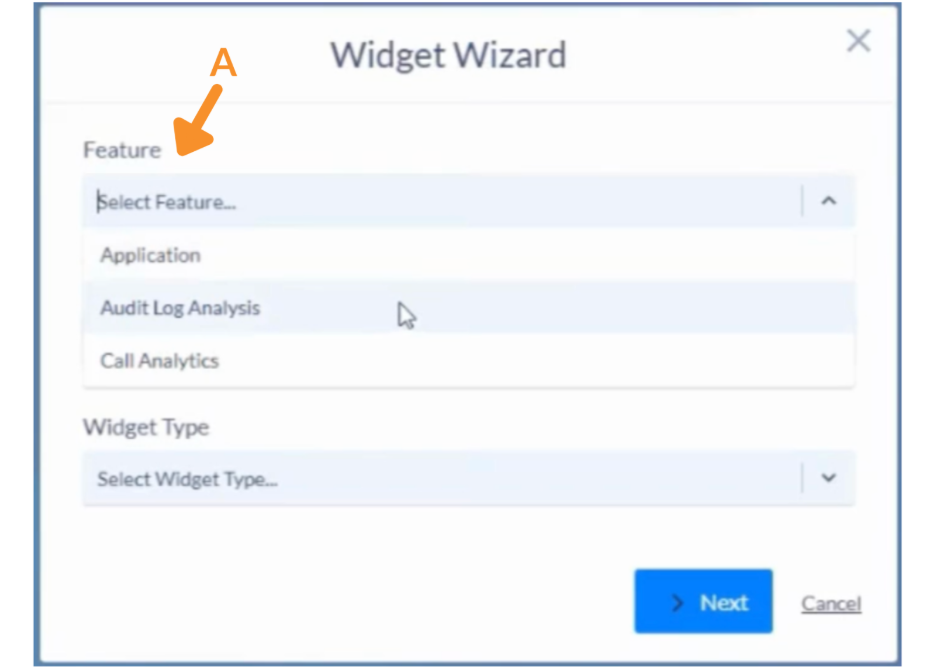
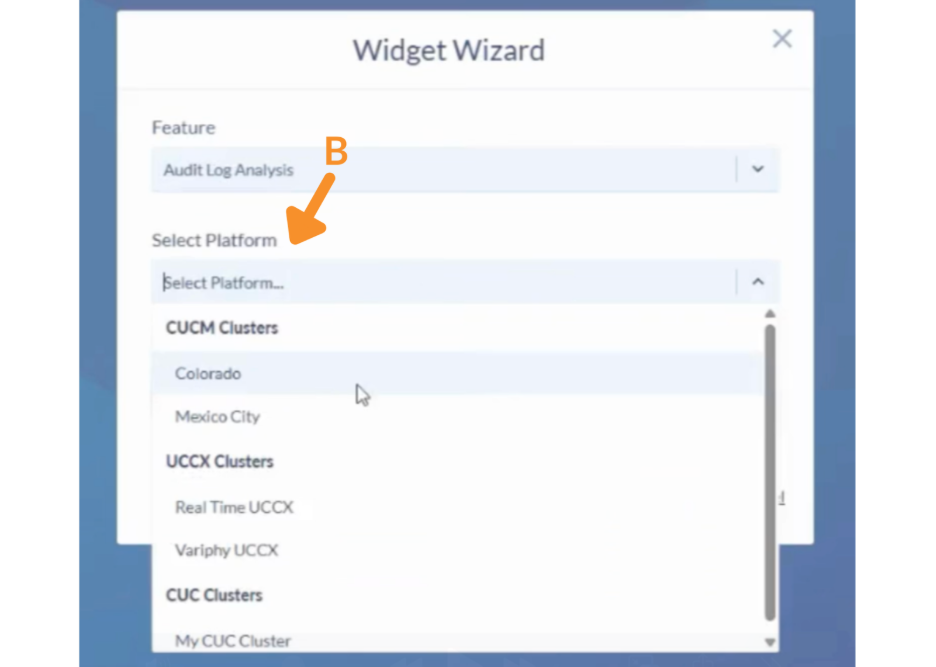
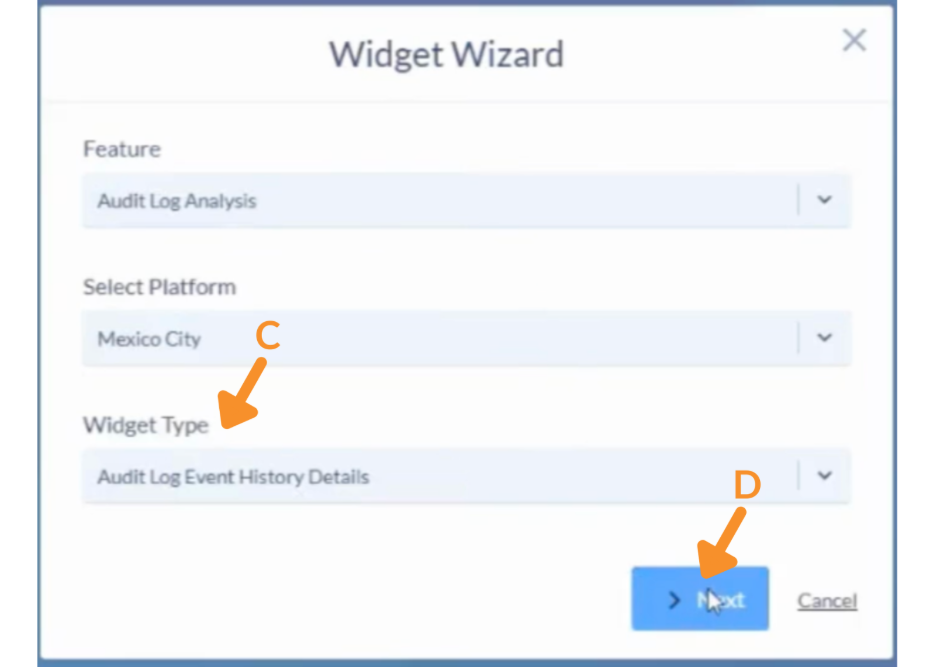
2. Select the Feature.
A. From the Feature dropdown, select Audit Log Analysis.
B. Choose the appropriate Platform.
C. Select Audit Log Event History Details as the Widget Type.
D. Click Next.
3. Configure General Settings.
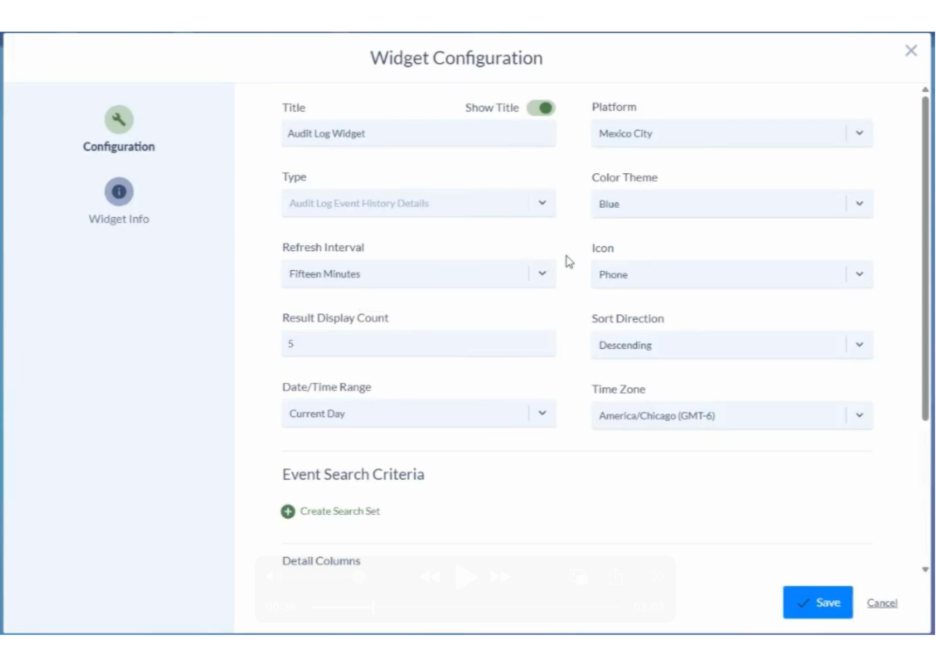
After selecting the widget type, configure the display and reporting options.
General Settings Options
- Widget Name: Enter a descriptive name (e.g., Audit Log – CCM Administrator Activity).
- Refresh Interval: Set how often the widget updates (5 minutes to 1 hour).
- Color Theme: Select a preferred display theme.
- Icon: Choose an icon for quick dashboard identification.
- Result Display Count: Set the maximum number of results (e.g., 50).
- Date/Time Range: Select the reporting timeframe (e.g., Current Day or Custom Range).
- Time Zone: Choose the appropriate time zone for reporting.
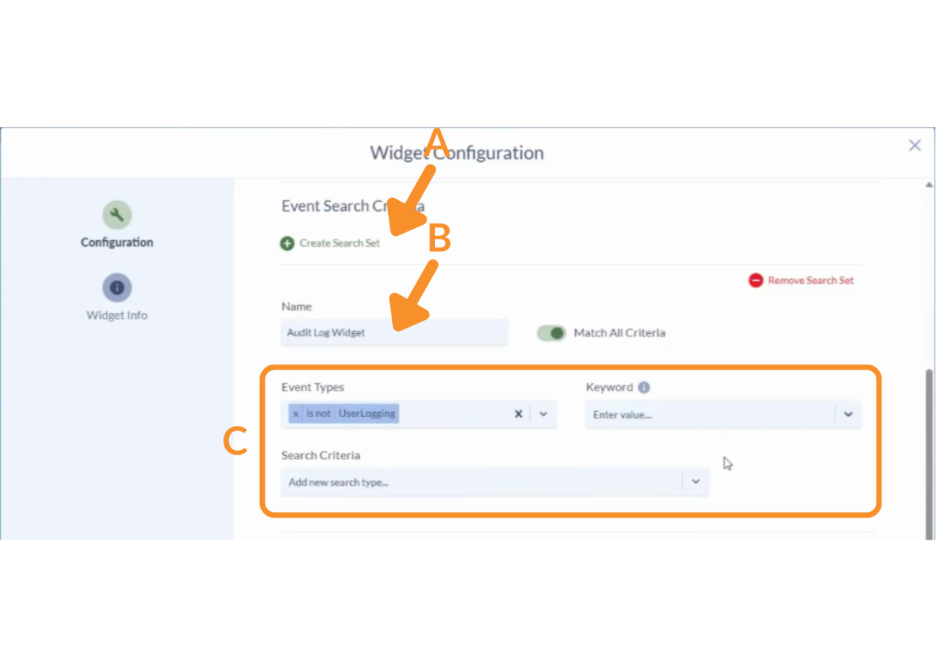
4. Create a Search Set.
A. Click Create Search Set.
B. Enter a Search Set Name.
C. Define your search criteria using:
- Event Type.
- Keyword.
- Search Criteria (e.g., User ID contains CCM Administrator).
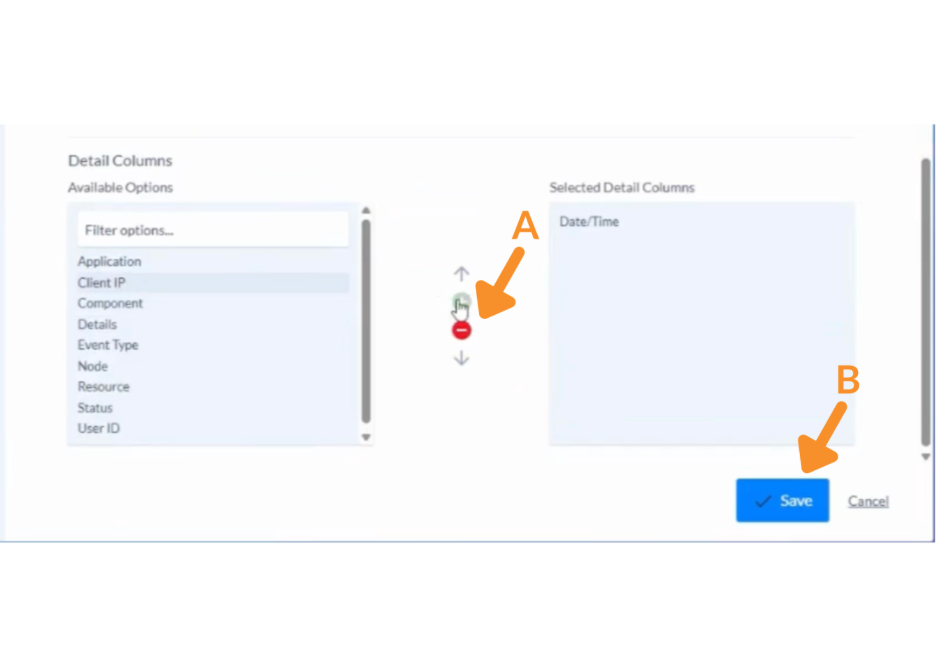
5. Select Detail Columns.
A. Choose which data fields will appear in the widget. Click the green + to add the detail column or the red – to remove it.
B. Click Save.
The widget will now appear on your dashboard and automatically refresh based on your selected interval.
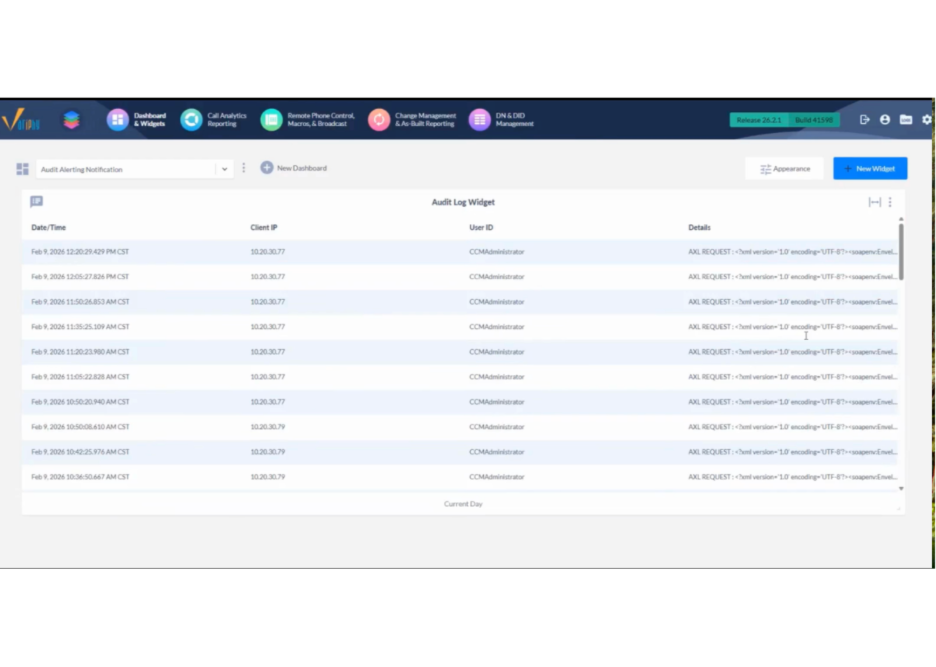
Viewing Audit Activity
Once configured, the widget displays recent audit log entries based on your defined search criteria.
From the dashboard, you can:
- Quickly review recent changes.
- Identify who made specific updates.
- Monitor login activity.
- Track configuration modifications.
Still Need Help?
Email our support team at support@variphy.com or click the button below to access our ticket portal.
Please provide details about your question or issue, including any applicable screenshots, reports, or Variphy application log files.
