
Applies to:
- Variphy users monitoring CUCM phone registration in real time.
- System administrators customizing dashboard widgets.
Common Causes or Issues
- When you need to monitor phone registration status using custom thresholds.
- When real-time alerts are needed for failed or partially registered phones.
- When visual or audible indicators are required for phone registration issues.
How to Set Threshold Alerts for CUCM Real-Time Phone Registration
Follow these steps to create and manage real-time thresholds in Variphy widgets for phone registration statistics.
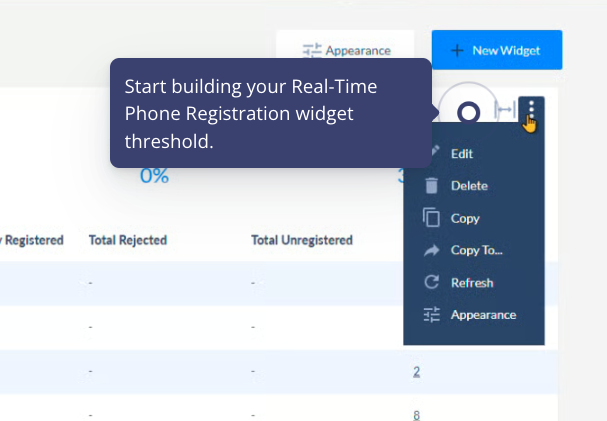
1. Open the Widget Configuration Window.
Click the menu icon in the top right corner of the widget and select Edit.
2. Create a Threshold.
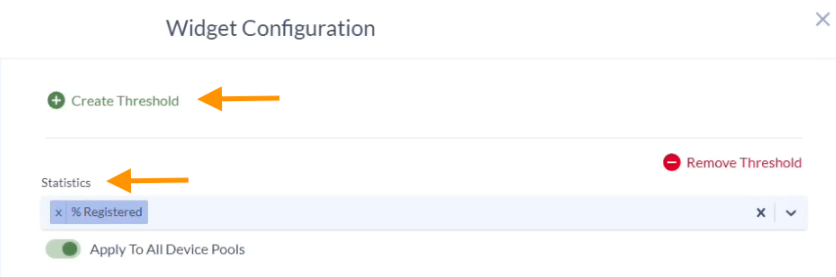
In the Thresholds tab, click Create a Threshold.
You can add multiple thresholds to monitor various phone registration states.
3. Choose a Statistic Type.
In the Statistics section, select one of the following metrics to monitor:
- Total Phones.
- Total Failed Over.
- % Failed Over.
- Total Partially Registered.
- % Partially Registered.
- Total Registered.
- % Registered.
- Total Rejected.
- % Rejected.
- Total Unregistered.
- % Unregistered.
- Total Database Only.
- % Database Only.
Optional: Enable the Apply To All Device Pools toggle if you’d like to apply this threshold configuration across all device pools.
4. Define the Threshold Expression.
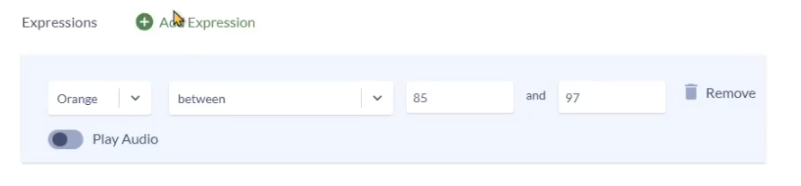
In the Expressions section:
- Choose a color to represent the alert severity (e.g., red for critical).
- Select a condition (e.g., equals, less than, greater than).
- Input the value(s) that will trigger the alert.
- Optional: Toggle the Play Audio option to enable sound alerts for this threshold.
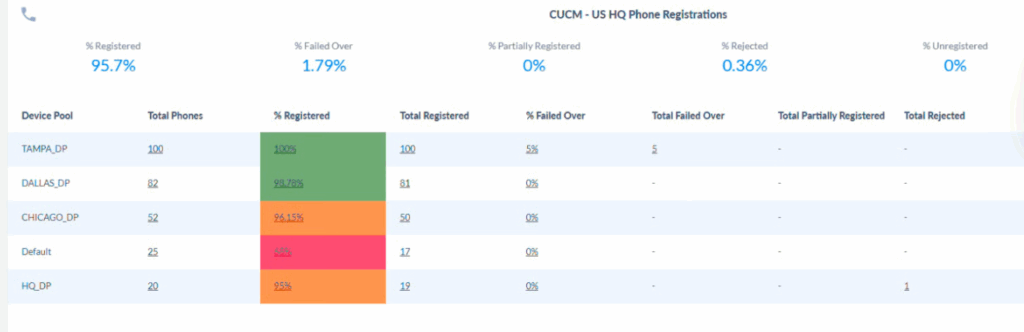
Threshold statistics will be displayed in the dashboard widget.
Still Need Help?
Email our support team at support@variphy.com or click the button below to access our ticket portal.
Please provide details about your question or issue, including any applicable screenshots, reports, or Variphy application log files.
