
Applies to:
- Variphy administrators.
- Webex Calling administrators.
- IT and telecom managers.
- Users responsible for access control (technical and non-technical).
Common Causes or Issues
- Users can see more report data than they should
- Need to restrict visibility to department-specific data
- Lack of data segmentation across departments
- Security or compliance requirements for limiting access
Interactive Walkthrough
How to Restrict Report Data Visibility by Department
This feature, introduced in Variphy 26.3.1, allows administrators to limit report visibility so users only see Webex Calling data associated with their assigned department(s). This improves data security and ensures users only access relevant information.
By User
1. Navigate to Setup and Administration.
A. Navigate to Settings (gear icon).
B. Go to User Accounts & Groups.
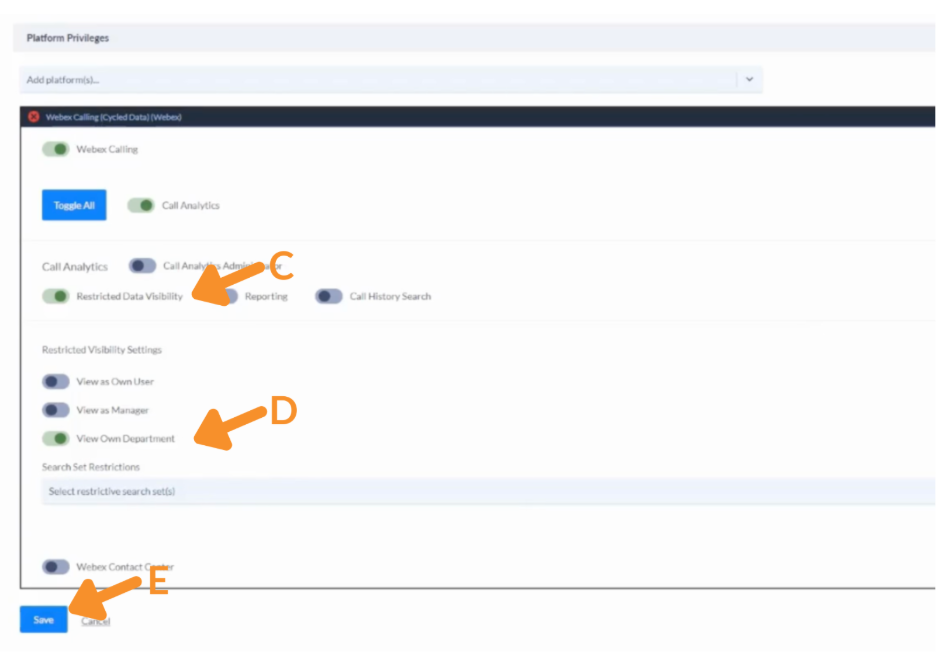
2. Create User Account.
A. Ensure you are on the Users tab.
B. Create a new user by clicking the green plus button (B1) or edit an existing user by clicking the pencil button (B2).
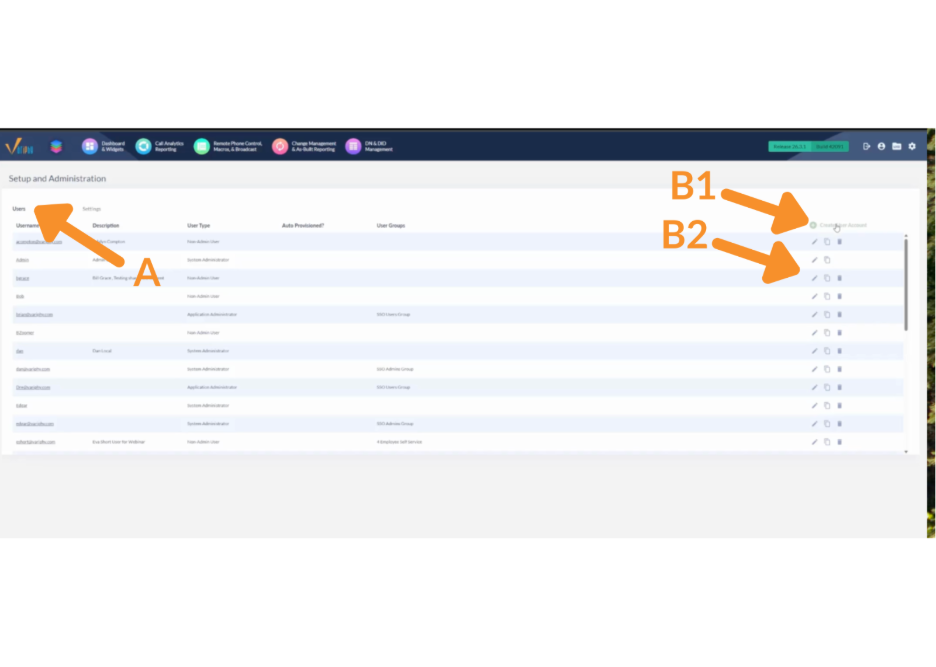
3. Complete User Basics and Assigned User Groups (if applicable).
A. Complete the fields under User Basics (A1) and Assigned User Groups (A2).
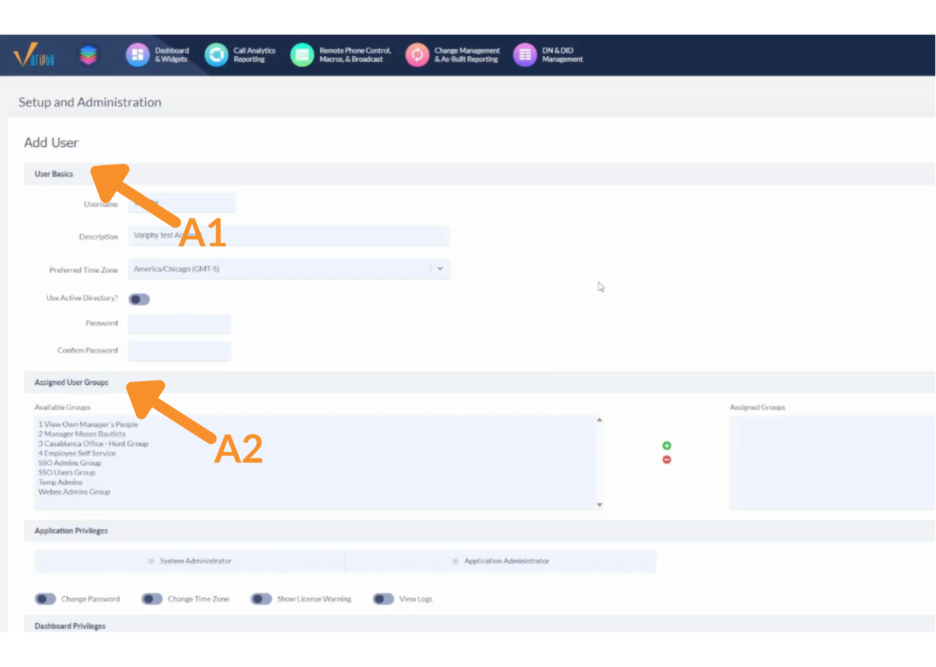
4. Configure Platform Privileges.
A. Under Platform Privileges, add the Webex Calling platform.
B. Click the + (expand) button.
C. Enable Restricted Data Visibility.
D. Toggle View Own Department to ON.
E. Click Save.
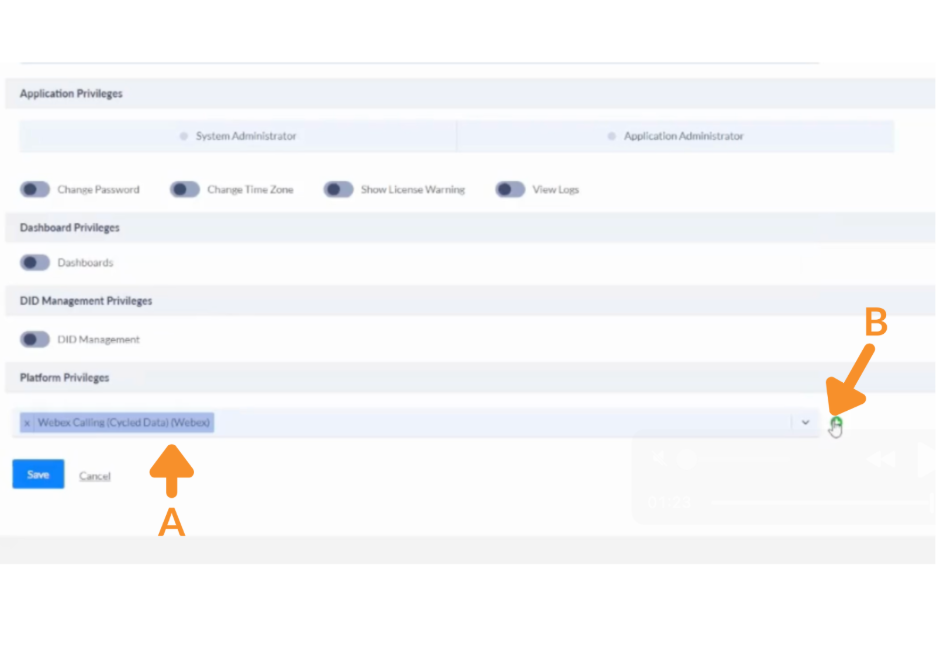
The user can only view Webex Calling data associated with their assigned department.
By User Group
1. Navigate to Setup and Administration.
A. Navigate to Settings (gear icon).
B. Go to User Accounts & Groups.
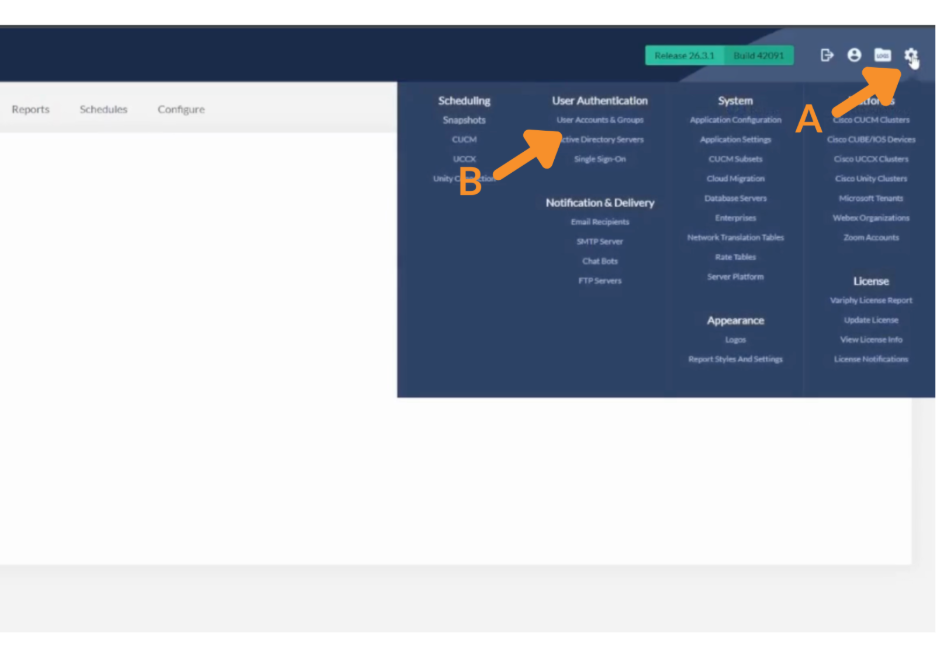
2. Create User Group.
A. Click on the User Groups tab.
B. Create a new user by clicking the green plus button (B1) or edit an existing user by clicking the pencil button (B2).
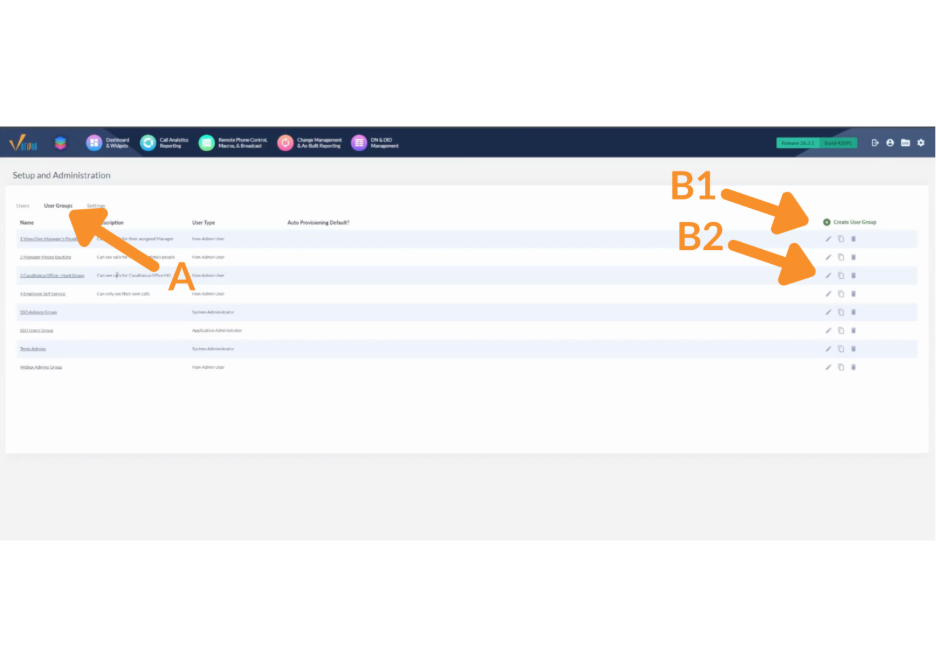
3. Complete User Basics and Assigned User Groups (if applicable).
A. Complete the fields under User Group Basics (A1) and Assigned Users (A2).

4. Configure Platform Privileges.
A. Under Platform Privileges, add the Webex Calling platform.
B. Click the + (expand) button.
C. Enable Restricted Data Visibility.
D. Toggle View Own Department to ON.
E. Click Save.
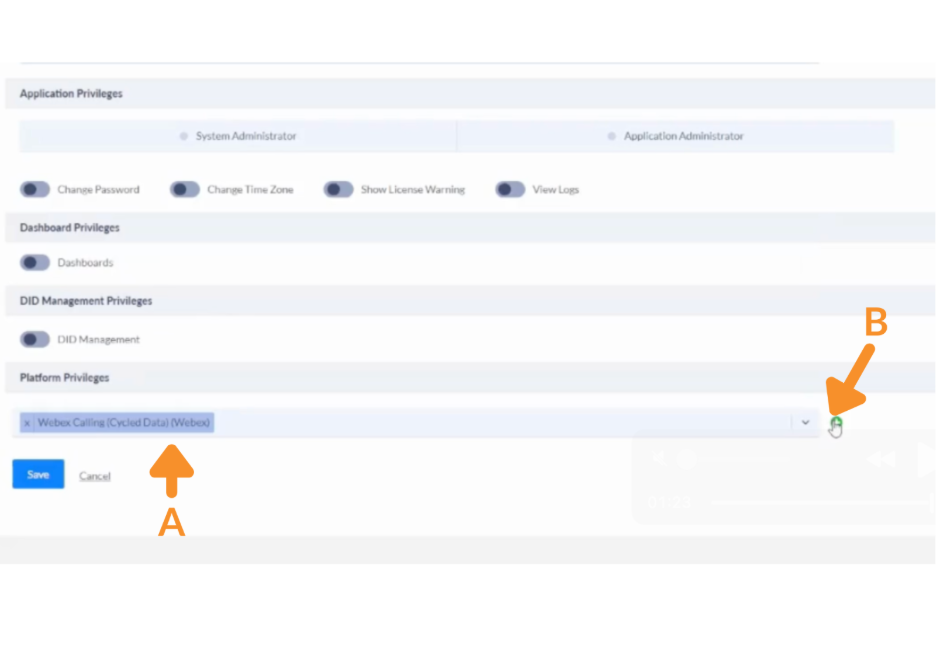
All users within the group inherit department-based visibility restrictions.
Still Need Help?
Email our support team at support@variphy.com or click the button below to access our ticket portal.
Please provide details about your question or issue, including any applicable screenshots, reports, or Variphy application log files.
