
Applies to:
- Administrators creating or editing On-Demand jobs with Virtual Line operations.
- Teams looking to restrict which parameters users can change when running a provisioning job.
Common Causes or Issues
- Restricts user access to only the provisioning parameters relevant to their task.
- Simplifies the job interface by hiding unused Virtual Line fields.
- Enables focused workflows — for example, voicemail passcode reset only — without exposing all available parameters.
- Reduces user error by limiting the scope of changes in a single job run.
Interactive Walkthrough
How to Configure Virtual Line Settings
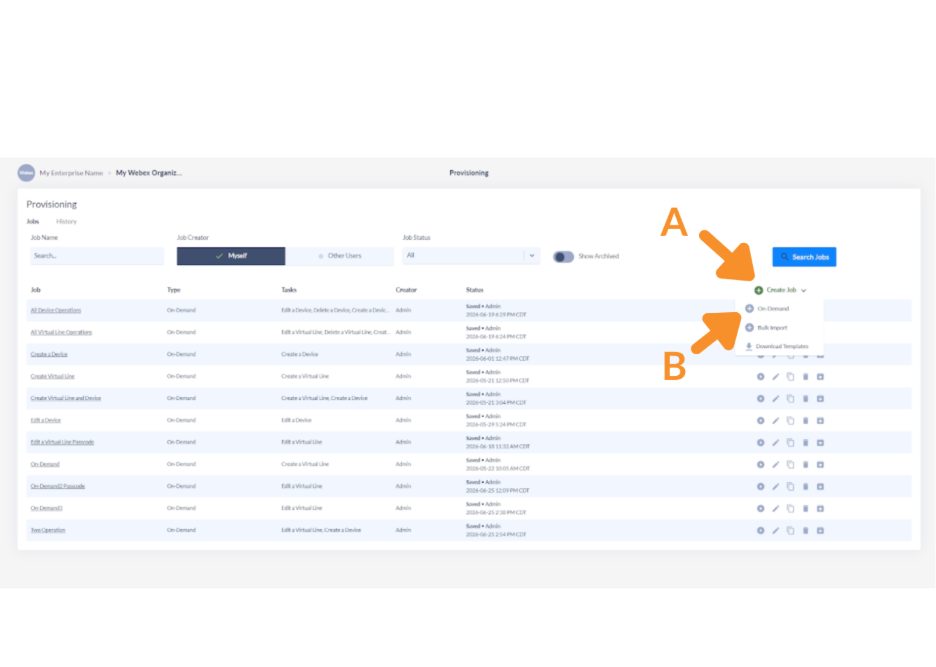
1. Create or open an On-Demand provisioning job.
A. From the Variphy navigation, click “Create a Job”.
B. Select “On-Demand” as the job type.
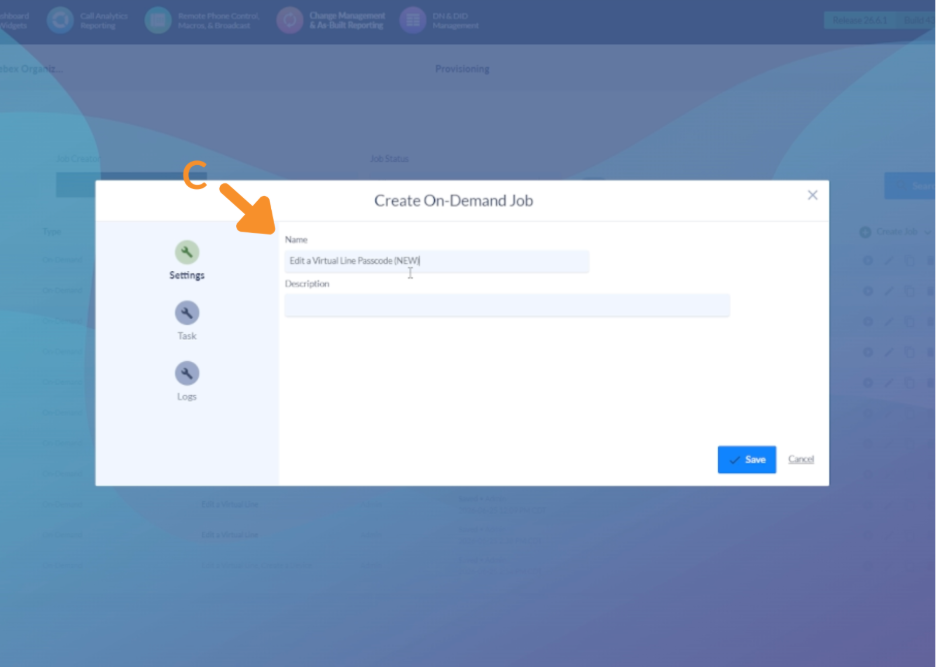
C. Under Settings, enter a name for the job. Optionally add a description.
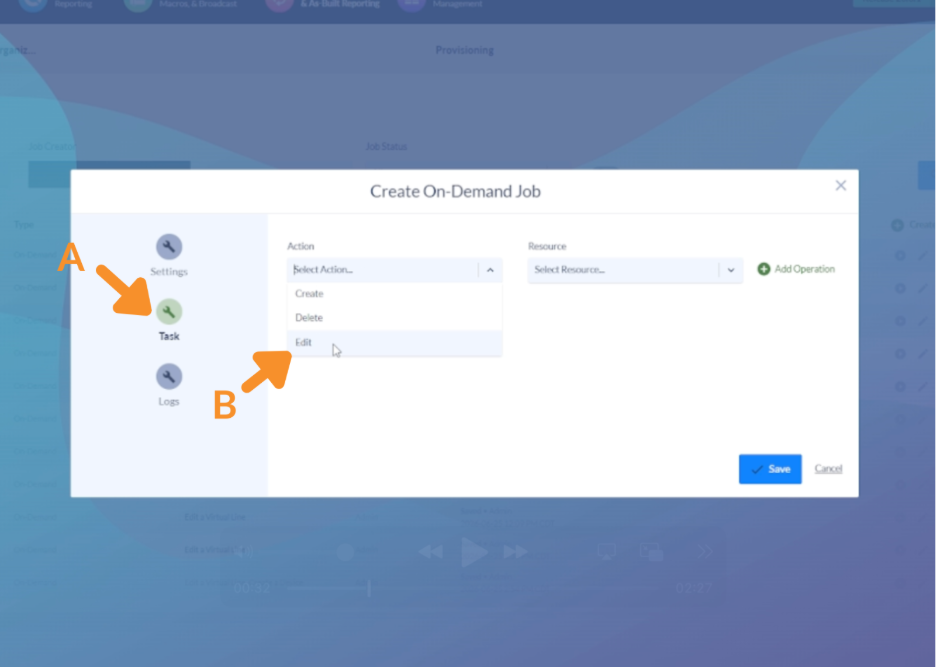
2. Configure the Task settings.
A. Navigate to the Task tab within the job configuration.
B. Under Action, choose Edit.
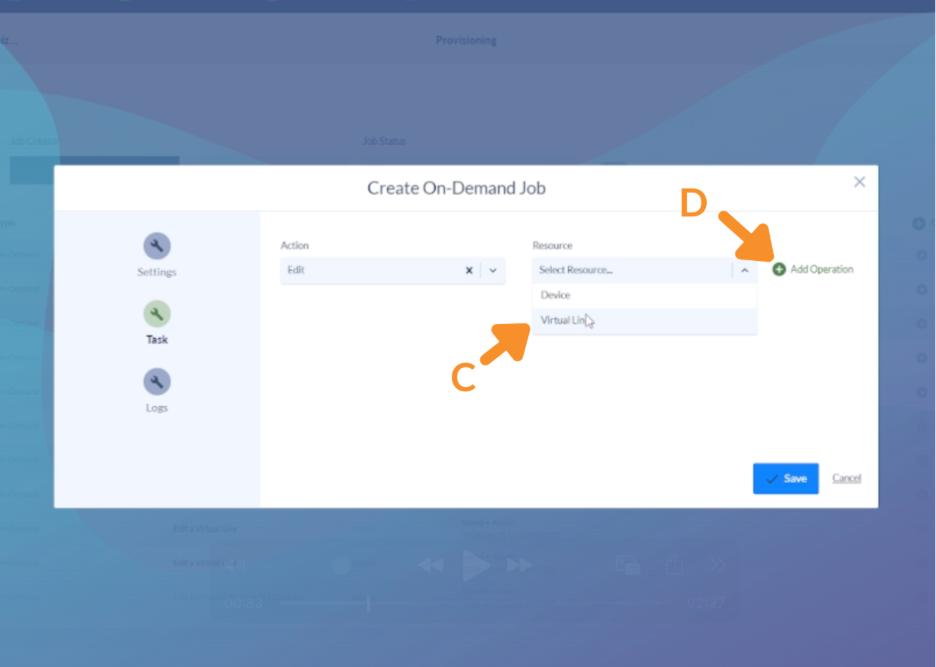
C. Under Resource, choose Virtual Line.
D. Click Add Operation to open the parameter settings for this task.
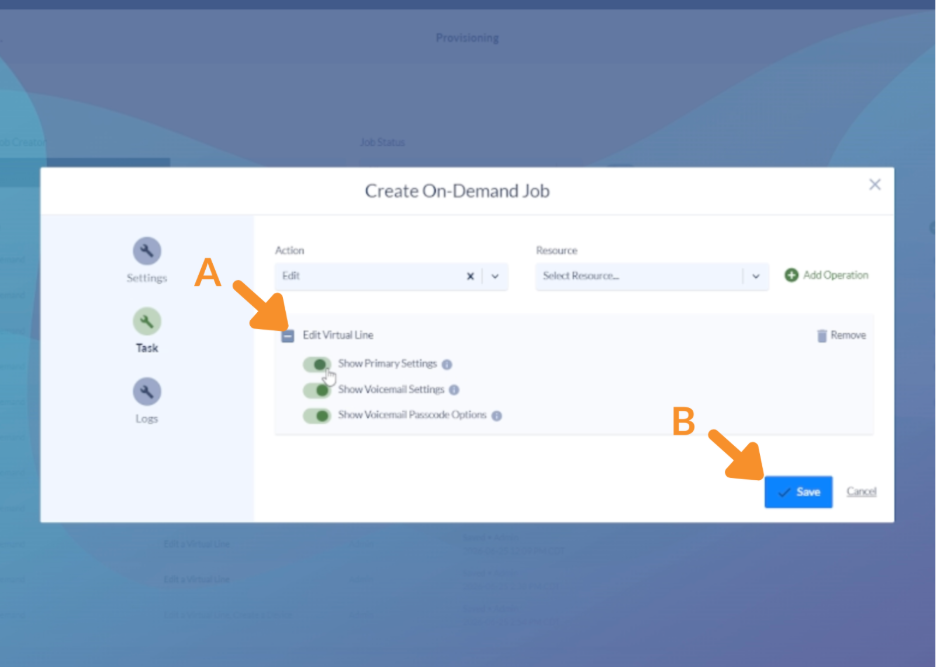
3. Configure parameter toggles.
A. Disable any parameters users shouldn’t see. For example, to create a voicemail passcode-only job, turn off Primary and Show Voicemail.
- Leave only the parameters users need to interact with enabled.
- Disabling a parameter hides it from the job run interface entirely — it does not affect the underlying setting on the virtual line.
B. Click Save to apply the toggle configuration.
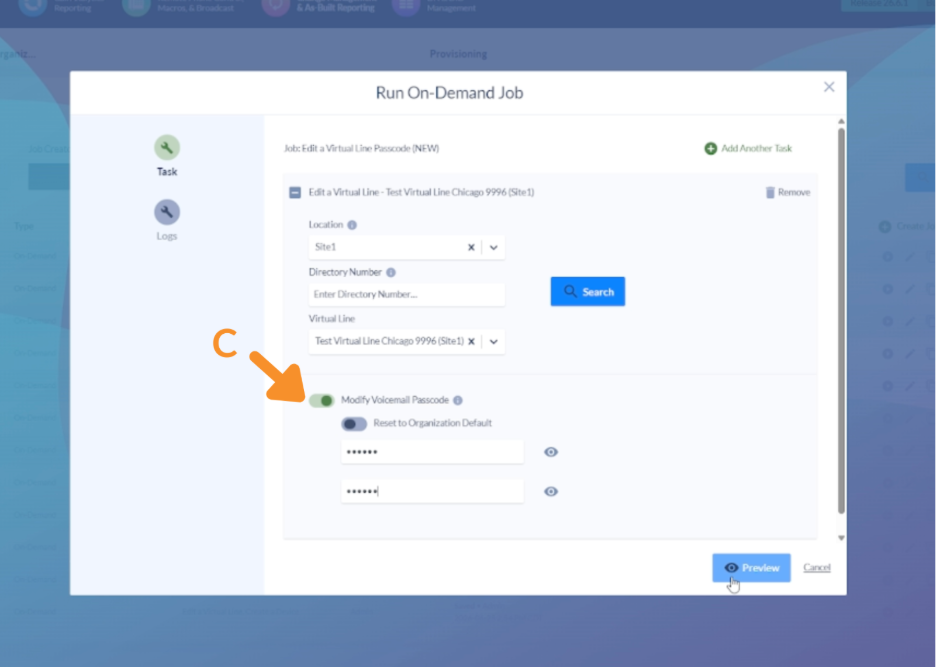
Once saved, the job will display only the parameters you enabled when run. For example, a voicemail passcode-only job will show:
- The virtual line search/lookup field.
- The voicemail passcode field.
- No other Virtual Line parameters.
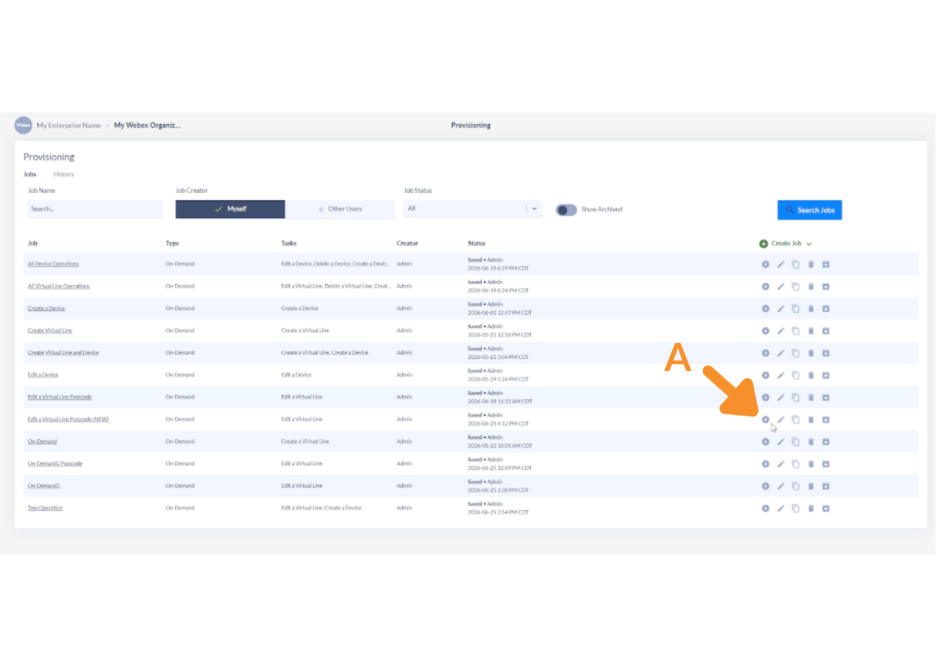
5. Run the job to use the filtered view.
A. Click the run button to launch the job.
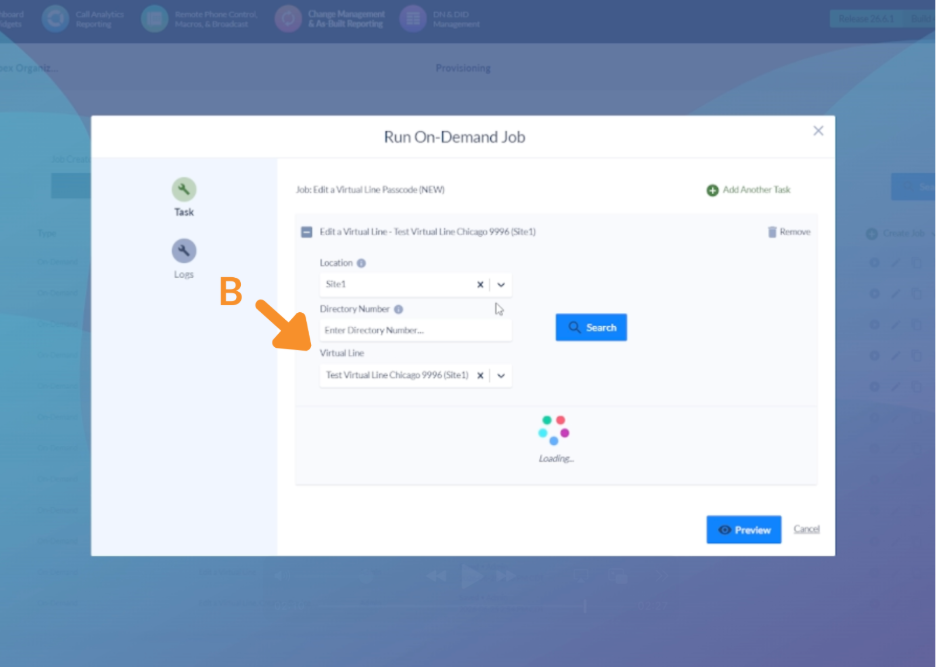
B. Use the search field to find and select the virtual line you want to update.
C. Only the parameters you enabled are visible.
Still Need Help?
Email our support team at support@variphy.com or click the button below to access our ticket portal.
Please provide details about your question or issue, including any applicable screenshots, reports, or Variphy application log files.
