
Applies to:
- Variphy users with Webex Calling integrations.
- Administrators managing provisioning permissions for users or user groups.
- Teams controlling access to bulk and on-demand provisioning jobs in Webex Calling.
Common Causes or Issues
- Grant full provisioning administrator rights to trusted users or user groups.
- Limit provisioning access to bulk admin or on-demand admin jobs only.
- Assign specific bulk or on-demand jobs a non-admin user is permitted to run.
- Prevent users from creating, editing, or deleting provisioning jobs while still allowing them to run approved jobs.
Interactive Walkthrough
How to Configure User and User Group Permissions
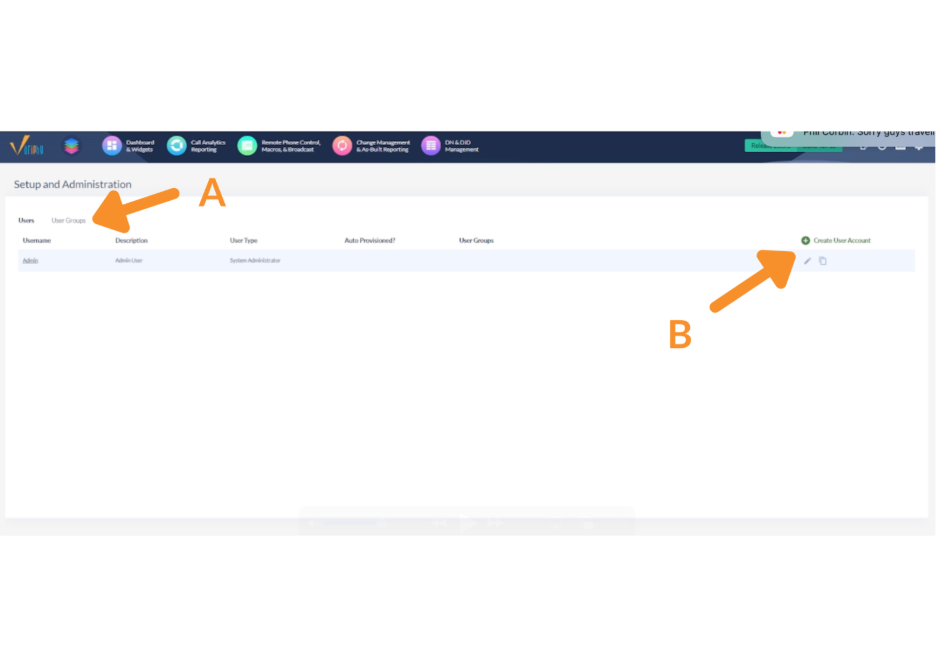
1. Open a user or user group.
A. Navigate to User or User Groups under Setup and Administration.
B. Click “Create User Account” to create a new user, or open an existing user or user group.
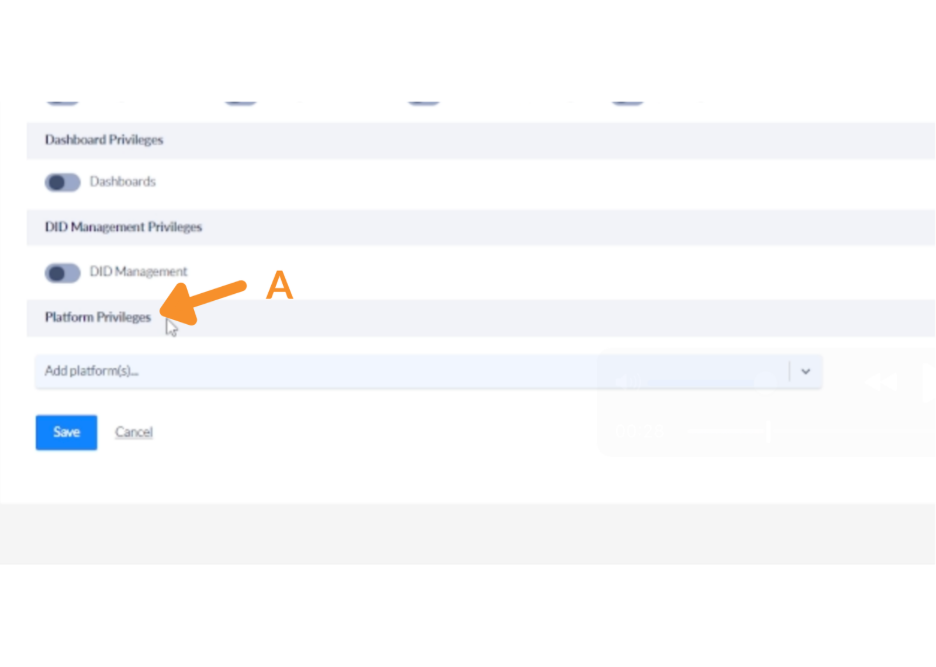
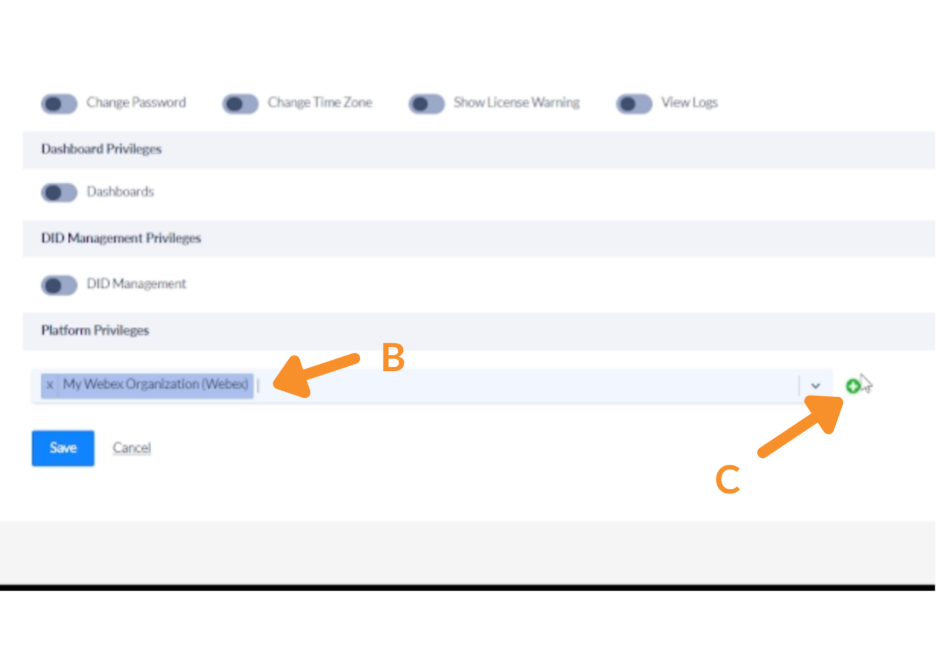
2. Add the Webex organization under Platform Privileges.
A. Scroll down to the Platform Privileges section.
B. Choose My Webex Organization (Webex) from the platform list.
C. Click the green + button to expand the organization configuration panel.
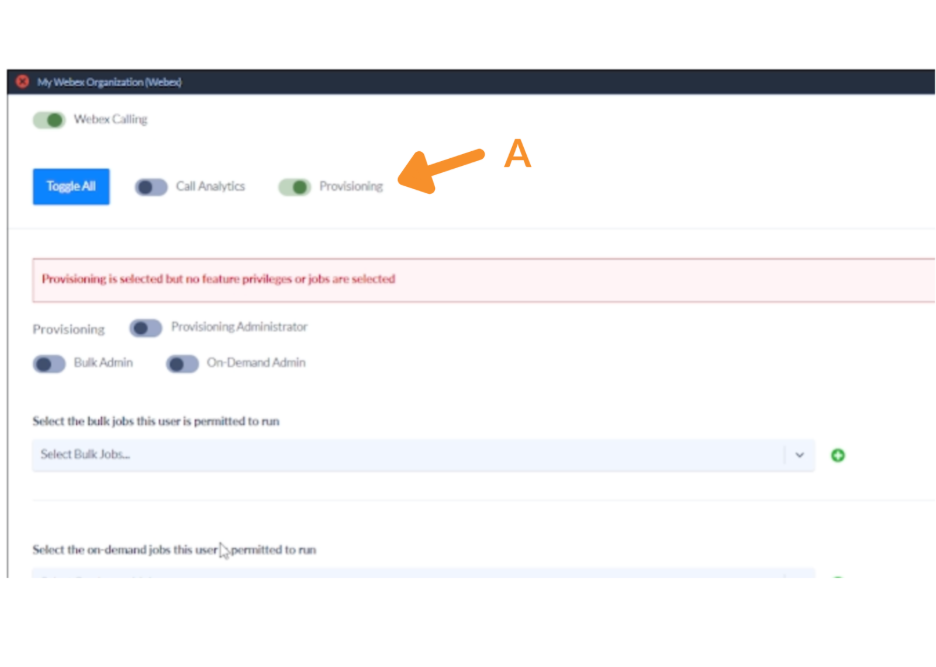
3. Enable Provisioning.
A. Enable the Provisioning toggle to reveal the provisioning permissions section below.
Provisioning must be enabled in your license key for this toggle to appear.
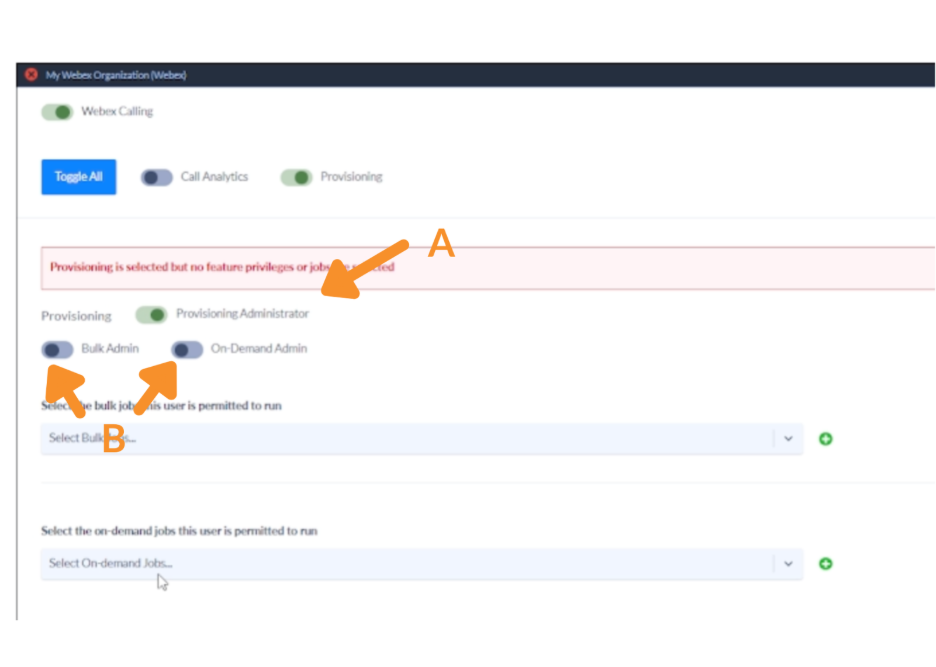
4. Set the Provisioning Administrator toggle.
A. Below the Provisioning toggle, locate the Provisioning Administrator toggle.
- Enable this toggle if the user or user group should have full rights to all Webex provisioning actions.
- Disable this toggle to configure granular permissions for the user or user group instead.
B. If Provisioning Administrator is disabled, configure the following toggles as needed:
- Enable Bulk Admin to grant full rights to create, run, and delete bulk admin jobs.
- Enable On-Demand Admin to grant full rights to build, create, edit, delete, and run on-demand jobs.
- Both toggles may be enabled simultaneously.
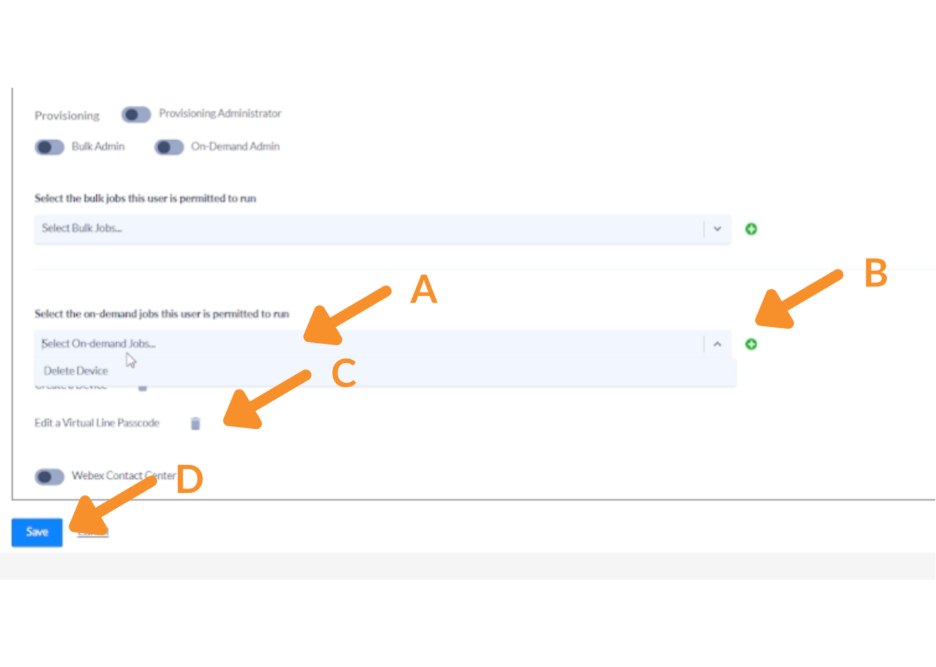
5. Assign permitted on-demand jobs.
If On-Demand Admin is disabled, you can permit the user or user group to run specific on-demand jobs only.
A. Use the “Select On-demand Jobs…” dropdown to choose a job.
B. Click the green + button to add it to the permitted list.
- Example jobs: Create a Device, Edit a Virtual Line Passcode, Delete Device. D. Repeat to add additional on-demand jobs as needed.
C. To remove a job, click the trash icon next to it.
D. Click Save to apply the provisioning permissions.
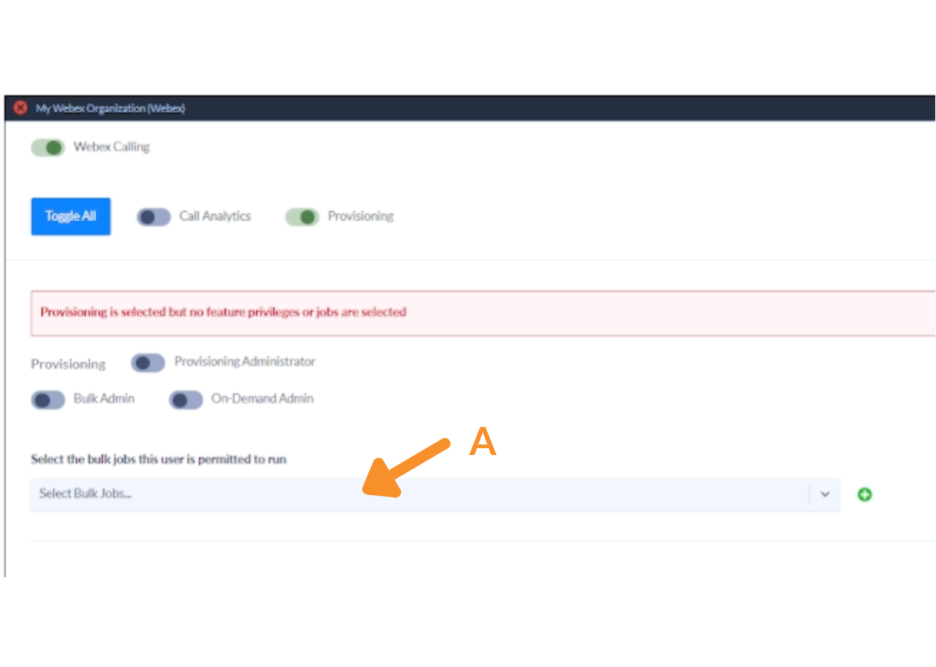
6. Assign permitted bulk jobs.
If Bulk Admin is disabled, you can permit the user or user group to run specific bulk jobs only. Use the “Select Bulk Jobs…” dropdown to choose a job and follow the same steps as On-Demand Admin.
Users assigned specific jobs can run those jobs but cannot create, edit, or delete any provisioning jobs.
Still Need Help?
Email our support team at support@variphy.com or click the button below to access our ticket portal.
Please provide details about your question or issue, including any applicable screenshots, reports, or Variphy application log files.
