
Applies to:
- Variphy users with Webex Calling integrations.
- Administrators provisioning physical devices for users or workspaces.
Common Causes or Issues
- Provision new Webex Calling devices directly from Variphy without switching to the Webex portal.
- Validate MAC address availability before completing a device assignment.
- Remove decommissioned devices from your Webex Calling environment quickly and cleanly.
Interactive Walkthrough
How to Create, Edit, and Delete a Device
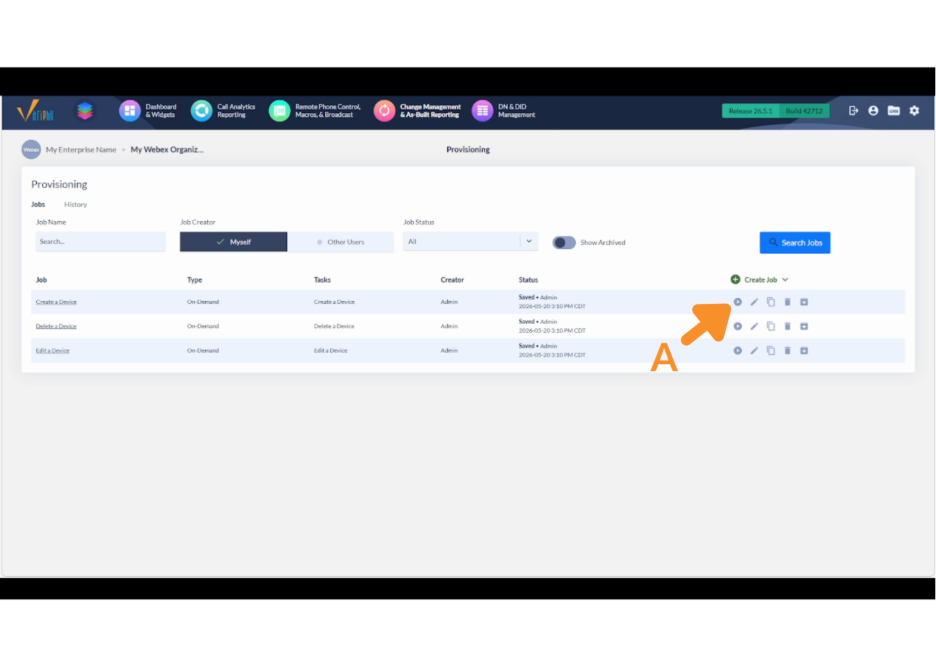
1. Open Provisioning and select the operation.
A. Navigate to the Provisioning module in Variphy. Choose the desired operation: Create Device, Edit Device, or Delete Device. Click the play button to run the job.
2. Create a device.
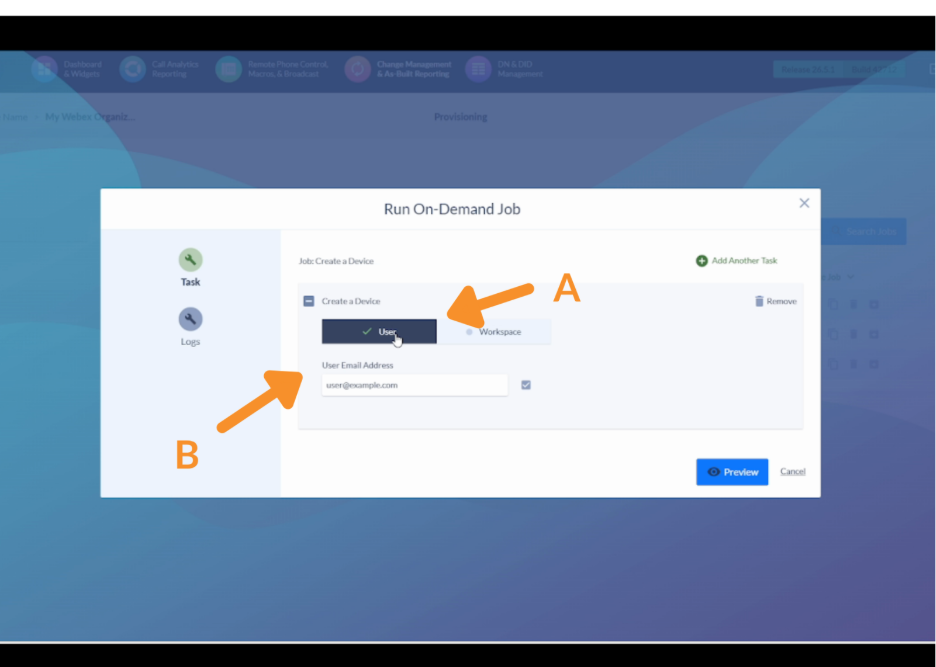
A. Choose whether to assign the device to a User or a Workspace.
- Select User to assign by email address.
- Select Workspace to look up by location display name.
B. Enter the email address (for user assignment) or location display name (for workspace assignment) and confirm it is valid.
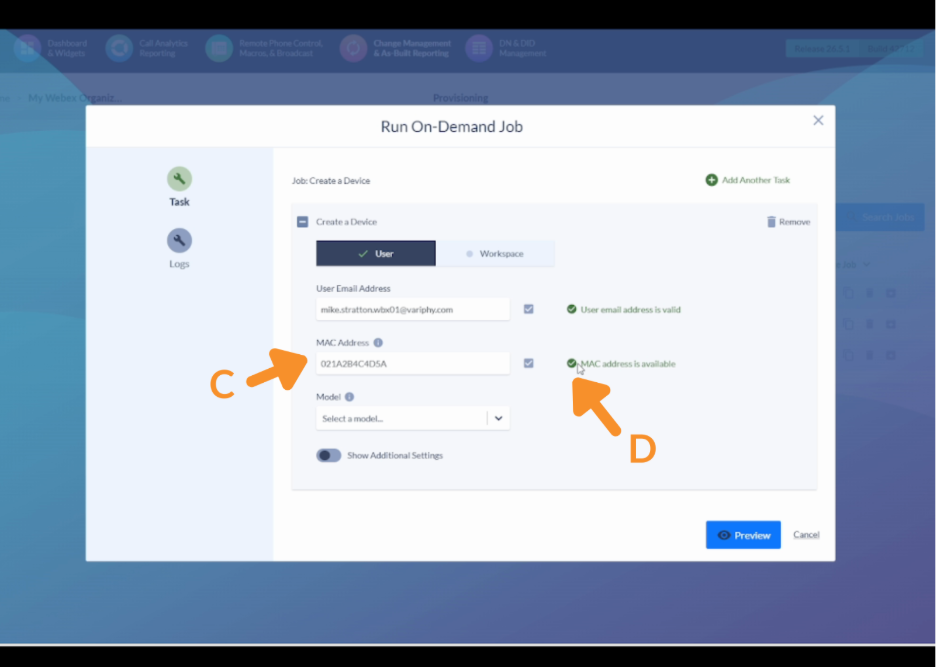
C. Enter the device MAC address in the MAC address field.
D. Click Check to verify the MAC address is available and not already assigned.
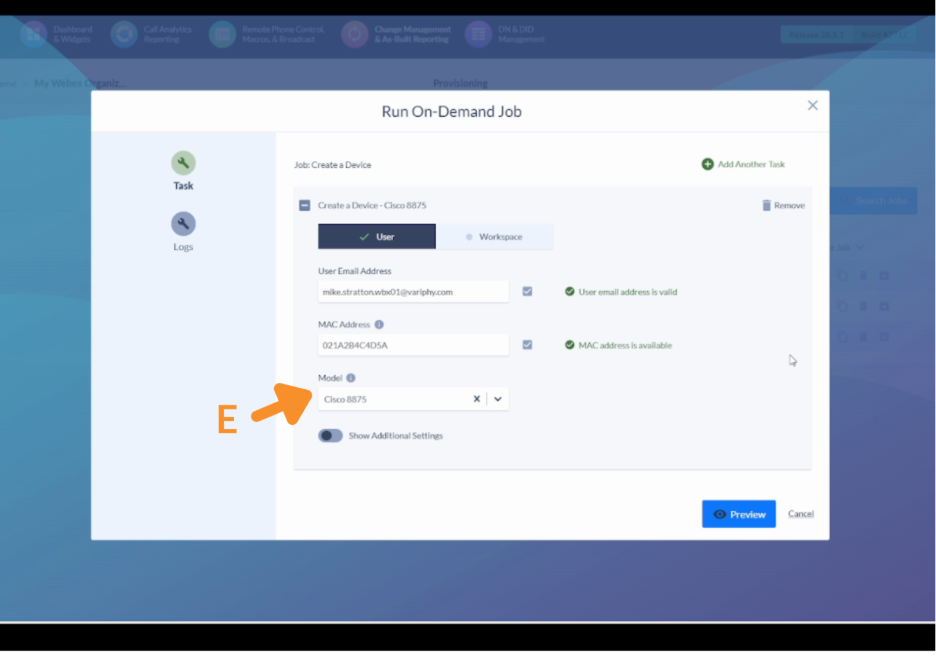
E. Search for and select the phone model from the list.
- You can search by partial model number (e.g., enter “875” to find the 8875).
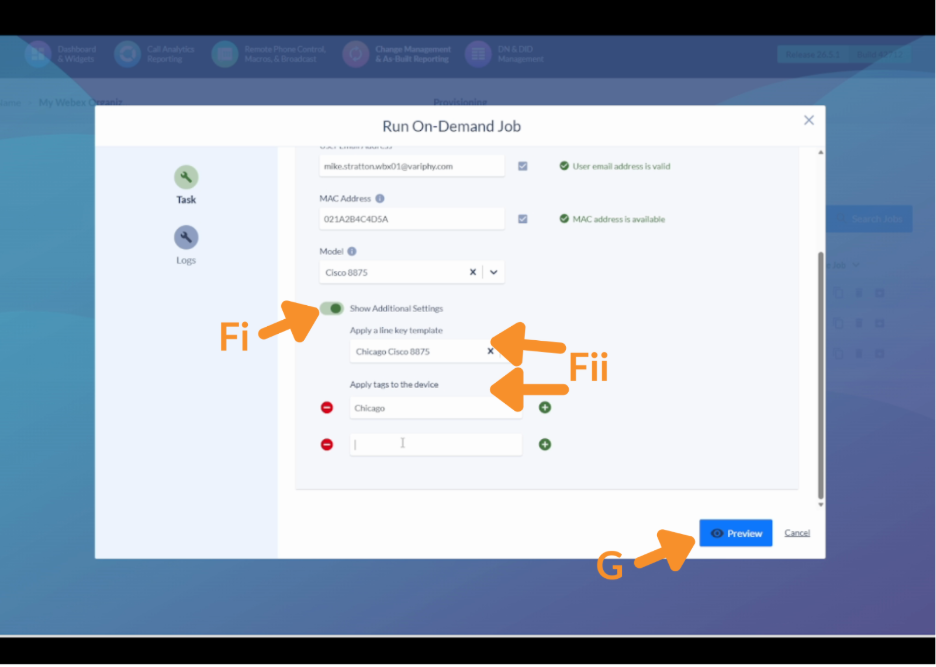
F. Apply Additional Settings.
i. Toggle on Show Additional Settings to expand the options panel.
ii. Configure any of the following as needed:
- Line key template — apply a template to pre-configure line keys on the device.
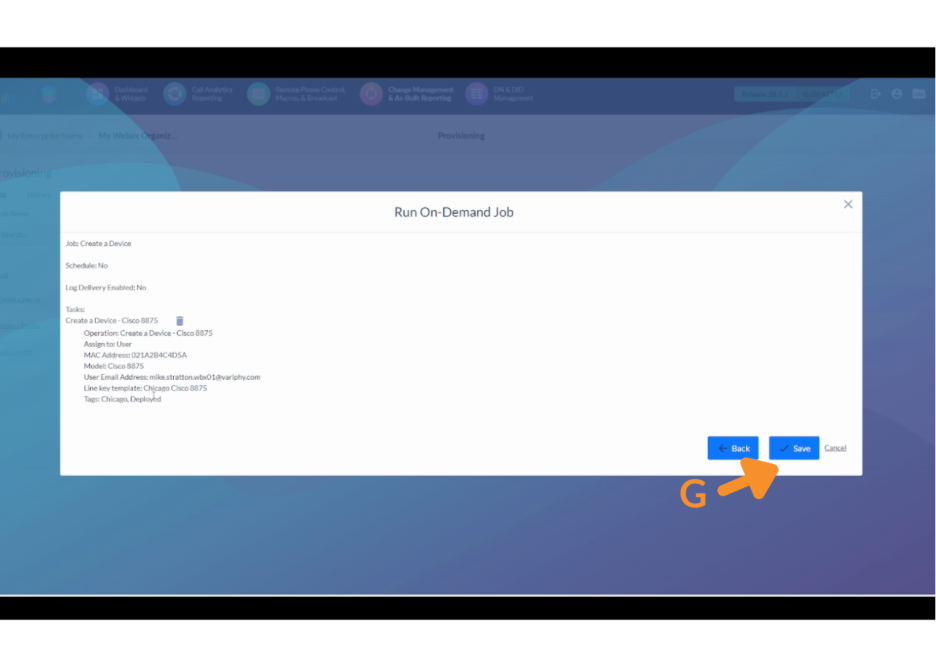
G. Click Preview to review all settings.
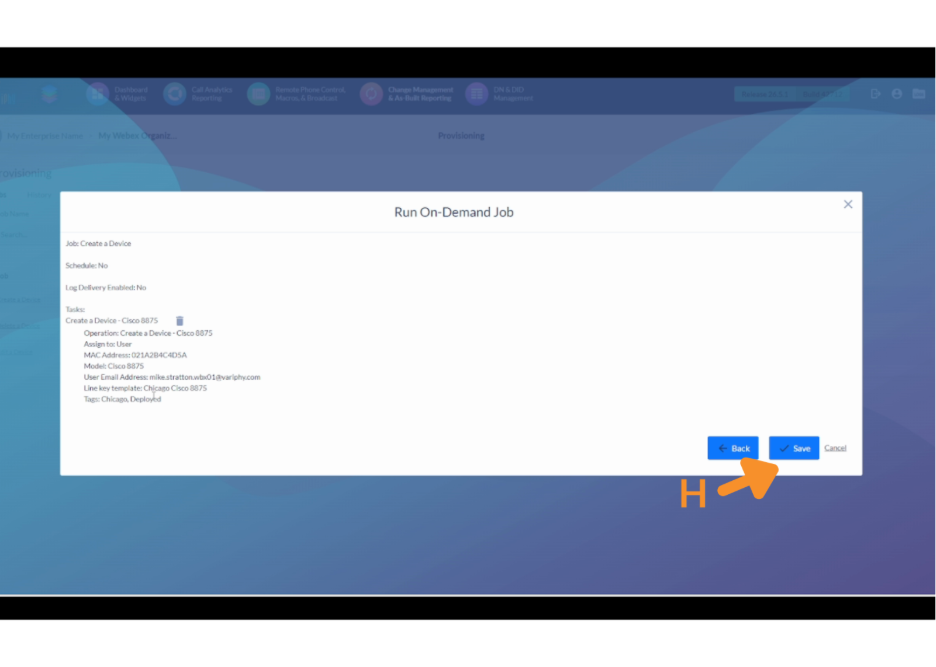
H. Click Save to submit and run the provisioning job.
3. Edit a device.
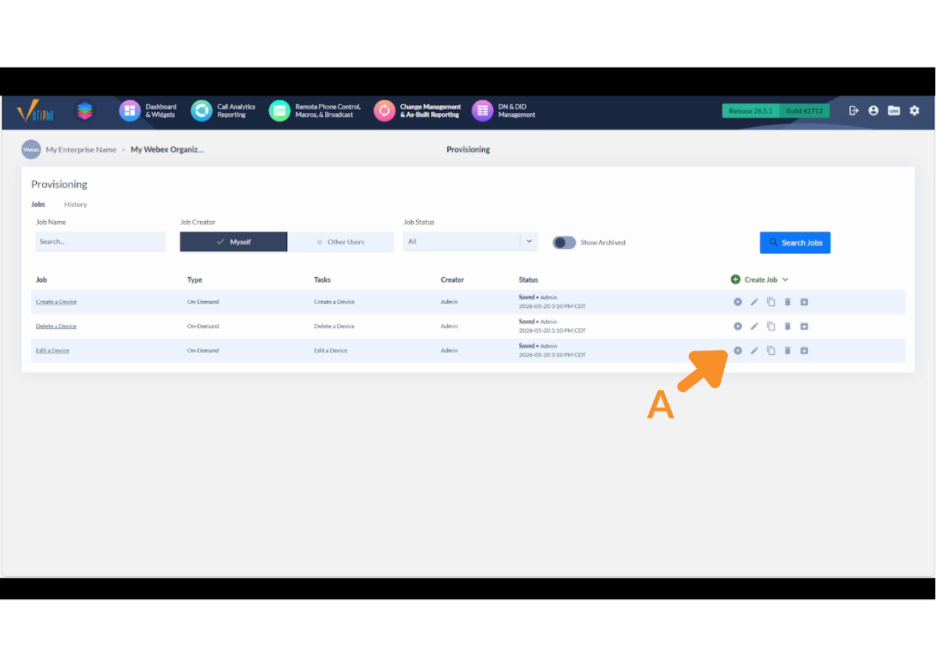
A. From the Provisioning Jobs list, click the Run button next to Edit a Device.
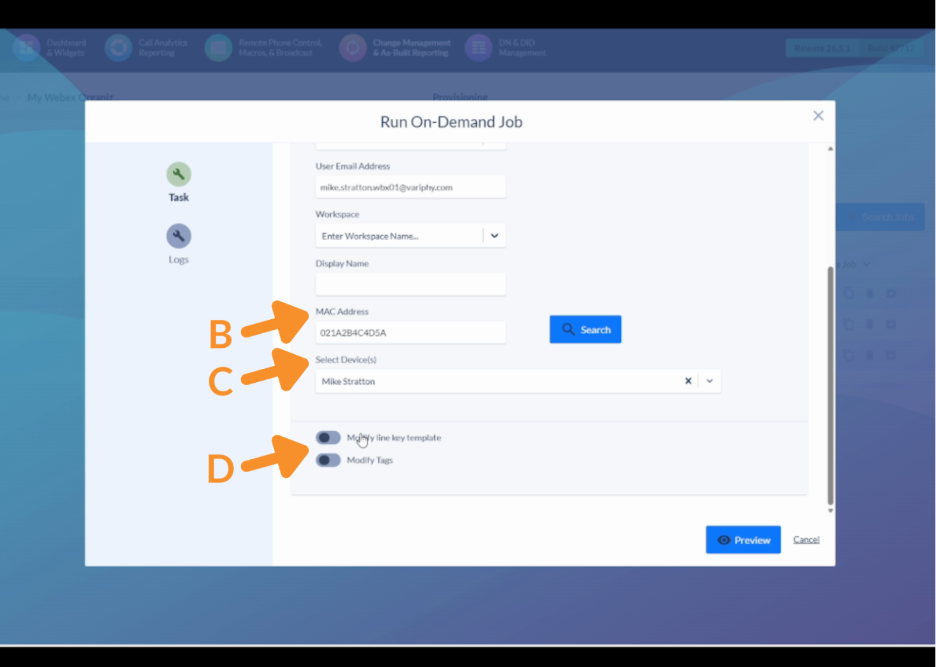
B. In the Run On-Demand Job modal, enter the device MAC Address and click Search.
C. Select the device from the Select Device(s) dropdown that appears.
D. Toggle on Modify line key template to update the device’s template, or Modify Tags to update its tags.
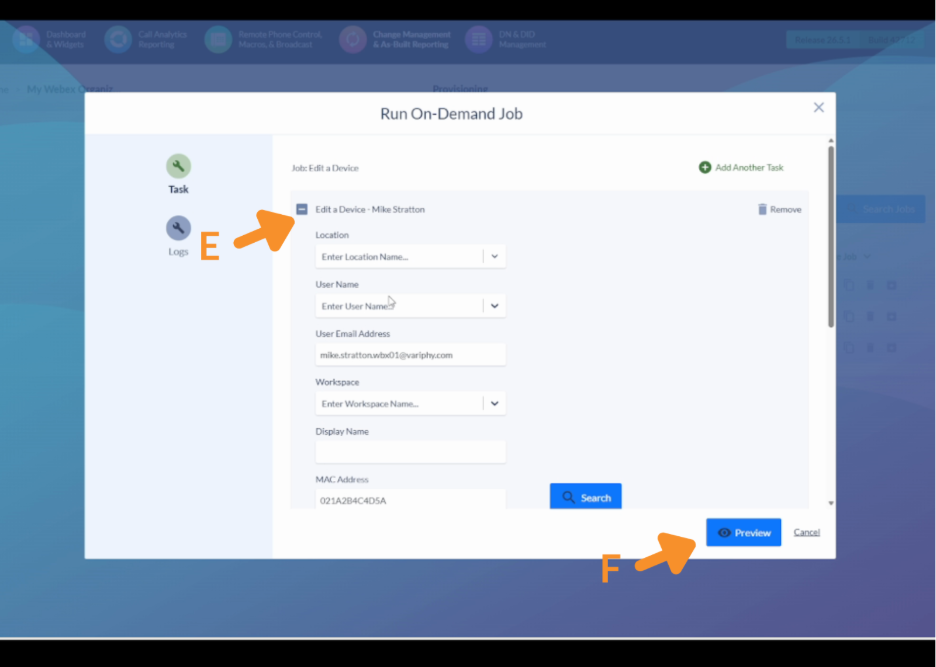
E. Make the desired changes in the Edit a Device module.
F. Click Preview to review the update.
G. Click Save to queue the job.
4. Delete a device.
A. From the Provisioning Jobs list, click the Run button next to Delete a Device.
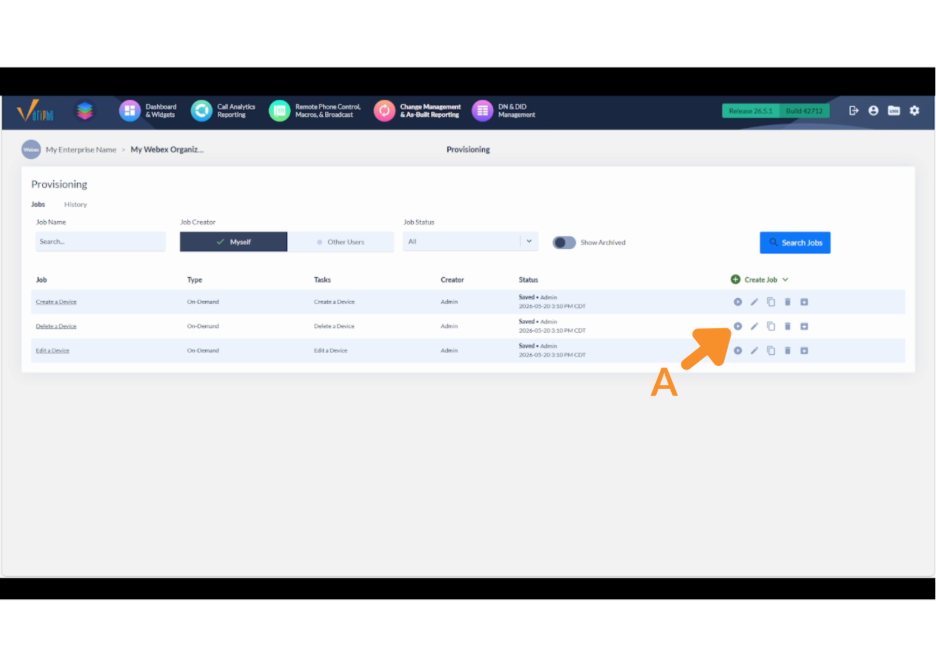
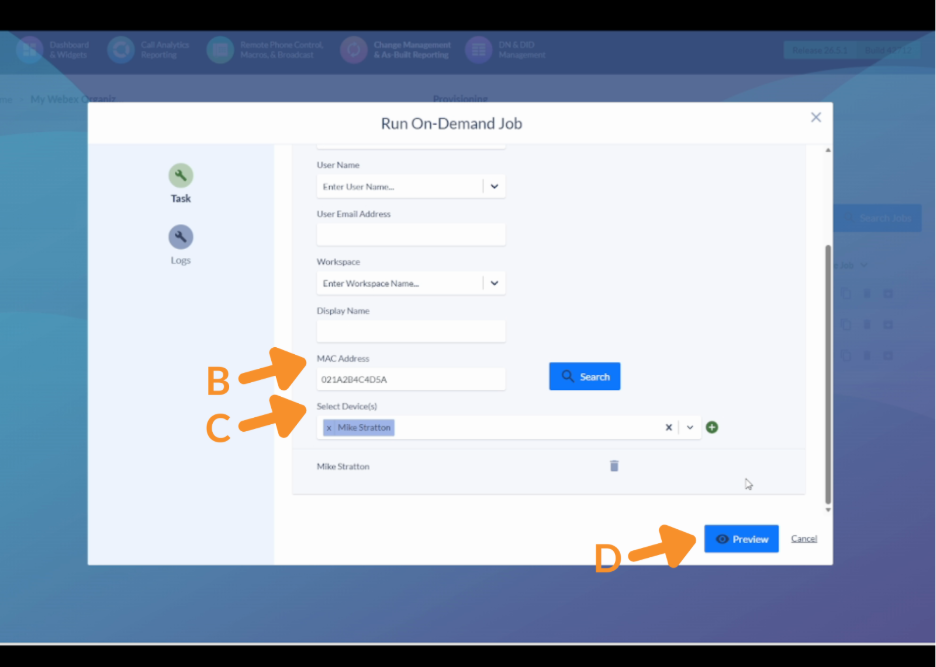
B. In the Run On-Demand Job modal, enter the device MAC Address and click Search.
C. Select the device from the Select Device(s) dropdown. The selected device will appear highlighted in the list below.
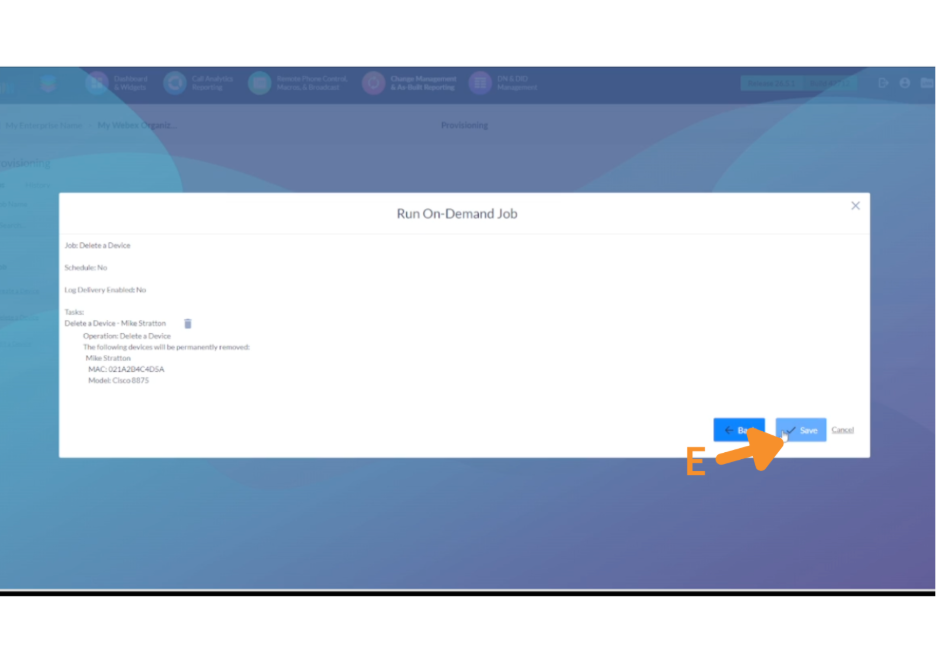
D. Click Preview to confirm the device to be deleted.
E. Click Save to submit the deletion job.
Still Need Help?
Email our support team at support@variphy.com or click the button below to access our ticket portal.
Please provide details about your question or issue, including any applicable screenshots, reports, or Variphy application log files.
