
Applies to:
- Variphy users with Webex integrations.
- Administrators reviewing configuration changes and audit events in Webex.
- Teams that need to trace who made a change, what changed, and when.
Common Causes or Issues
- Search your Webex audit log history directly in Variphy’s Change Management & As-Built Reporting — no need to leave the platform.
- Filter events by type, time window, and keyword to surface the exact log entries you need.
- Narrow results by actor to see who generated specific changes.
- Combine multiple criteria with match-all (AND) or match-any (OR) logic for precise or broad searches.
Interactive Walkthrough
How to Search Webex Audit Log History
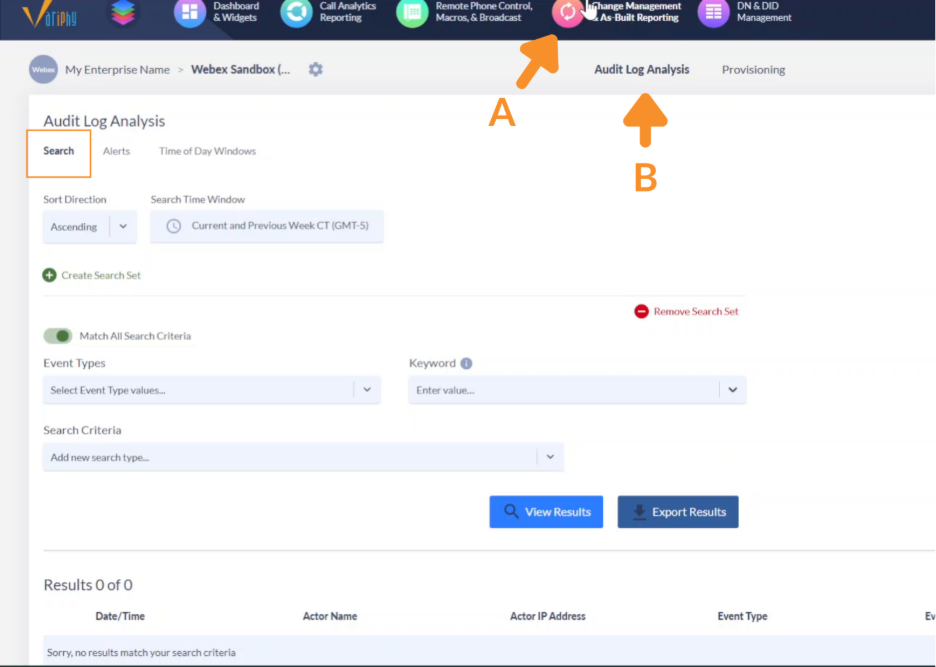
1. Open Audit Log Analysis.
A. From the top navigation, open Change Management & As-Built Reporting.
B. Select Audit Log Analysis, then confirm you’re on the Search tab.
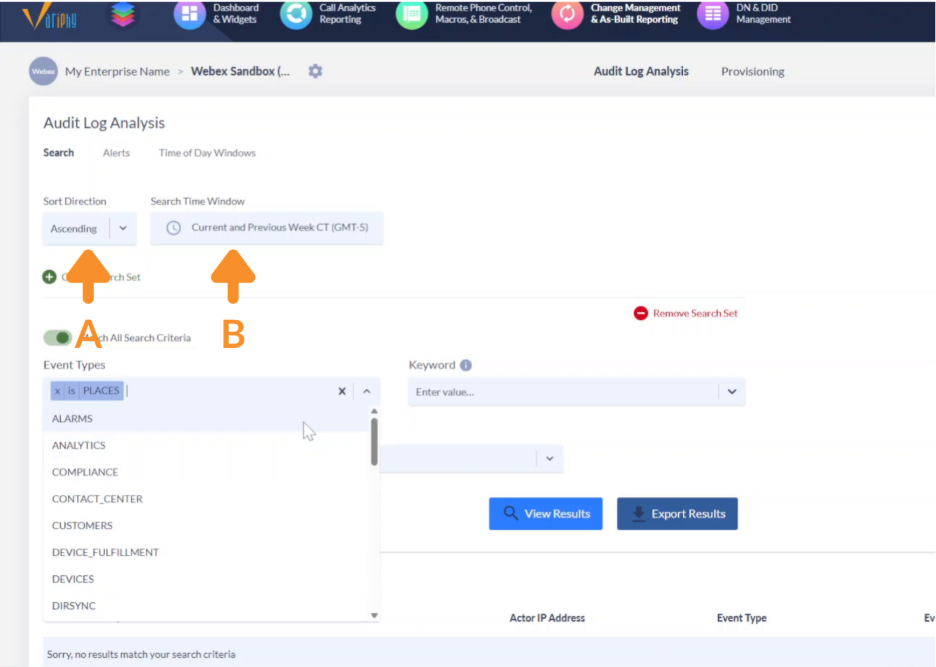
2. Set the search direction and time window.
A. Under Sort Direction, choose Ascending or Descending.
B. Under Search Time Window, select the date range to search (e.g., “Current and Previous Week CT”).
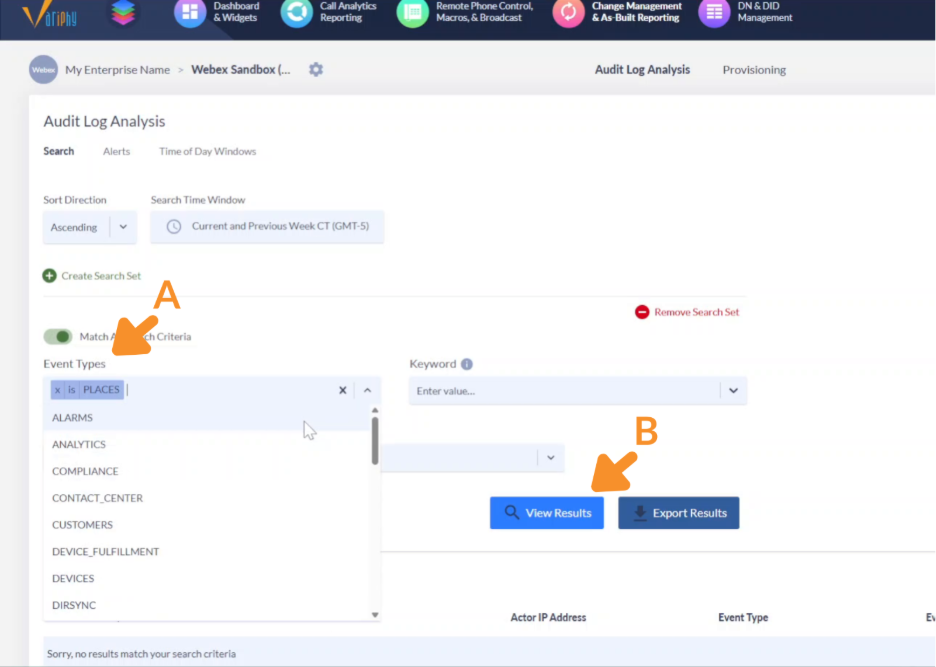
3. Filter by event type.
A. Open the Event Types dropdown.
- Scroll the list or type to filter (options include ALARMS, ANALYTICS, COMPLIANCE, CONTACT_CENTER, CUSTOMERS, DEVICE_FULFILLMENT, DEVICES, DIRSYNC, PLACES, and more).
- Select one or more event type values (e.g., PLACES).
B. Click View Results.
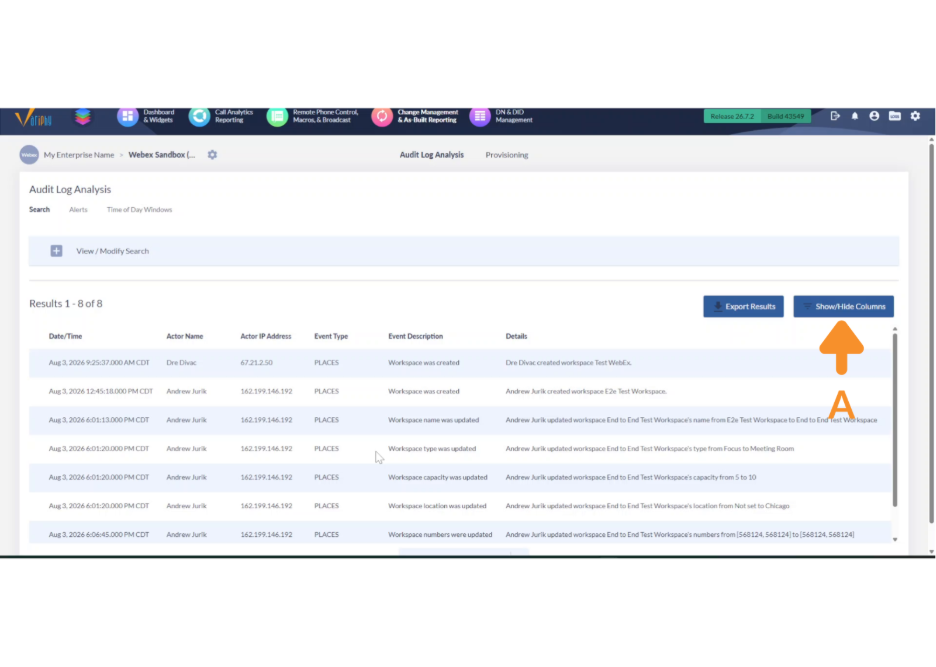
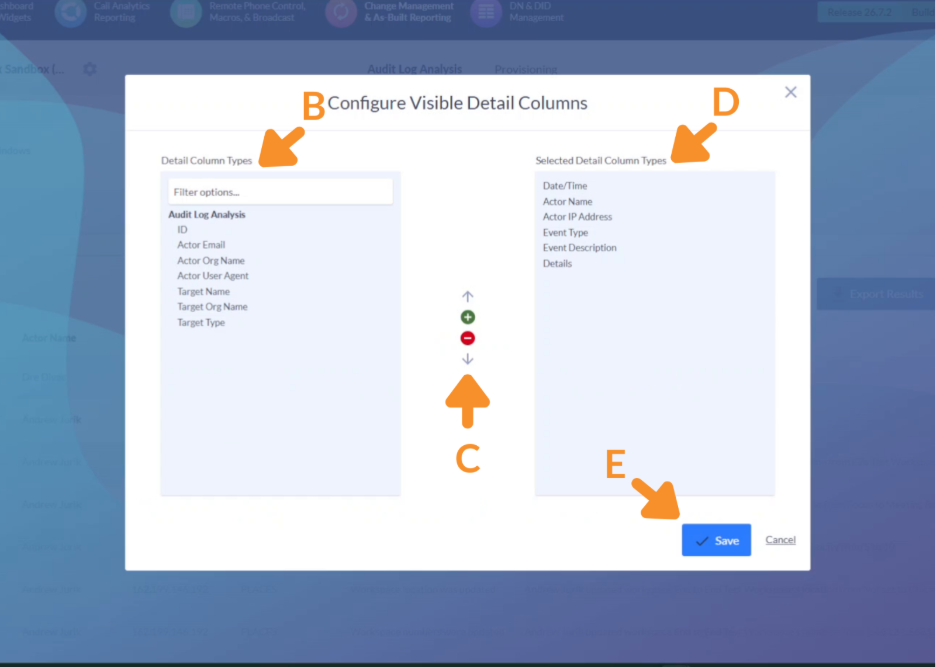
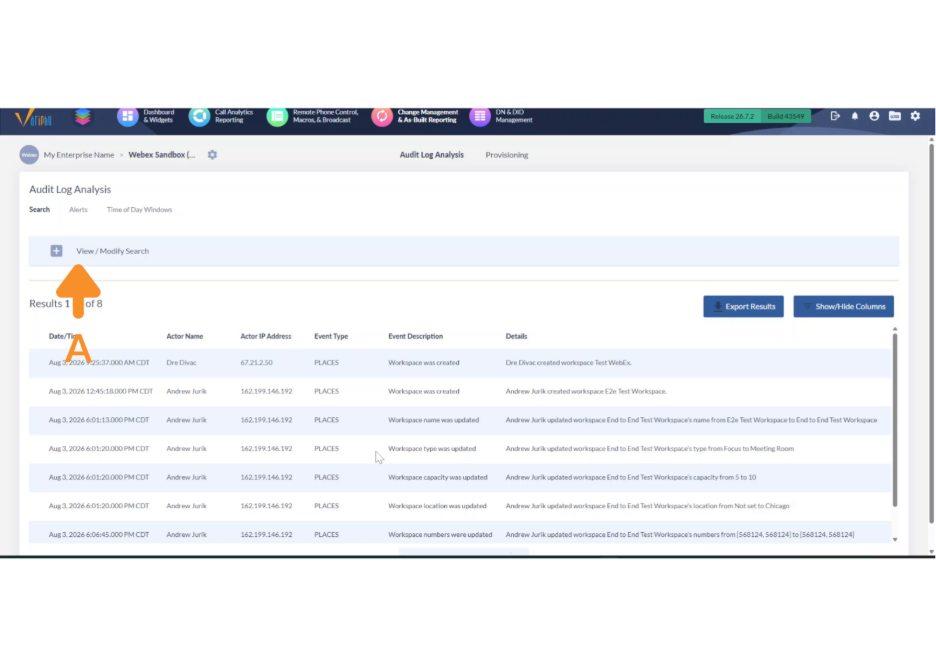
4. Show or hide columns.
A. In the results view, click Show/Hide Columns.
B. Select a detail column type.
C. Use the green + to add a column from Detail Column Types to add to the report.
D. Choose a detail column type from the Selected Detail Column Types list and click the red – to remove it from the report.
E. Click Save.
5. Search by keyword.
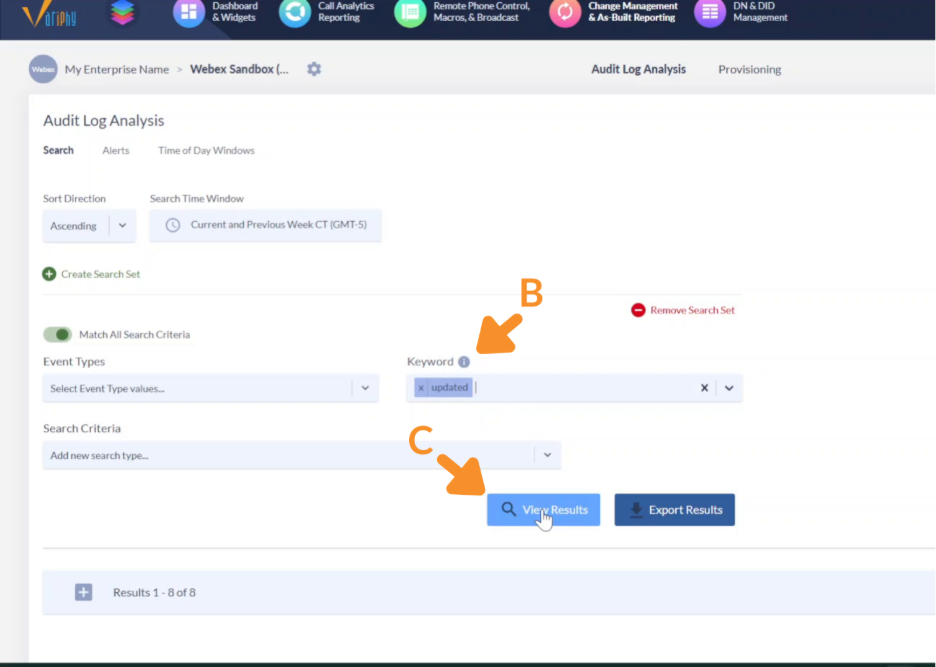
A. Return to the search form (click View / Modify Search if you’re viewing results).
B. In the Keyword field, enter a term (e.g., updated).
- The keyword search looks across all details in the log entries.
C. Click View Results to see every entry matching the keyword.
6. Add search criteria.
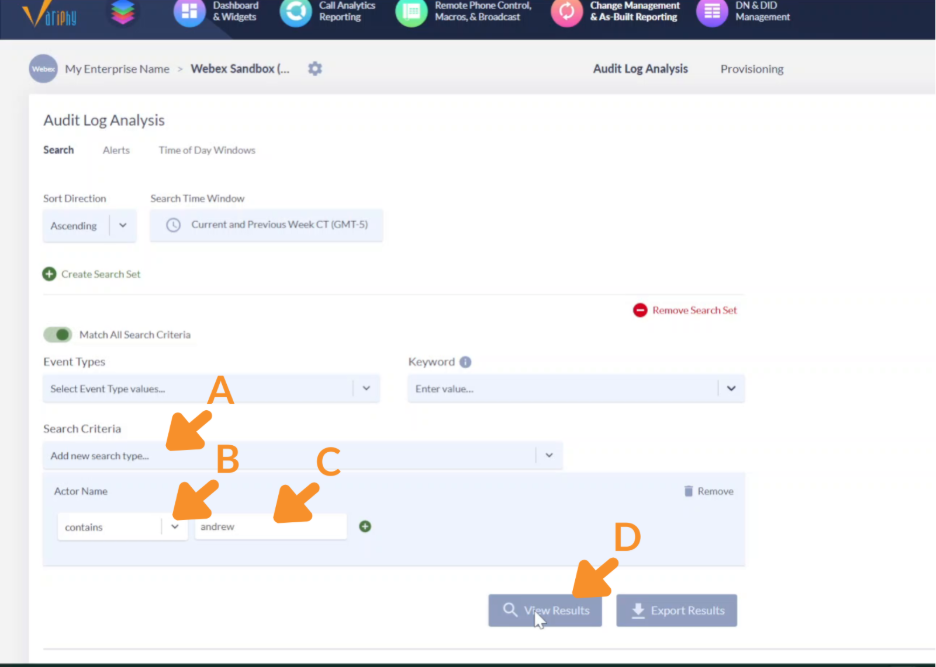
A. Under Search Criteria, open the Add new search type… dropdown and choose a criterion (e.g., Actor Name).
B. Set the operator — equals or contains (e.g., contains).
C. Enter the value to match (e.g., andrew). Use the green + to add another value, or Remove to delete the criterion.
D. Click View Results.
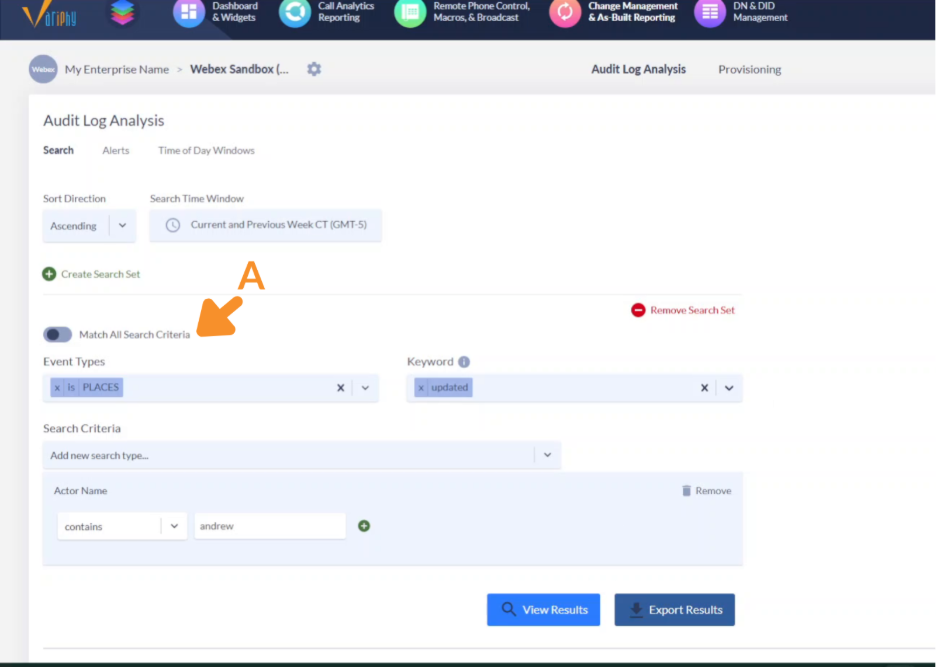
7. Combine criteria with match logic.
A. Use the Match All Search Criteria toggle to control how multiple criteria (event type, keyword, and search criteria) combine.
- Toggle on (Match All / AND) — returns only entries that meet every criterion. With event type PLACES, keyword updated, and Actor Name contains andrew all applied, the search returns just the entries meeting all three.
- Toggle off (Match Any / OR) — returns entries that meet any criterion, broadening the results.
Still Need Help?
Email our support team at support@variphy.com or click the button below to access our ticket portal.
Please provide details about your question or issue, including any applicable screenshots, reports, or Variphy application log files.
