
Applies to:
- Webex Contact Center supervisors.
- Administrators.
- Business analysts.
- Users with dashboard editing permissions (technical and non-technical).
Common Causes or Issues
- Need to view detailed, call-level data in a dashboard.
- Existing widgets do not show enough call detail.
- Requirement to customize visible fields such as agent, queue, or call time.
- Need to improve readability or layout of call reporting widgets.
Interactive Walkthrough
How to Create and Customize a Call History Details Widget
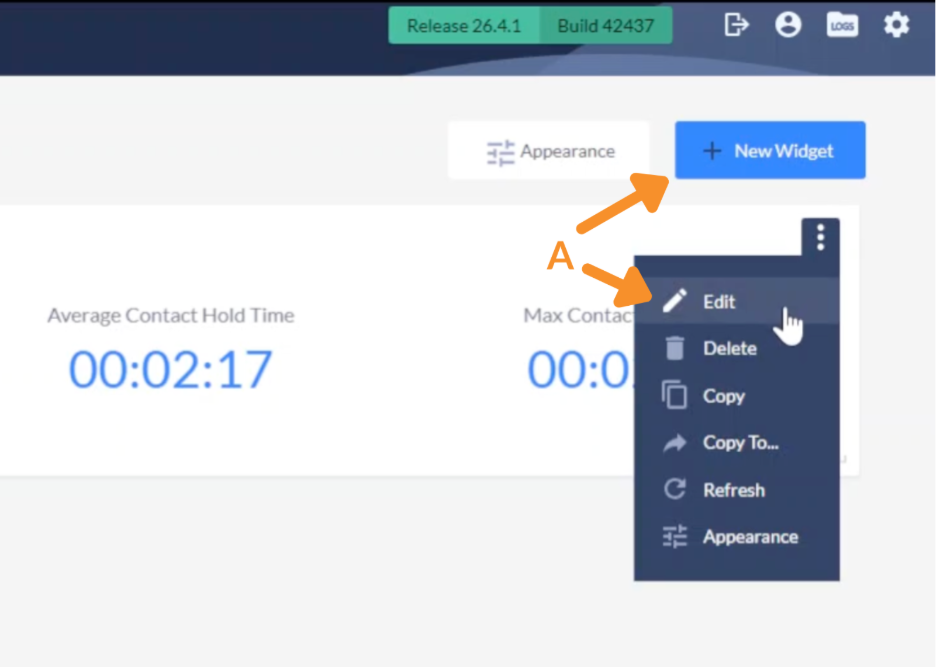
1. Create or Edit a Widget.
A. Click on the three vertical dots to edit an existing widget or the New Widget button to create a new one
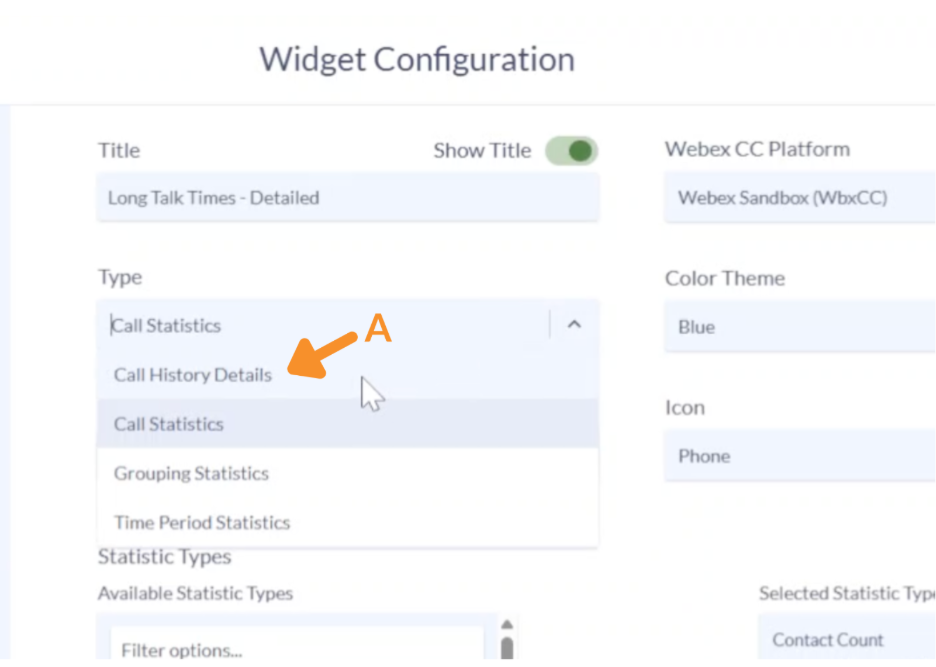
2. Select Widget Type.
A. Locate the Type dropdown and select Call History Details.
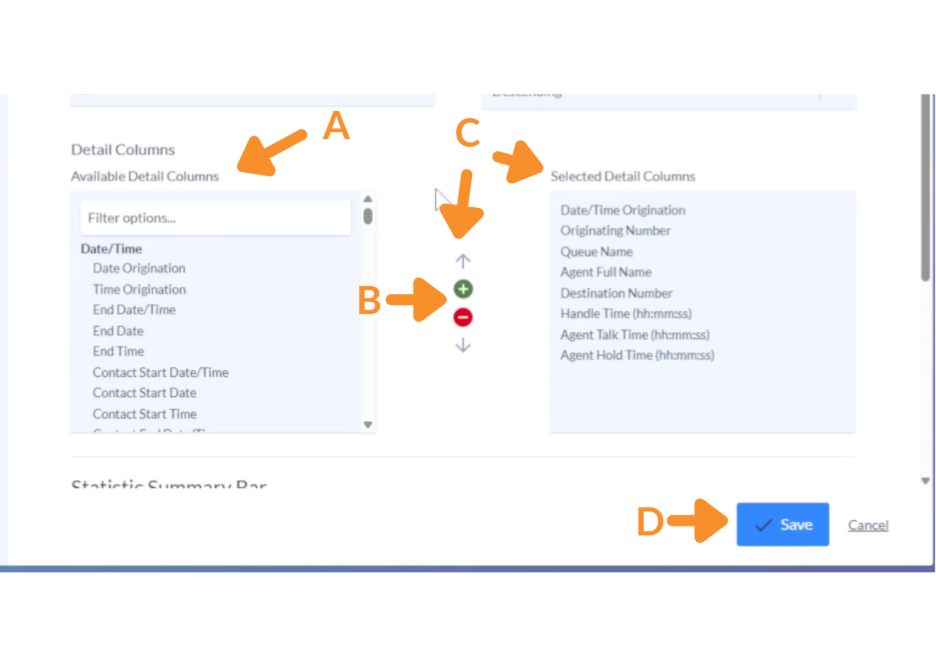
3. Configure Detail Columns.
A. Select fields you want displayed, such as:
- Date.
- Calling number.
- Queue.
- Agent.
B. Click the + (Add Column) icon.
C. Highlight the detail column on the right and click on the up or down arrows to change the order.
D. Create or update Search Sets and set desired Time Period.
E. Click Save.
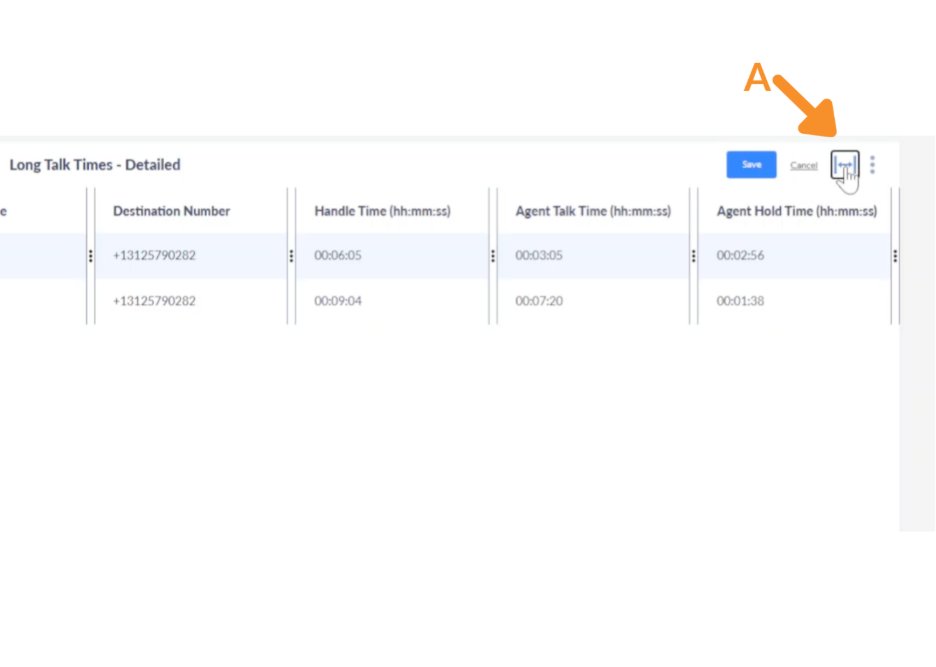
4. Adjust Column Layout.
A. Click the horizontal three-dot menu on a column header to resize the columns.
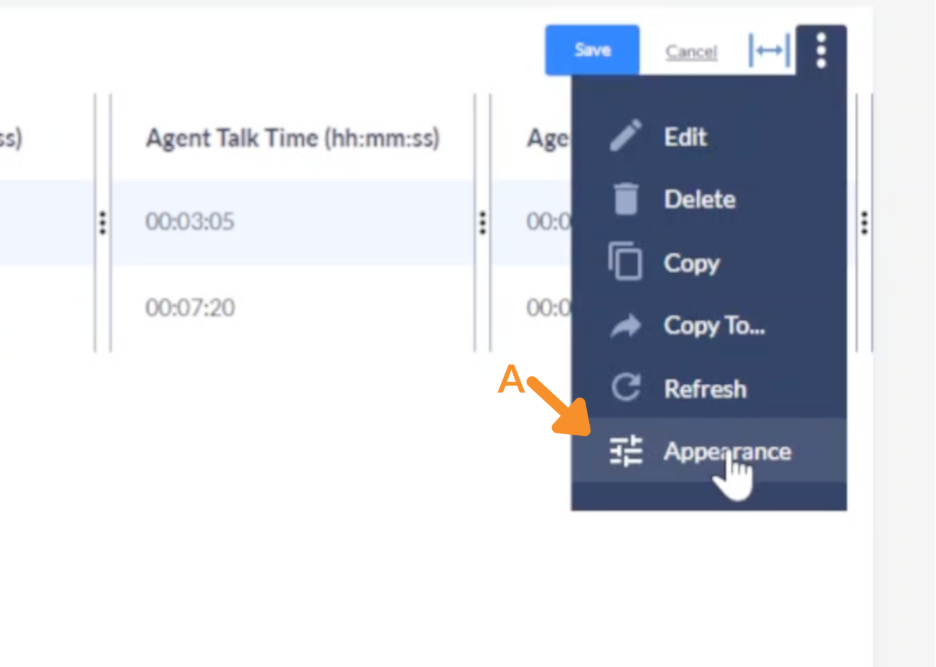
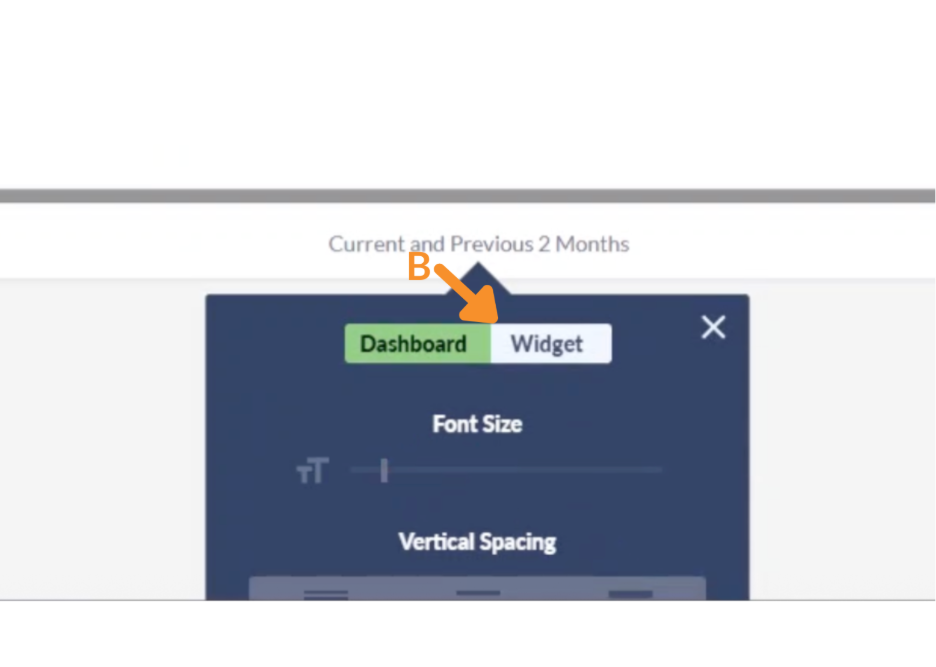
5. Customize Appearance.
A. Navigate to Appearance settings.
B. Under Widget settings, adjust for display settings like font size and line spacing.
The widget can display up to 50 calls, depending on the selected time range.
Still Need Help?
Email our support team at support@variphy.com or click the button below to access our ticket portal.
Please provide details about your question or issue, including any applicable screenshots, reports, or Variphy application log files.
