
Applies to:
- Organizations using the Colleen AI Voice Agent to answer and transfer inbound calls.
- Administrators managing the directory their agent uses to connect callers.
- Teams that want callers connected by nickname or job title, not only by full name.
Common Causes or Issues
- Add people to your agent’s directory one at a time, without importing a file.
- Give each entry an extension, a DID, or both, so your agent knows where to send the call.
- Choose which contact method is primary for each entry.
- Add aliases like nicknames or job titles so your agent can connect callers who don’t ask for the person’s exact full name.
Interactive Walkthrough
1. Open App Integrations.
A. In the Colleen AI Voice Agent portal, go to Account Settings and click App Integrations.
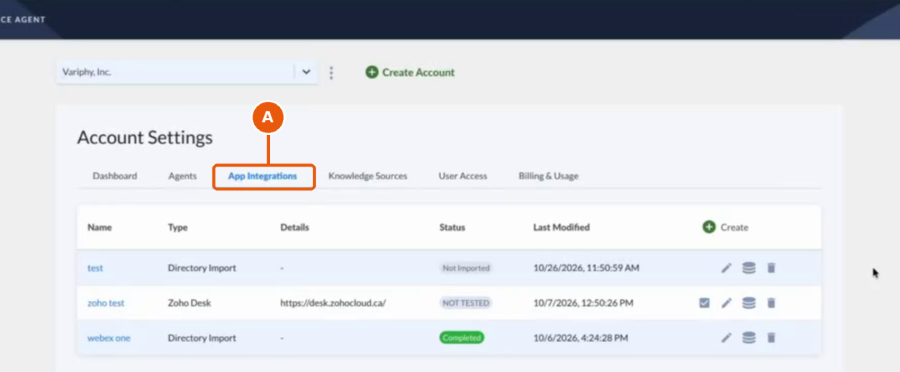
Account Settings with callout A on the App Integrations tab
2. Open your directory’s contents.
A. Find the directory your agent uses. Directories show Directory Import in the Type column.
B. Click the data icon in that row to open the directory.
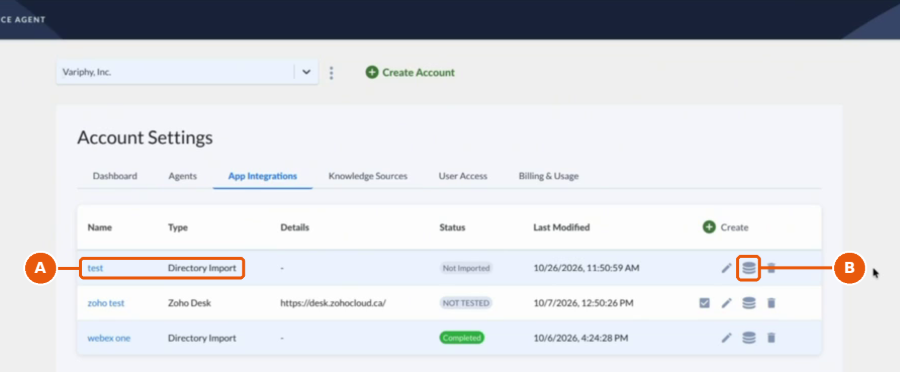
App Integrations list with callout A on the test Directory Import row and callout B on its data icon
3. Click Add Entry.
A. Under Directory Contents, click Add Entry.
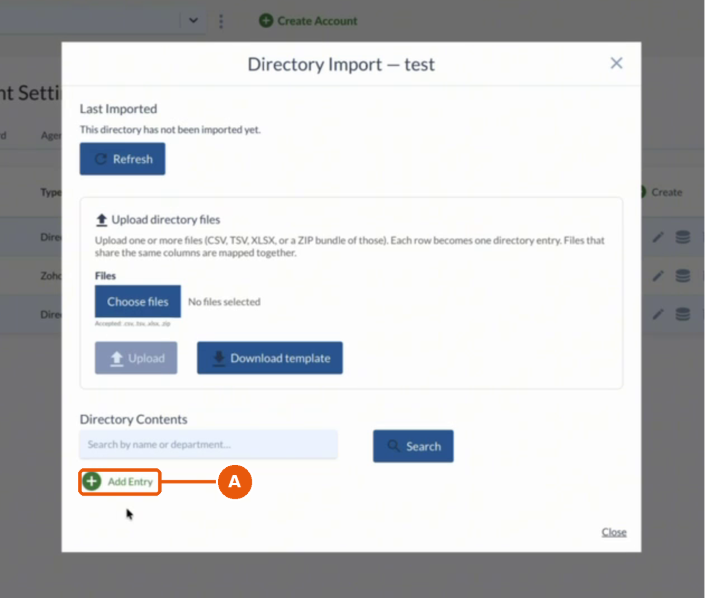
Directory Import modal with callout A on Add Entry under Directory Contents
4. Enter the name callers ask for.
A. Enter the Display Name (e.g., Robert Smith).
B. Enter the First Name and Last Name.
- Leave Entity Type set to Person when you’re adding an individual.
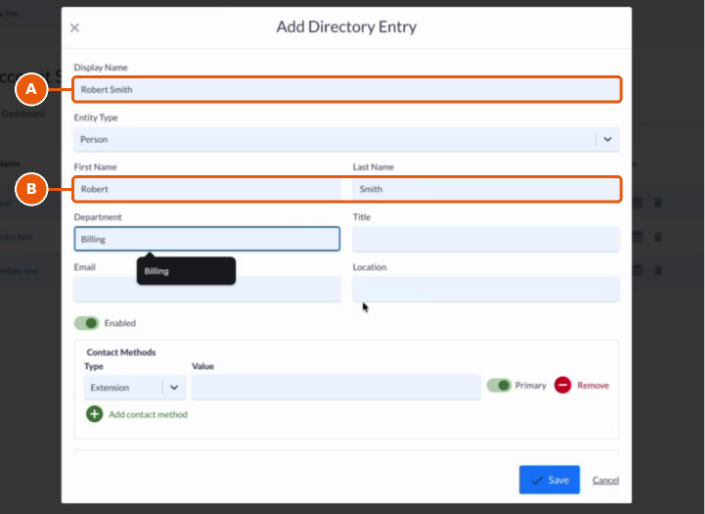
Add Directory Entry form with callout A on Display Name and callout B on First Name and Last Name
5. Add the department.
A. Enter the person’s Department (e.g., Billing).
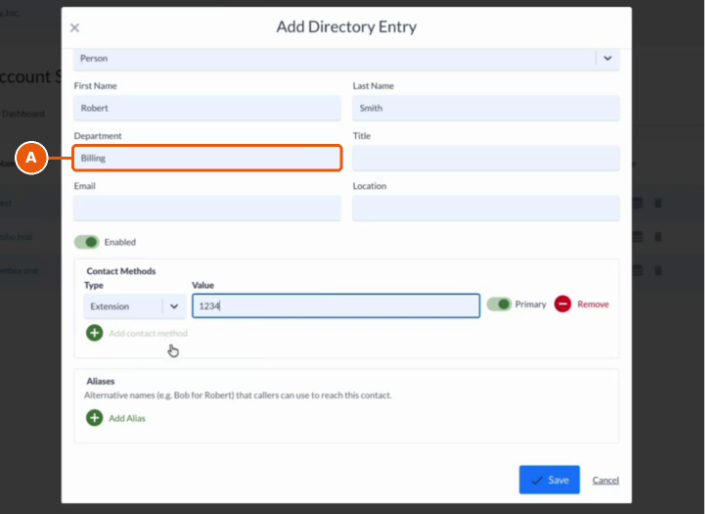
Add Directory Entry form with callout A on the Department field set to Billing
6. Enter the extension.
A. Under Contact Methods, keep Extension as the Type and enter the extension in Value (e.g., 1234).
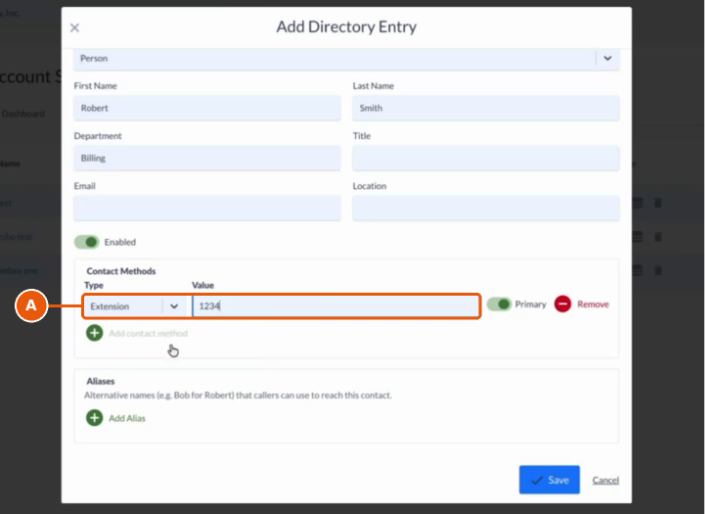
Contact Methods with callout A on the Extension type and value 1234
7. Add a DID number.
A. Click Add contact method.
B. In the new row, select DID as the Type and enter the direct number in Value (e.g., 1234567890).
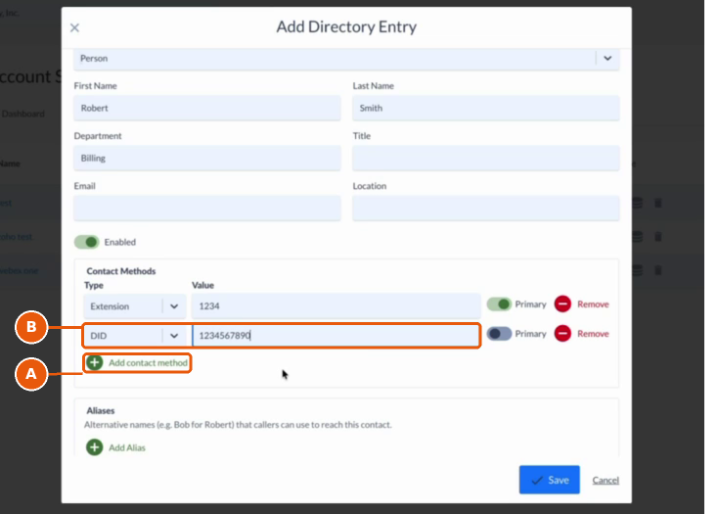
Contact Methods with callout A on Add contact method and callout B on the new DID row
8. Set the primary number.
A. Turn on the Primary toggle for the number you want marked as primary. In this example, the DID is set as primary, and the Extension’s Primary toggle turns off.
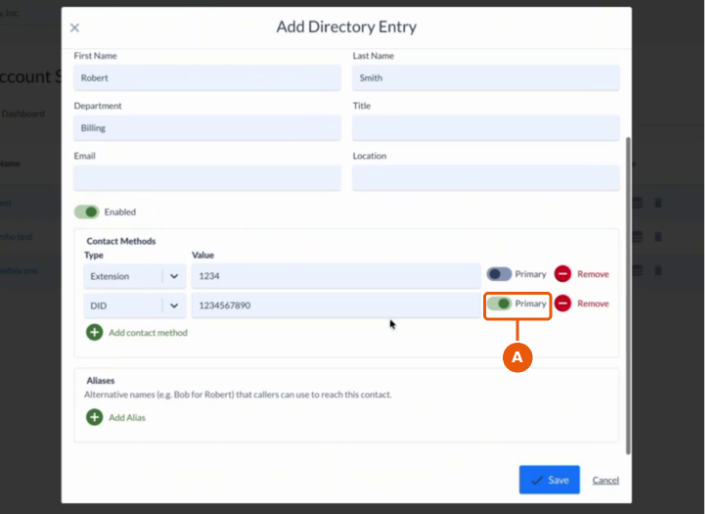
Contact Methods with callout A on the Primary toggle turned on for the DID
9. Add an alias.
A. Under Aliases, click Add Alias.
B. Enter an alternative name callers might use, such as a nickname or job title (e.g., Bob for Robert).
- Click Add Alias again to add more aliases.
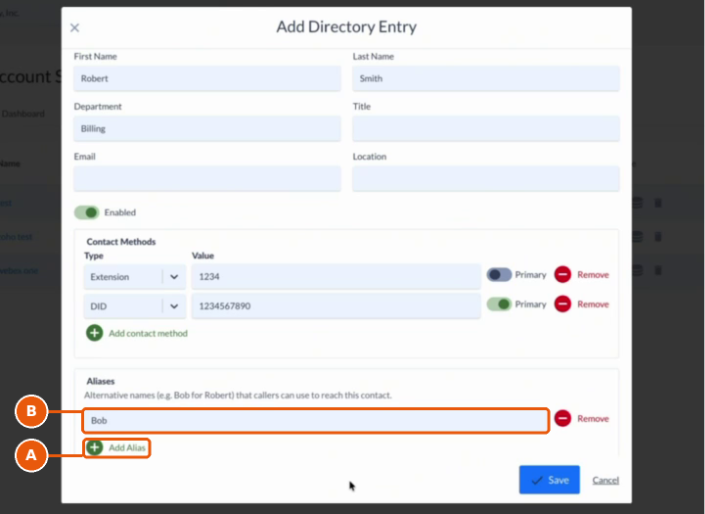
Aliases section with callout A on Add Alias and callout B on the alias field containing Bob
10. Click Save.
A. Click Save to add the entry to the directory.
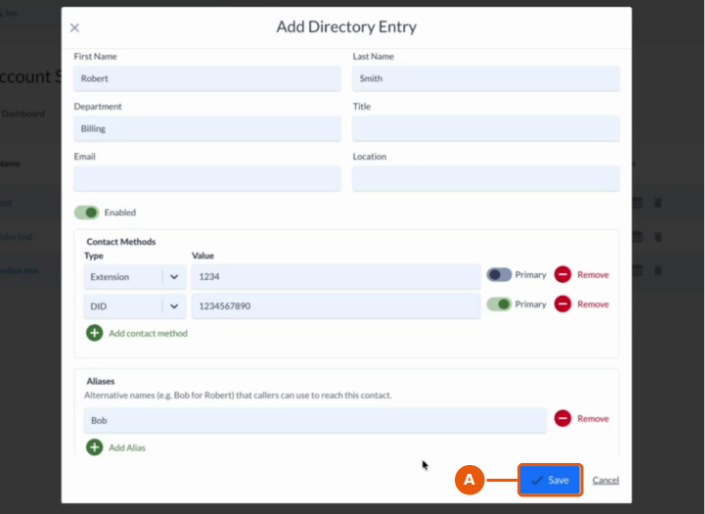
Completed Add Directory Entry form with callout A on Save
11. Confirm the entry is listed.
A. Review the new entry in Directory Contents. It shows:
- Display Name, Type, and Department
- Contact Methods, with a star (★) next to the primary number
- Source set to Manual
B. Use the edit or delete icons under Actions to update or remove the entry later.
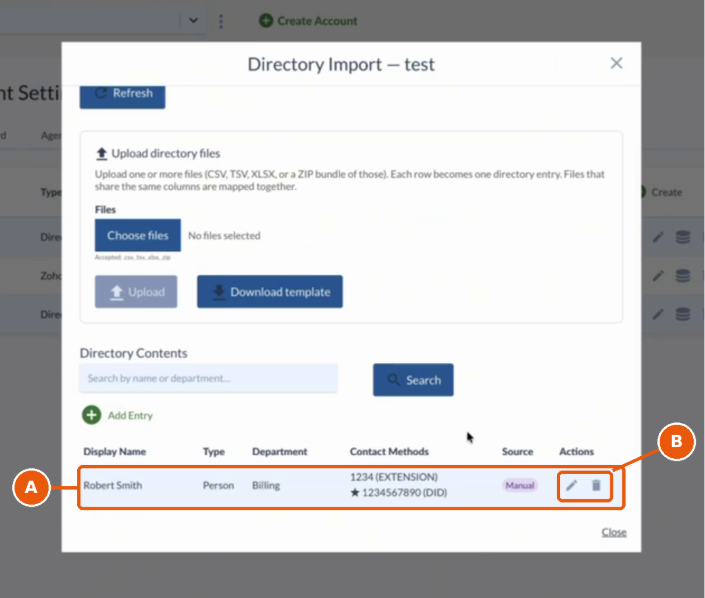
Directory Contents with callout A on the Robert Smith entry and callout B on the edit and delete icons under Actions
