
Applies to:
- Variphy users with Cisco CUCM integrations who use Colleen AI Assistant.
- Users who want a record of their conversations with Colleen.
- Teams sharing chat logs with Variphy Support to troubleshoot Colleen’s responses.
Common Causes or Issues
- Save a copy of any Colleen AI Assistant conversation as a JSON file.
- Open the transcript in Excel or Notepad to review what you asked and how Colleen answered.
- Download chats from History search or while building a report.
- Give Variphy Support the chat log if Colleen isn’t working the way you expected.
Interactive Walkthrough
From History search
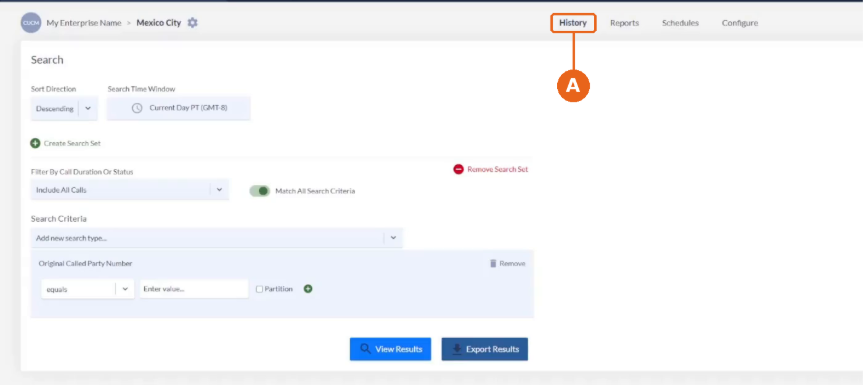
1. Start on the History search page.
A. In Call Analytics Reporting, click the History tab.
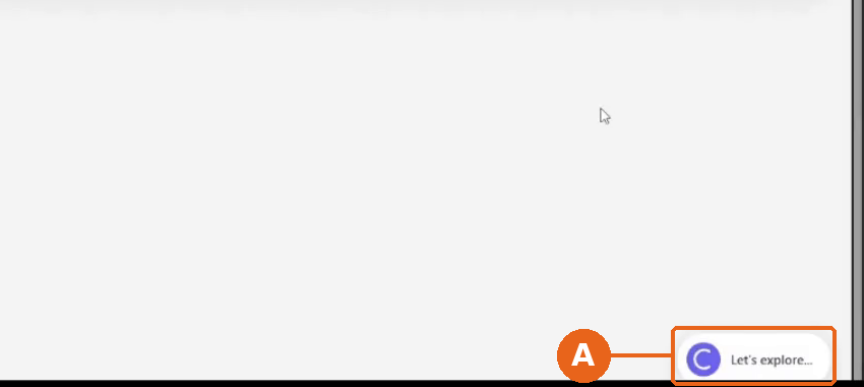
2. Click “Let’s explore…”.
A. Click Let’s explore… in the bottom-right corner of the page to open Colleen AI Assistant. Your earlier conversation appears in the Colleen panel. Colleen records your chats, so you can return to them later.
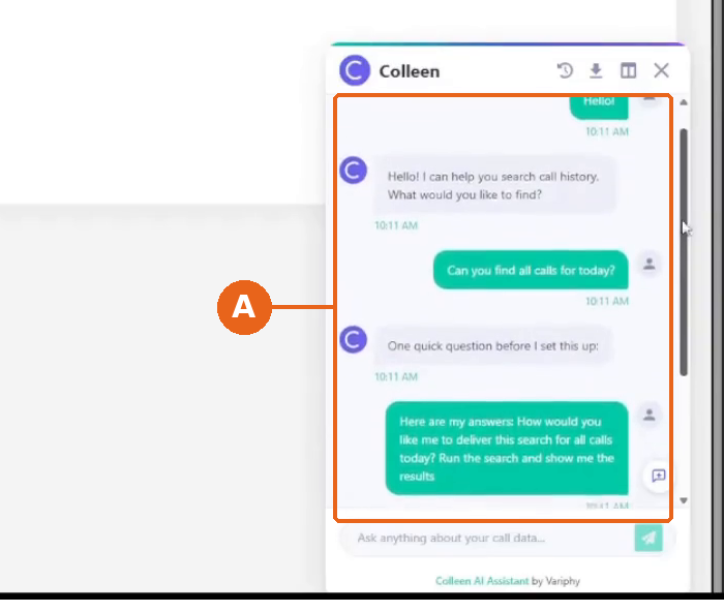
3. Review your conversation.
A. Scroll through the chat to find the questions you asked and Colleen’s answers.
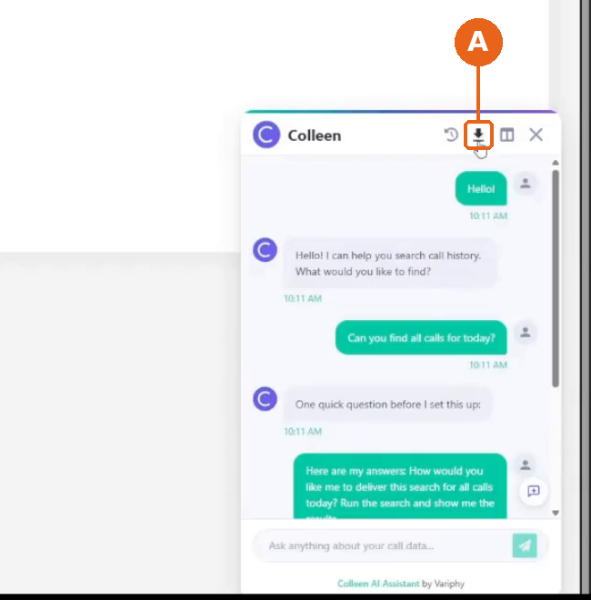
4. Click the download icon.
A. In the Colleen panel header, click the download icon (down arrow). Your browser downloads the conversation as a JSON file. Open it in Excel or Notepad.
While building a report
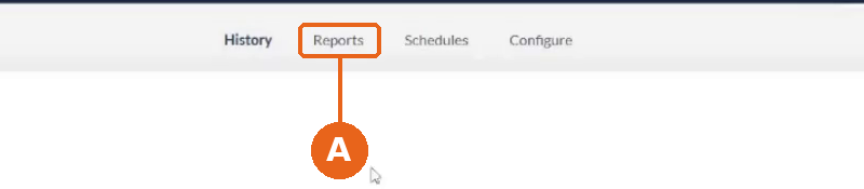
1. Open the Reports tab.
A. In Call Analytics Reporting, click the Reports tab.
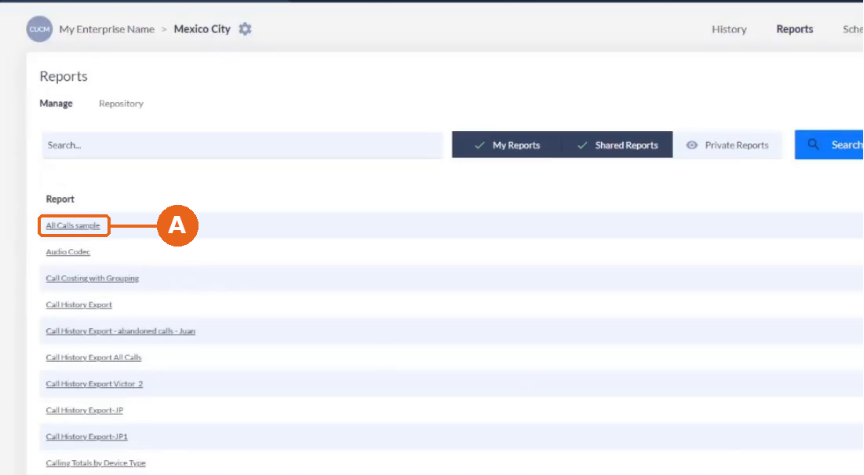
2. Select a report to edit.
A. In the Report list, click the name of the report you’re building with Colleen (for example, All Calls sample).
B. The Edit Report window opens.
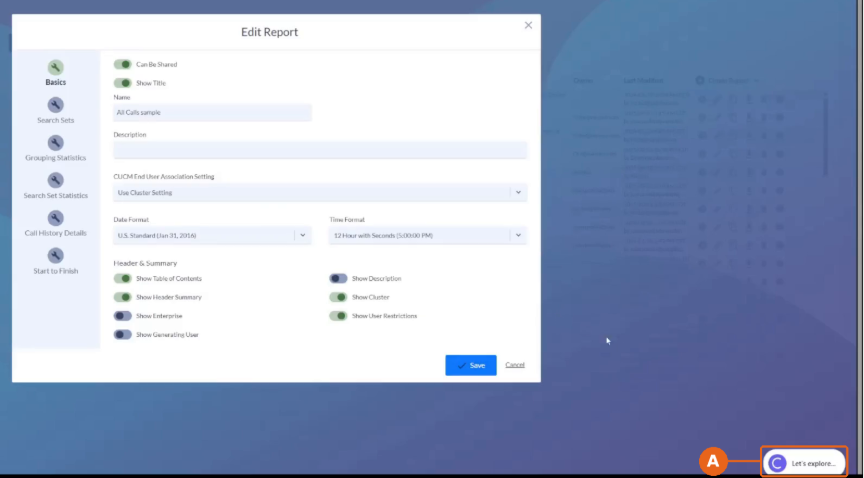
3. Open Colleen from “Let’s explore…”.
A. With Edit Report open, click Let’s explore… in the bottom-right corner.
B. Colleen opens beside the Edit Report window and shows your conversation.
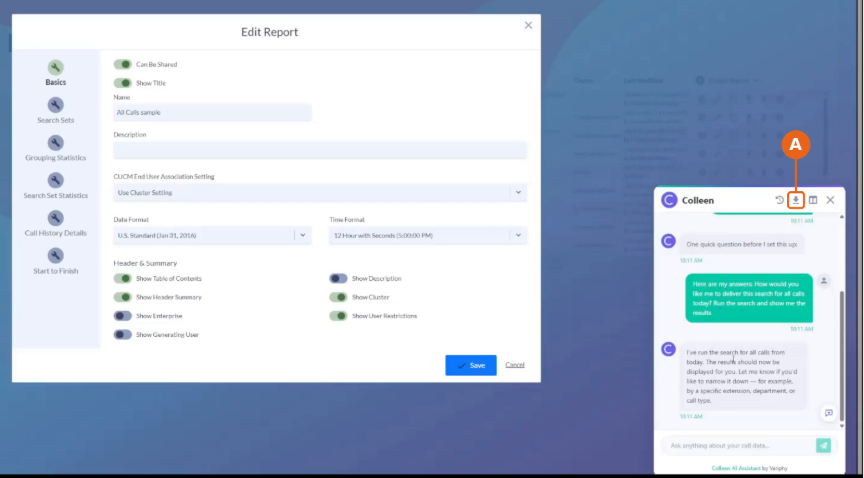
4. Save the chat transcript.
A. In the Colleen panel header, click the download icon. Your browser downloads the conversation as a JSON file.
Still Need Help?
Email our support team at support@variphy.com or click the button below to access our ticket portal.
Please provide details about your question or issue, including any applicable screenshots, reports, or Variphy application log files.
