
Applies to:
- Organizations using the Colleen AI Voice Agent to answer inbound calls.
- Administrators configuring how their agent routes callers to departments or people.
Common Causes or Issues
- Route callers to the right team based on the issues or keywords they mention.
- Map multiple topics (e.g., billing, invoices, payments) to a single department or person.
- Transfer to a specific phone number or extension, or let the agent look up the destination in your directory.
Interactive Walkthrough
How to Set Up Topic Transfers for Your Agent
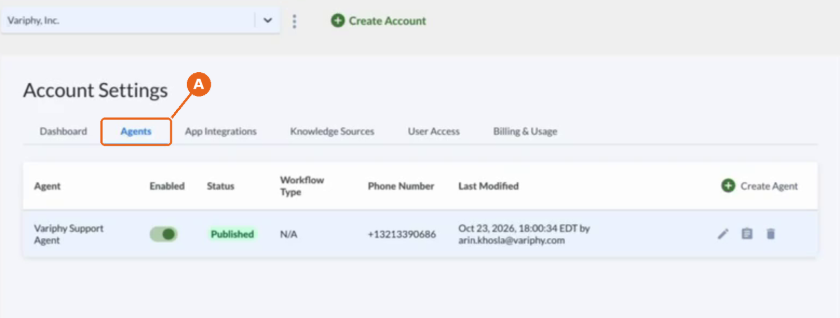
1. Open the Agents tab.
A. In the Colleen AI Voice Agent portal, go to Account Settings and click Agents.
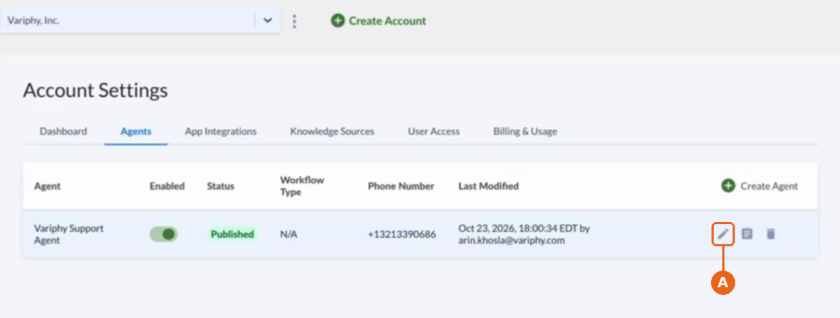
2. Edit your agent.
A. Find the agent you want to configure. Topic transfers are set per agent. Click the pencil icon in that agent’s row to open Configure Agent.
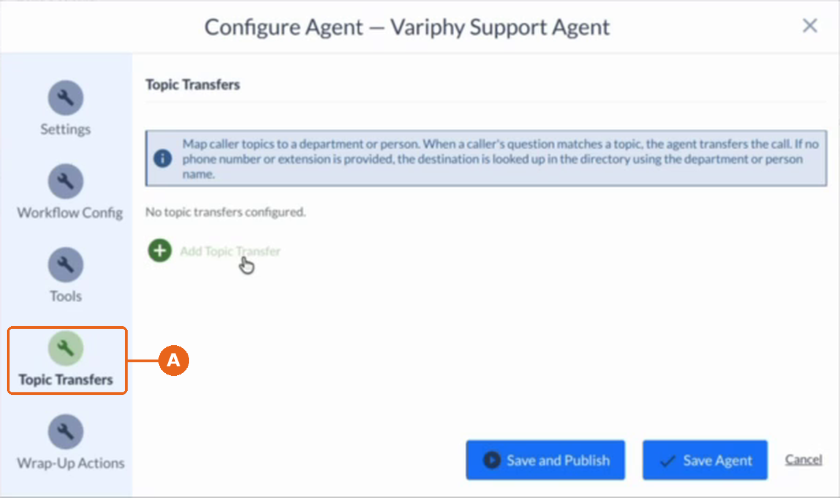
3. Select Topic Transfers.
A. In the left menu of Configure Agent, click Topic Transfers.
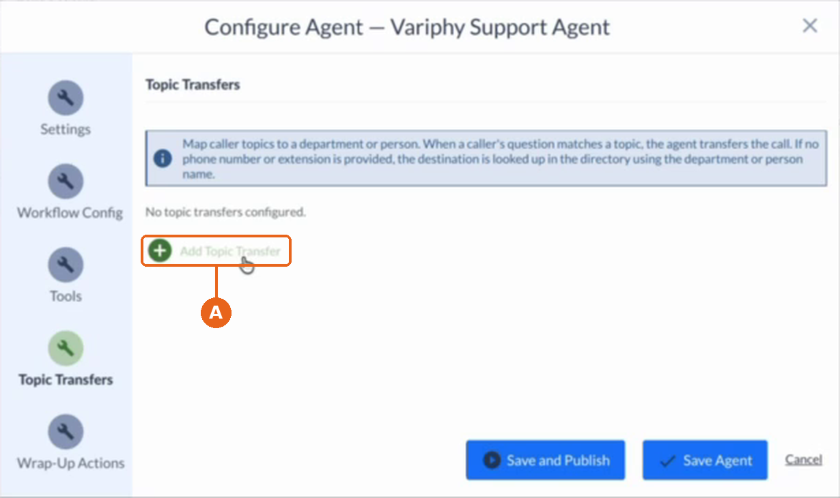
4. Click Add Topic Transfer.
A. Click Add Topic Transfer to create a new routing rule. If your agent has none yet, you’ll see No topic transfers configured.
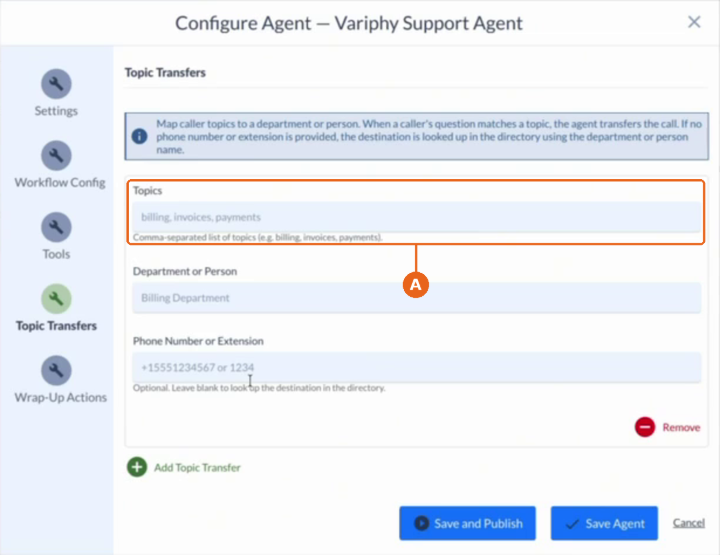
5. Enter the caller topics.
A. In Topics, enter the issues or keywords a caller might mention, separated by commas (e.g., billing, invoices, payments).
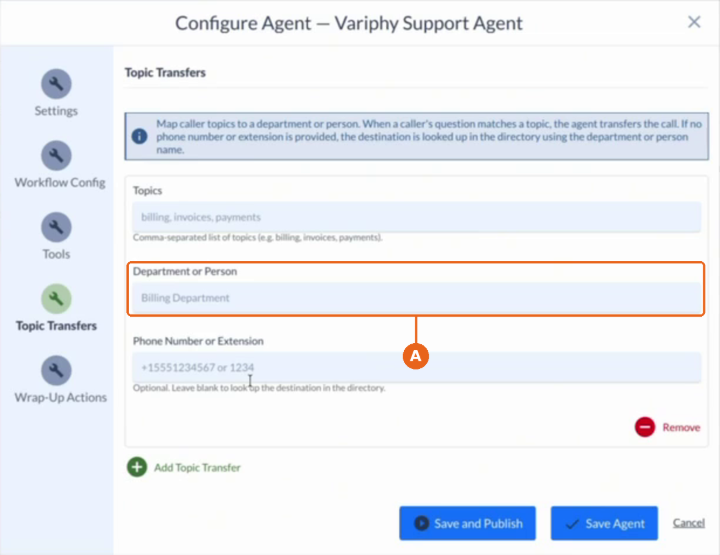
6. Name the department or person.
A. In Department or Person, enter the team or person who should handle calls about these topics (e.g., Billing Department).
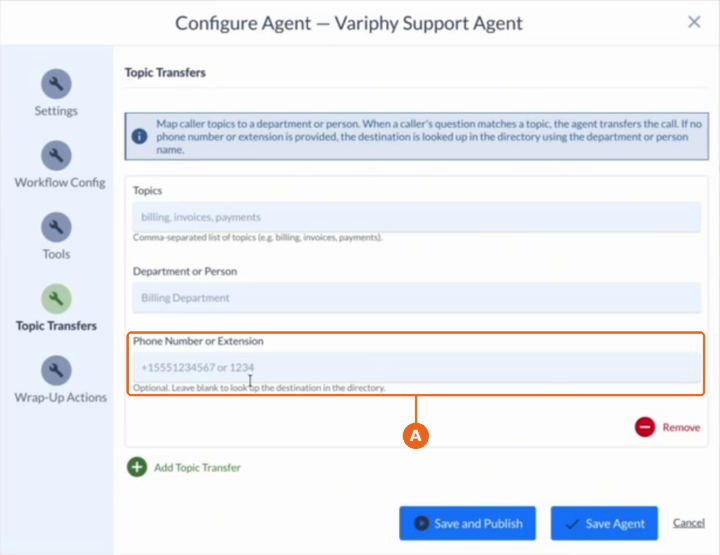
7. Add the transfer number.
A. In Phone Number or Extension, enter the number or extension to transfer to (e.g., +15551234567 or 1234). This field is optional. Leave it blank and the agent looks up the destination in your directory using the department or person name.
To route more topics, click Add Topic Transfer again and repeat steps 5–7. Click Remove to delete a topic transfer.
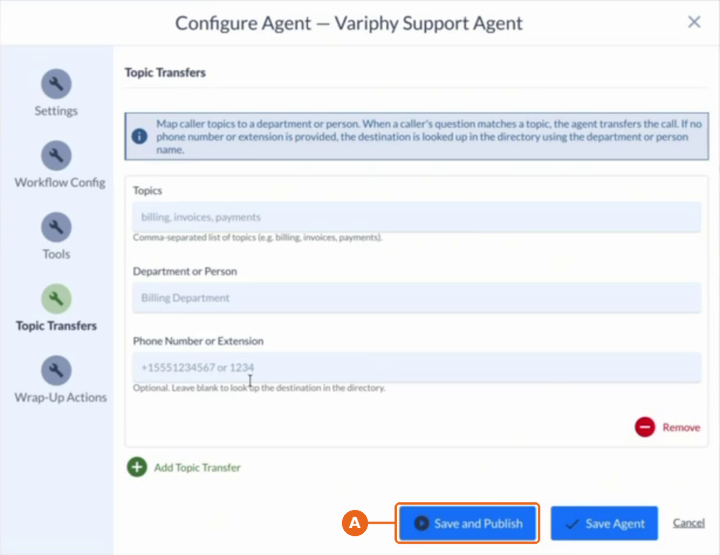
8. Click Save and Publish.
A. Click Save and Publish to apply your topic transfers to the agent.
Once published, your agent will:
- Recognize when a caller’s question matches one of your topics.
- Transfer the call to the department or person you assigned.
- Look up the destination in your directory when no phone number or extension is provided.
Still Need Help?
Email our support team at support@variphy.com or click the button below to access our ticket portal.
Please provide details about your question or issue, including any applicable screenshots, reports, or Variphy application log files.
