
Applies to:
- Organizations using Colleen AI Voice Agent to answer inbound calls.
- Administrators who manage the information their agent uses to answer callers.
- Teams that keep business details on websites, in PDF documents, or in internal notes.
Common Causes or Issues
- Give your agent the information it needs to answer caller questions.
- Add a website URL, and Colleen AI Voice Agent crawls and indexes its content.
- Upload a PDF document up to 25 MB.
- Enter or paste plain text, such as contact information, hours, or policies.
Interactive Walkthrough
How to Add a Knowledge Source
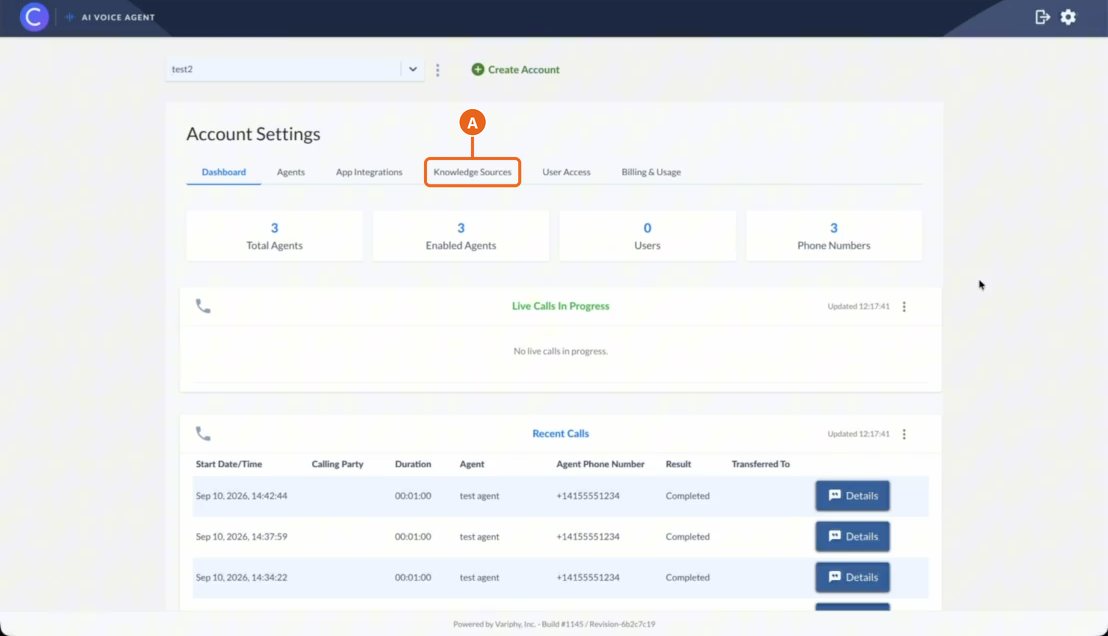
1. Open the Knowledge Sources tab.
A. In the Colleen AI Voice Agent portal, go to Account Settings and click Knowledge Sources.
2. Click “Create” and choose a source type.
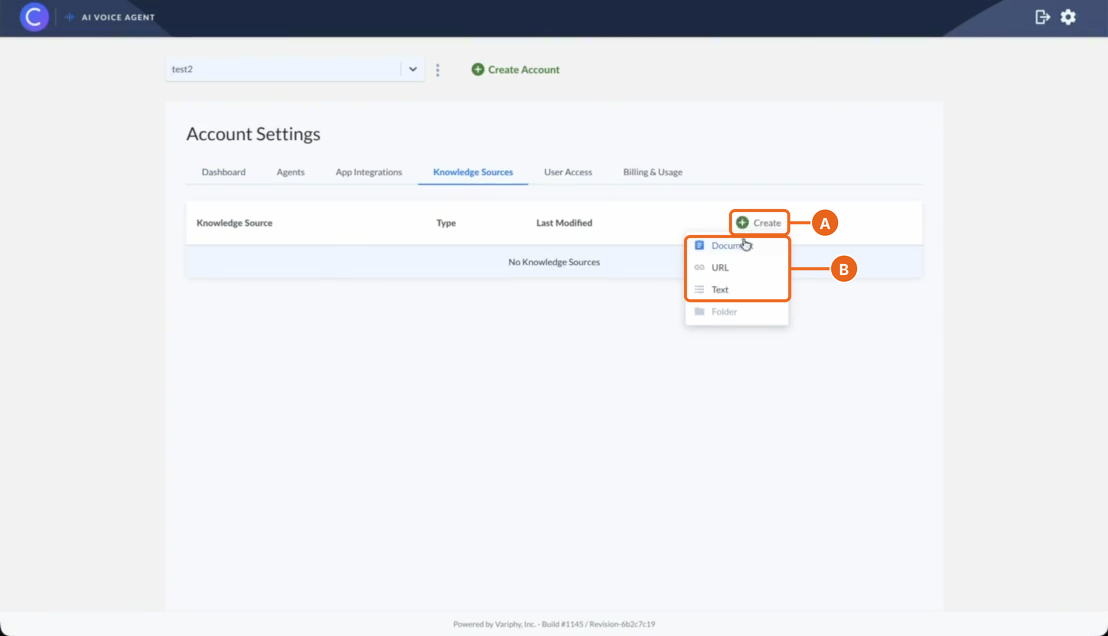
A. On the Knowledge Sources tab, click Create.
B. Choose Document, URL, or Text. The Add Knowledge Source window opens.
3. Name the knowledge source.
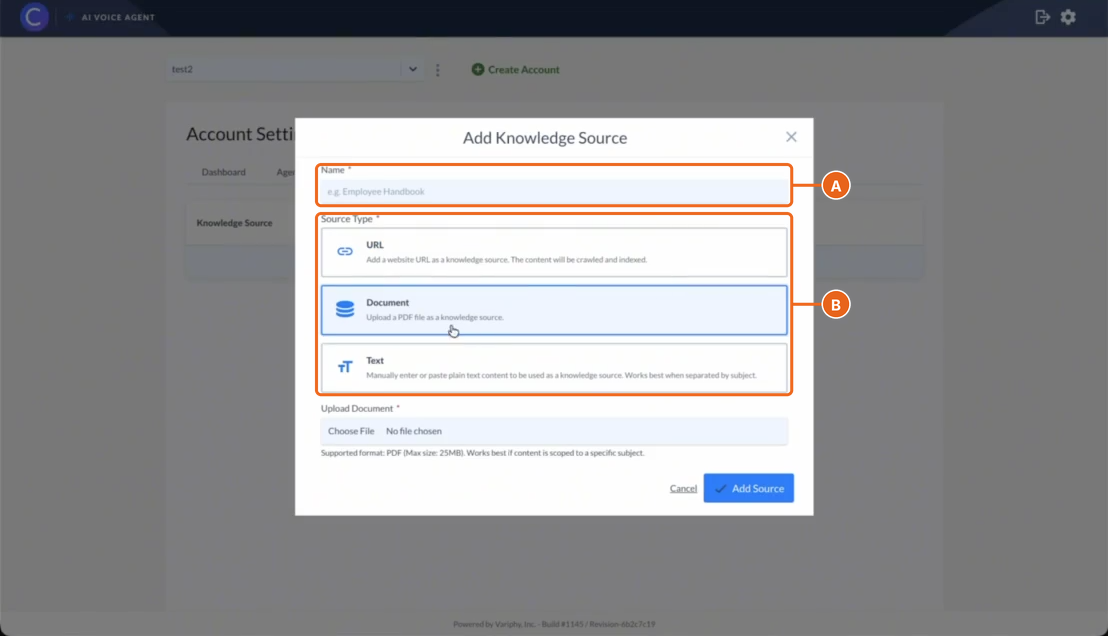
A. In Name, enter a name that describes the content (e.g., Employee Handbook).
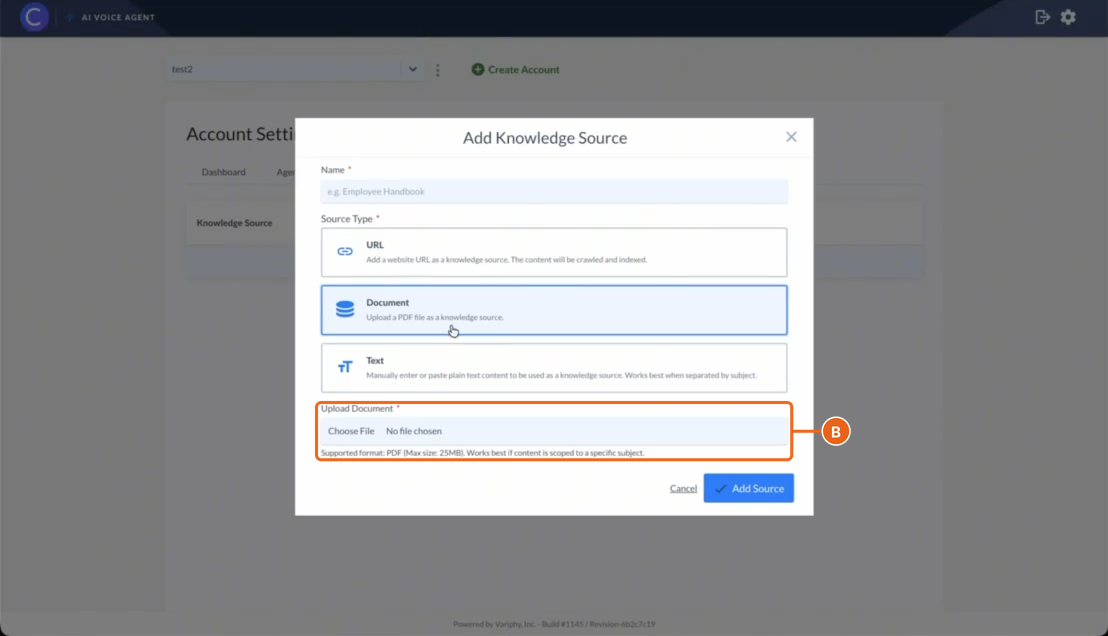
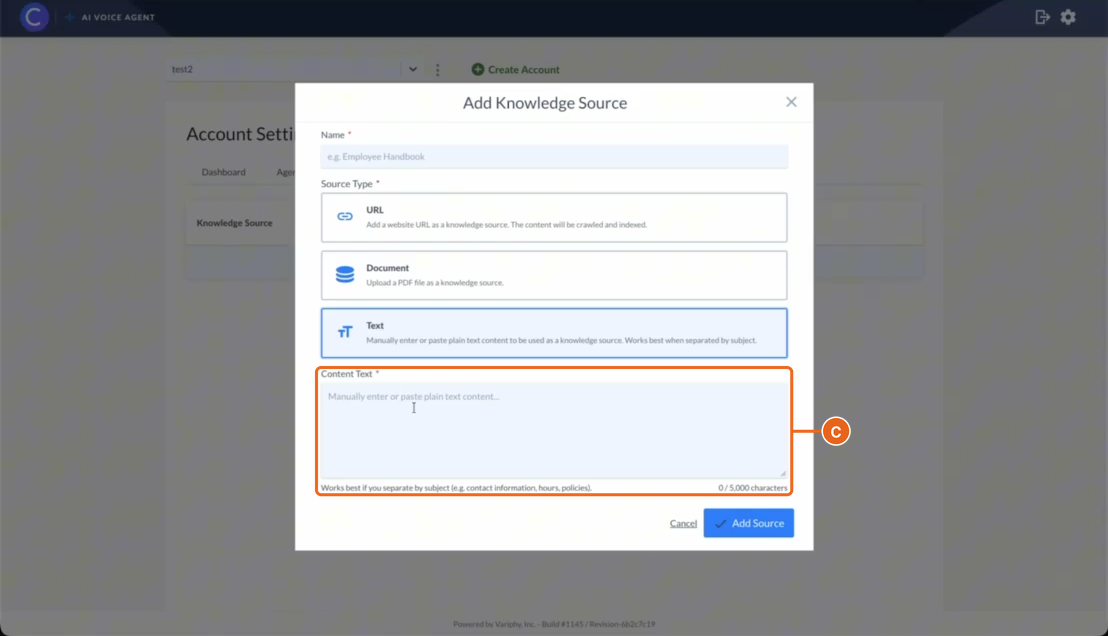
B. Under Source Type, check the type you want. You can switch between URL, Document, and Text here.
4. Add the content.
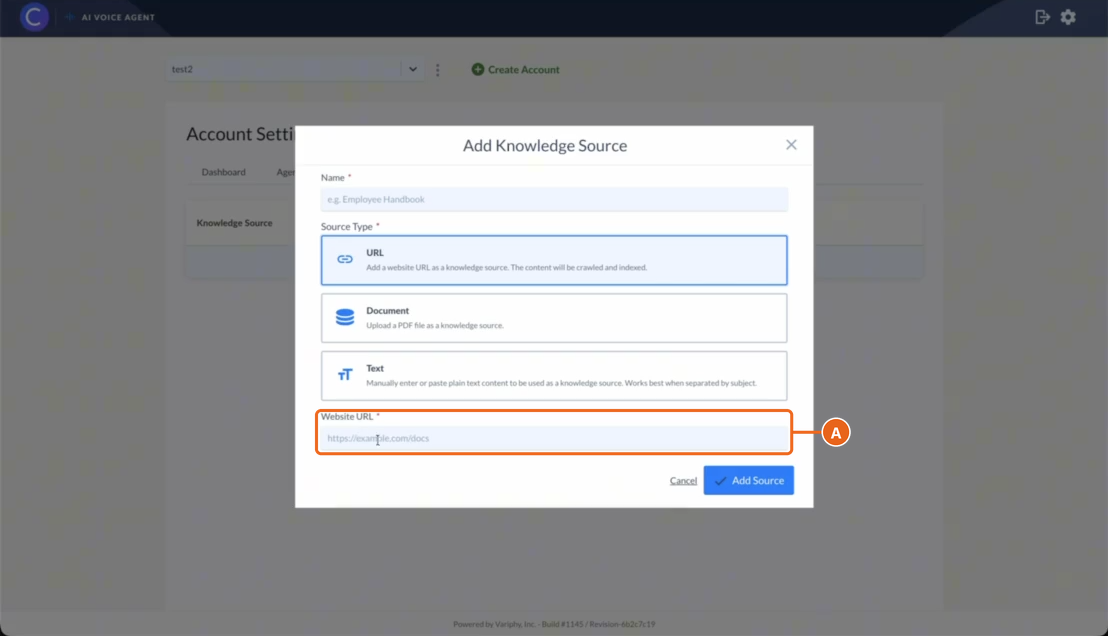
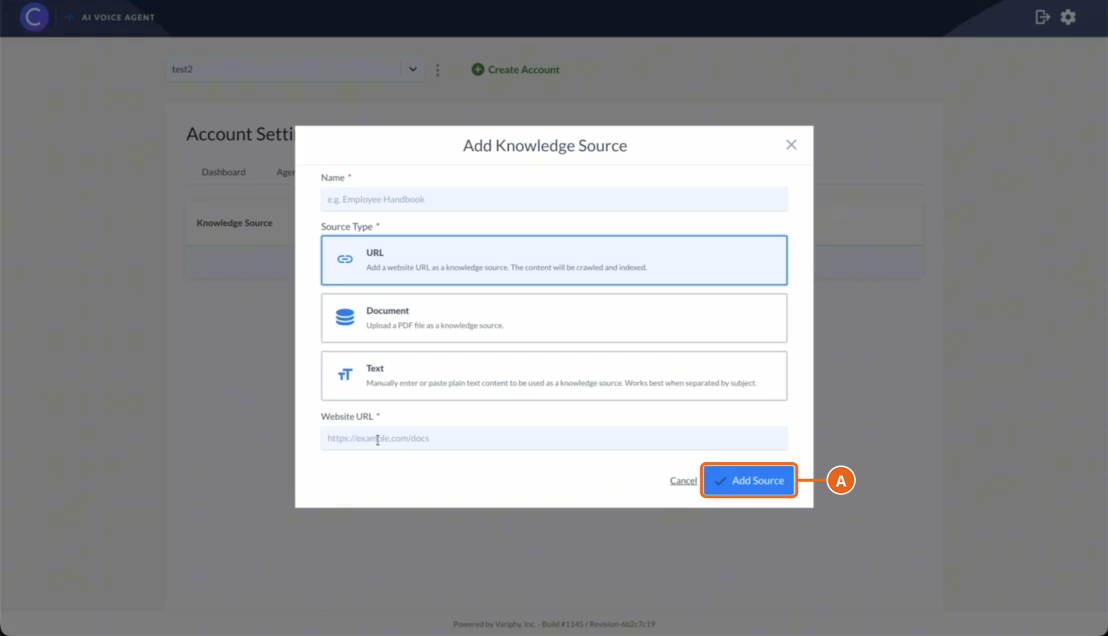
A. For URL, enter the page address in Website URL. Colleen AI Voice Agent crawls and indexes the content.
B. For Document, click Choose File under Upload Document and select a PDF. The maximum size is 25 MB, and a file scoped to one subject works best.
C. For Text, enter or paste up to 5,000 characters in Content Text. Separate the text by subject (e.g., contact information, hours, policies).
5. Click “Add Source”.
A. Click Add Source to save the knowledge source.
Once you add a knowledge source, it:
- Appears on the Knowledge Sources tab with its type and last modified date.
- Gives your agent content to draw on when it answers callers.
Still Need Help?
Email our support team at support@variphy.com or click the button below to access our ticket portal.
Please provide details about your question or issue, including any applicable screenshots, reports, or Variphy application log files.
