
Applies to:
- Organizations using Colleen AI Voice Agent to answer inbound calls.
- Administrators adding teammates to their Colleen AI Voice Agent account.
- Teams that want to control which agents each person can manage or view.
Common Causes or Issues
- Add teammates to your account from the User Access tab.
- Give each person the role that fits their job: Account Administrator, Agent Administrator, or View Only.
- Give a user access to every agent on the account, or only the agents you choose.
- Invite more than one person from the same window.
Interactive Walkthrough
How to Invite Users
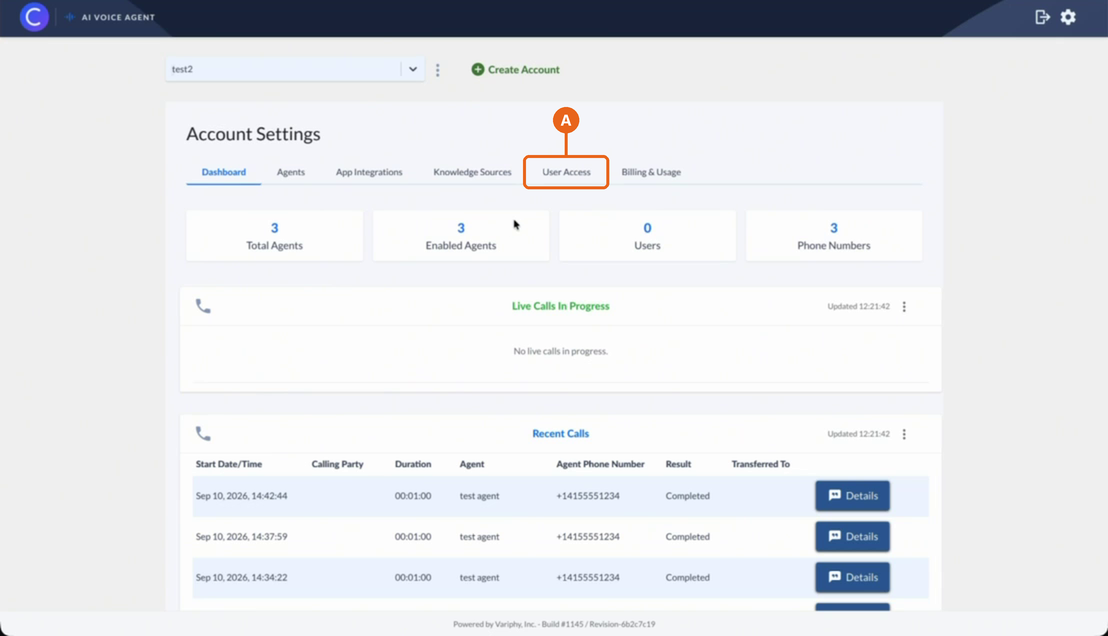
1. Open the User Access tab.
A. In Colleen AI Voice Agent, go to Account Settings and click the User Access tab.
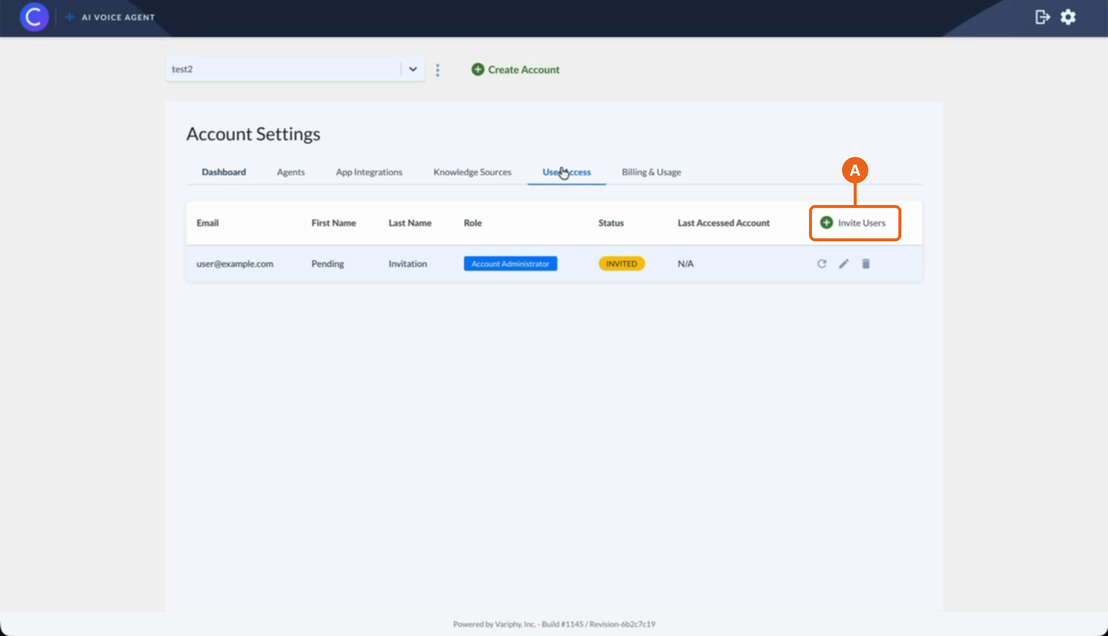
2. Click “Invite Users”.
A. On the User Access tab, click Invite Users. The Invite Users window opens.
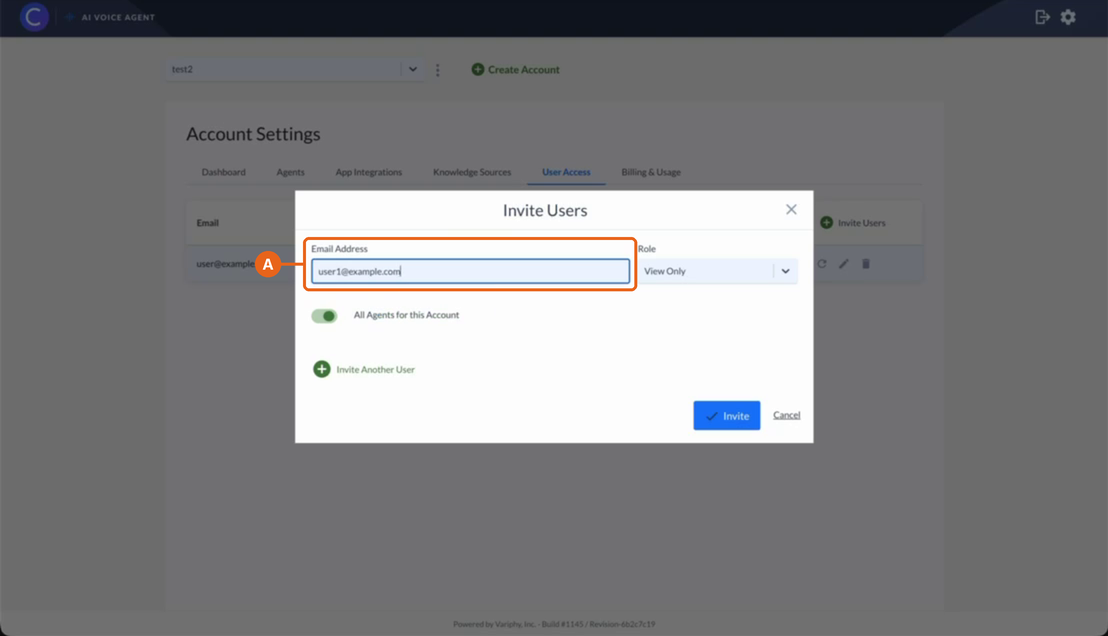
3. Enter an email address.
A. In Email Address, enter the email of the person you want to invite.
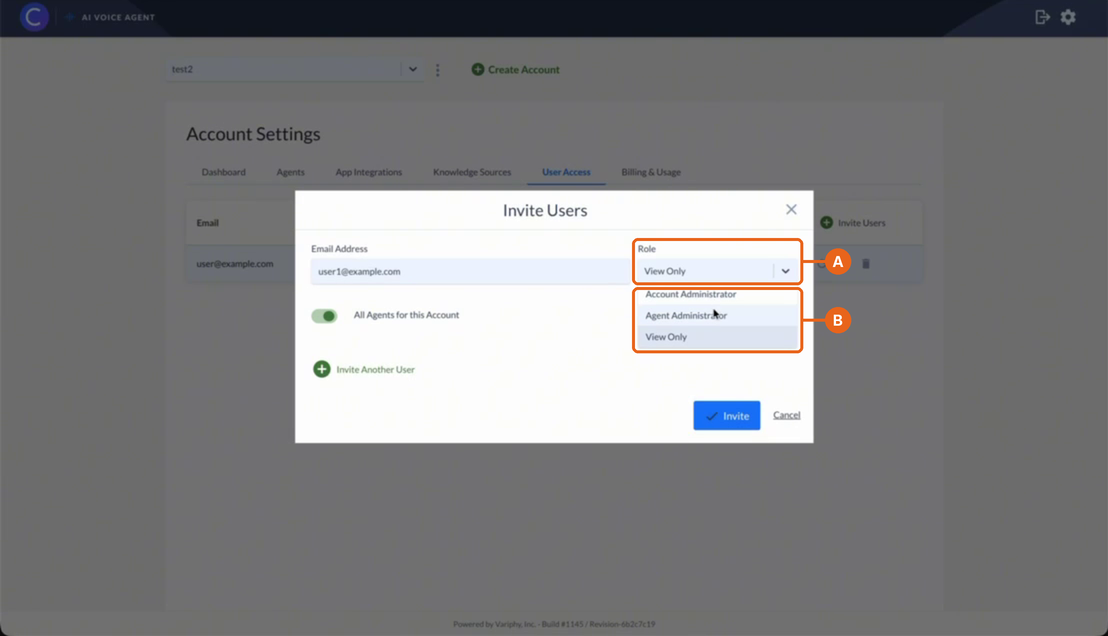
4. Choose a role.
A. Open the Role list. The default is View Only.
B. Select Account Administrator, Agent Administrator, or View Only.
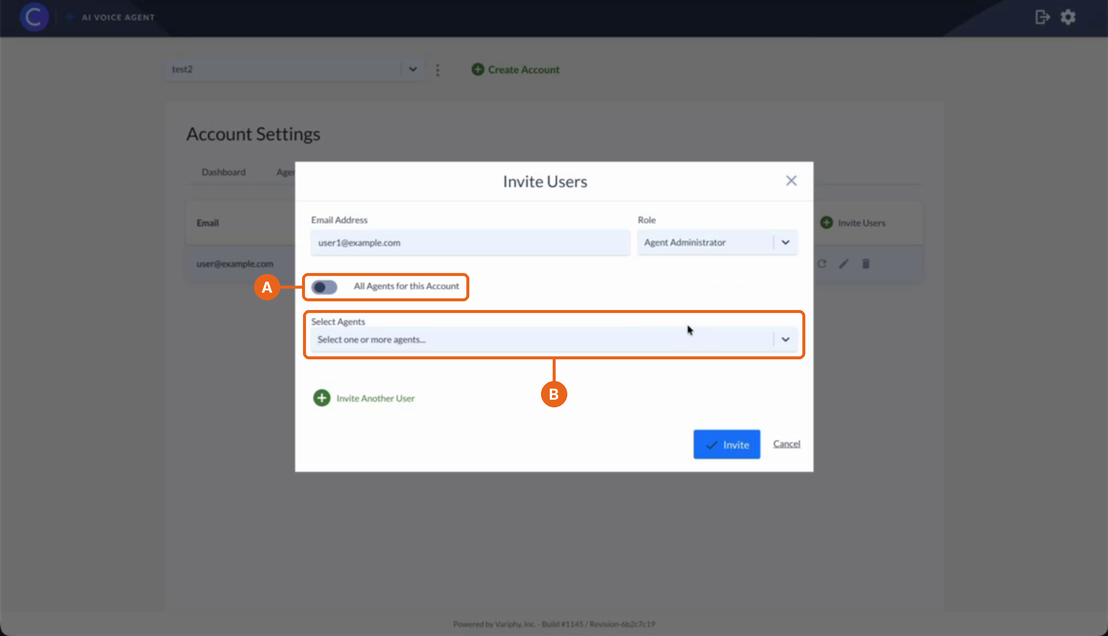
5. Choose which agents the user can access.
A. Leave All Agents for this Account on to give the user access to every agent on the account.
B. To limit access, turn off All Agents for this Account, then choose one or more agents from Select Agents. If you selected Account Administrator, these options don’t appear. Go to the next step.
6. Click “Invite”.
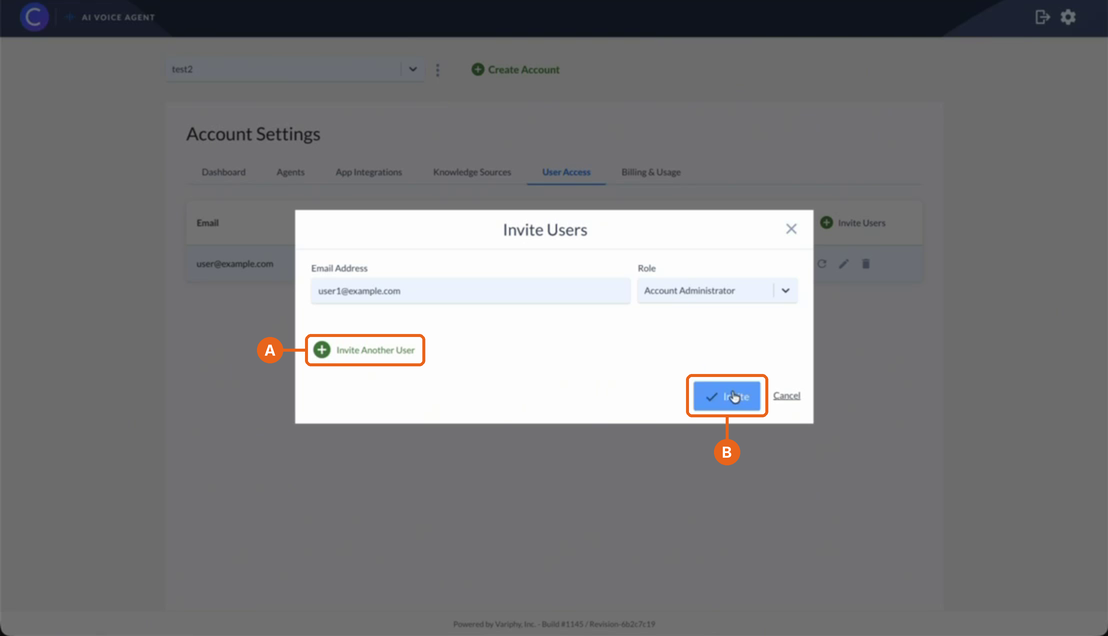
A. To invite more people at the same time, click Invite Another User and repeat steps 3 to 5.
B. Click Invite. A message confirms the invitation was sent.
Once you send the invitation, the user:
- Appears on the User Access tab with the status Invited.
- Gets the role and agent access you chose.
Still Need Help?
Email our support team at support@variphy.com or click the button below to access our ticket portal.
Please provide details about your question or issue, including any applicable screenshots, reports, or Variphy application log files.
