
Applies to:
- Organizations using Colleen AI Voice Agent to answer inbound calls.
- Administrators and supervisors who review how their agent handles callers.
- Teams that need a record of what was said on a call.
Common Causes or Issues
- Check what a caller asked for and how your agent responded.
- Review calls to find where your agent’s instructions or knowledge sources need work.
- Keep a copy of the call audio for follow-up or records.
Interactive Walkthrough
Steps
How to View a Call’s Transcript and Recording
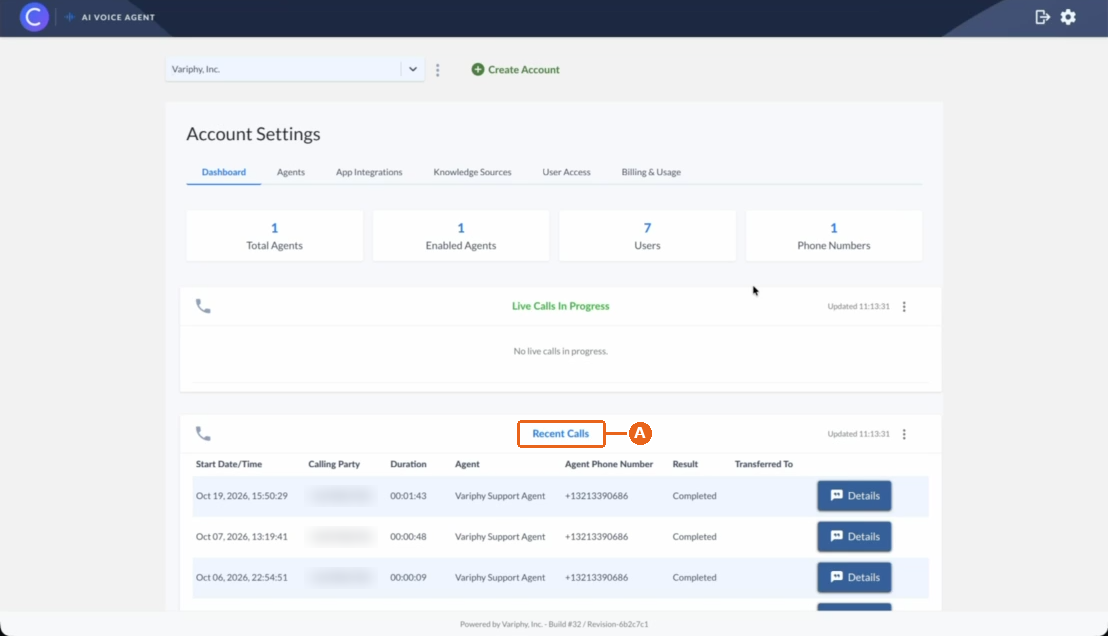
1. Go to Recent Calls.
A. In the Colleen AI Voice Agent portal, open Account Settings. On the Dashboard tab, scroll down to Recent Calls.
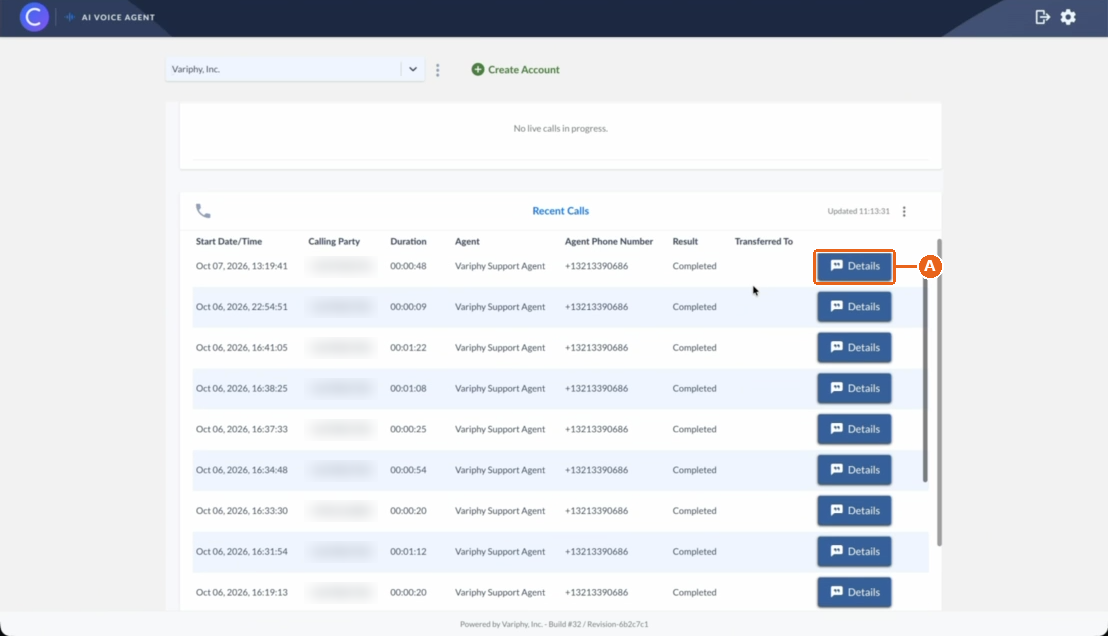
2. Click “Details” on the call.
A. Find the call by its Start Date/Time, Calling Party, or Agent, and click Details.
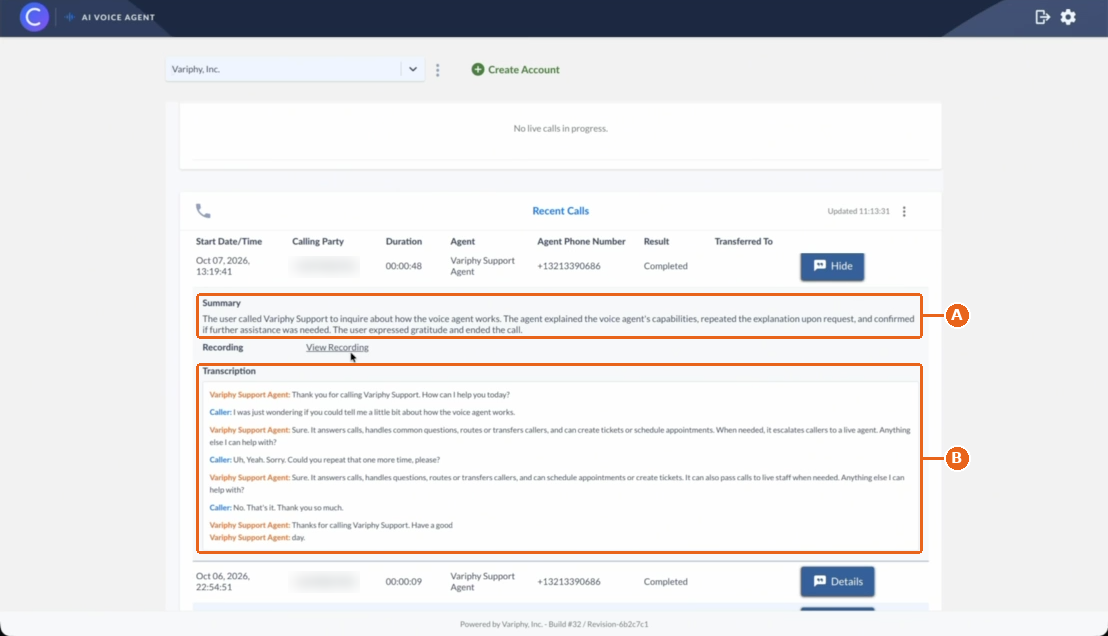
3. Read the summary and transcript.
A. Under Summary, read a short recap of the call.
B. Under Transcription, read the full conversation. Each line shows who spoke, your agent or the caller.
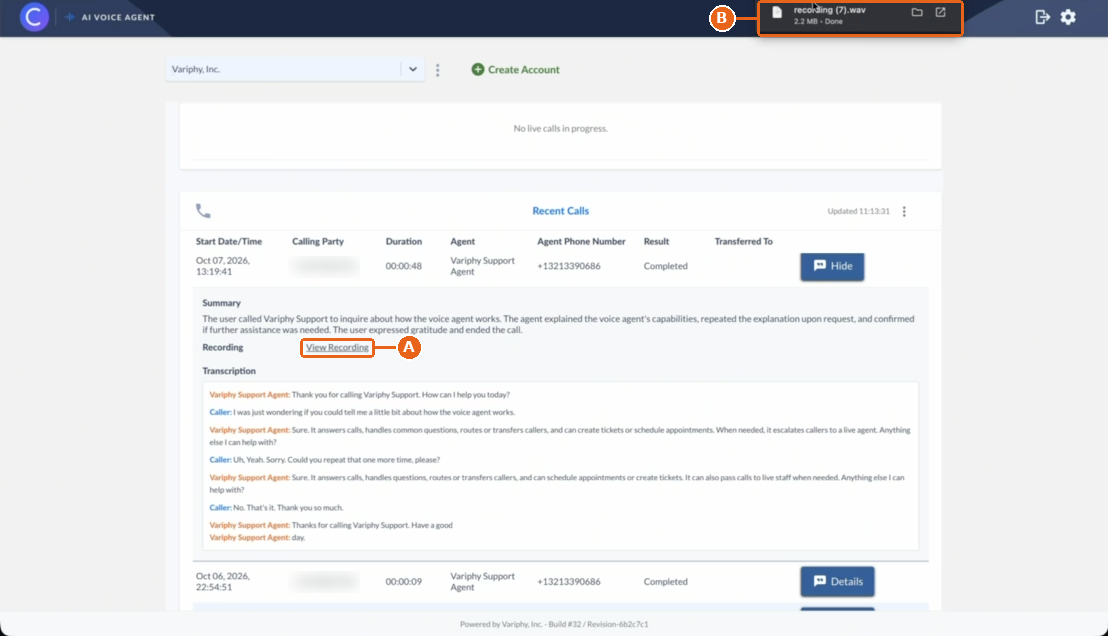
4. Download the recording.
A. Next to Recording, click View Recording.
B. The recording downloads to your computer as a .wav file.
Once you open a call’s details, you can:
- Read the call summary and the full transcript, labeled by speaker.
- Download the call recording as a .wav file.
- Click Hide to close the details and return to the list.
Still Need Help?
Email our support team at support@variphy.com or click the button below to access our ticket portal.
Please provide details about your question or issue, including any applicable screenshots, reports, or Variphy application log files.
